

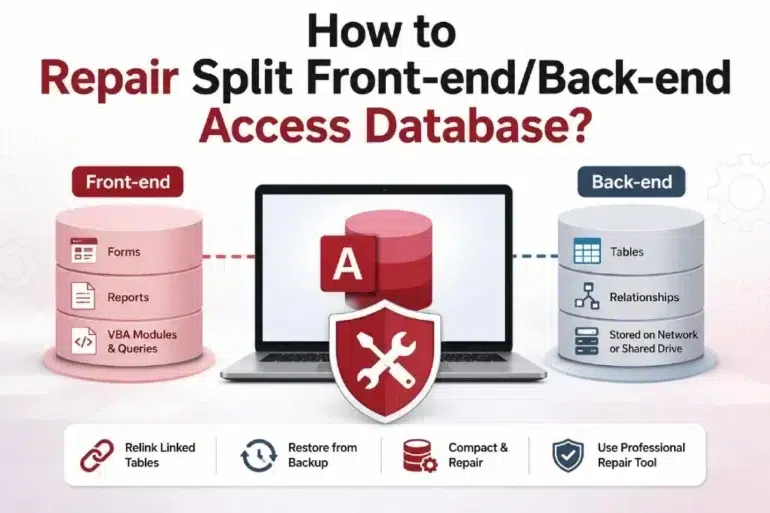
Microsoft Access allows you to split your database into two files – a back-end database and a front-end database to improve performance, support multi-user access, and reduce the chances of corruption. The front-end database file contains the database objects that users interact with. It includes reports, forms, VBA modules, and queries. It is typically located on the user’s local system. The back-end database file contains data tables and table relationships. It is usually stored on a network or shared drive.
Though splitting the database helps reduce the chances of corruption, problems can still occur due to various internal and external factors. In this article, we will discuss the causes of corruption and explain how to repair a split Access database. For severe cases, a free Access database repair tool is available that repairs and saves up to 500MB at no cost.
What causes Corruption in Split Access Database?
Splitting a database involves separating the design from the data tables. But data in a split database can still get corrupt due to one of the following reasons:
- When running a complex and large update query if your network drops, the Back-end database can be left in an incomplete state, leading to corruption in the tables.
- Multiple users opening or working on the same front-end file on a shared or network drive can cause resource conflicts. This can disrupt the internal code of the front-end file.
- If your system suddenly crashes while Access is writing data, this can corrupt the back-end file.
- If you create or compile the front-end database on Microsoft 365 and run it on Access 2016, it can impact internal code references and cause compatibility issues, affecting database objects.
How to Check Issues in Split Access Database?
First, determine whether the problem is with the front‑end or the back‑end database. Errors such as “Could not find file…”, “Not a valid path”, or “The Access database engine cannot find the input table” indicate that the front‑end is working but cannot locate the back‑end tables, pointing to a frontend link issue. On the other hand, messages like “Unrecognized Database Format” or “The database needs to be repaired” indicate corruption in back-end database.
You can even check issues in split database by opening the back‑end file directly from the shared network. If it opens without errors, the fault lies in the front‑end link. And, if only one specific user experiences errors while others can access the database normally, this means the issue is isolated to that user’s front‑end file.
Methods to Repair Split Front-end/Back-end Access Database
Here are the methods you can use to repair a split database in Access.
1-Relink Linked Tables
If there are connection issues/broken paths in the front-end file, then first try to fix them using Linked Table Manager. Here’s how to check and relink the linked tables:
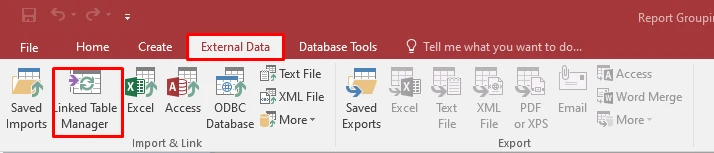
- Open the front-end database, click the External Data tab, and then click Linked Table Manager.
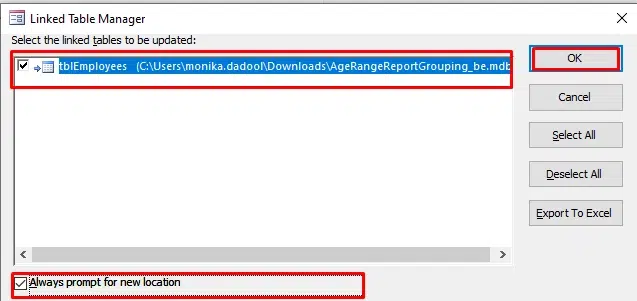
- In the Linked Table Manager window, you will see all listed tables that are linked to the back-end database.
- Confirm all table links, file paths, and connections are correct.
- If you find any issues, then relink the tables by selecting the table you want to relink. Next, select “Always prompt for new location” option and click OK.
- In the dialog box, select the back-end file location and then click Open.
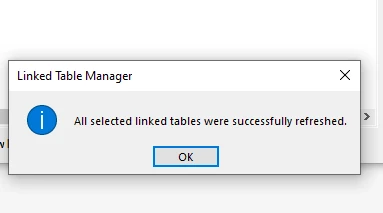
- Access will relink the selected tables and display the confirmation message “All selected linked tables were successfully refreshed“. Click OK.
2-Restore the Database from Backup
If the split database is corrupted, you can restore it from backup. Here are the steps to restore the database from backup:
- Open the File Explorer on your system.
- Go to the folder where your backup of the database is located.
- Copy the backup file and paste it into the folder where the damaged database is saved.
To restore specific objects from a front-end/back-end Access database, you can import data from them into a new database file. It helps recreate the structure of the corrupt database file and recover its objects. However, it is a time-consuming process and importing complex tables with relationships, VBA modules, and macros may lead to data loss.
3-Use Compact and Repair Tool
You can use the Access built-in Compact and Repair tool to repair split database. It compacts the database by reclaiming the unused space and fixes minor corruption issues. Before using it, first copy the back-end file from the network drive to your local system. Also ensure that no other users are currently accessing the database.
If you’re able to open the split database, go to Database Tools and then click Compact and Repair Database.
If you’re not able to open the database, then follow these steps to use the Compact and Repair tool:
- Open the Microsoft Access application.
- On the Templates window, double-click the Blank Database option.
- Click File and then click Close.
- Select Database Tools and then select Compact and Repair Database.
- On the Database to Compact From window, browse and select the database you want to repair. Then, click Compact.
- Select a location where you want to save the repaired database file and click Save.
Use Professional Access Repair Tool
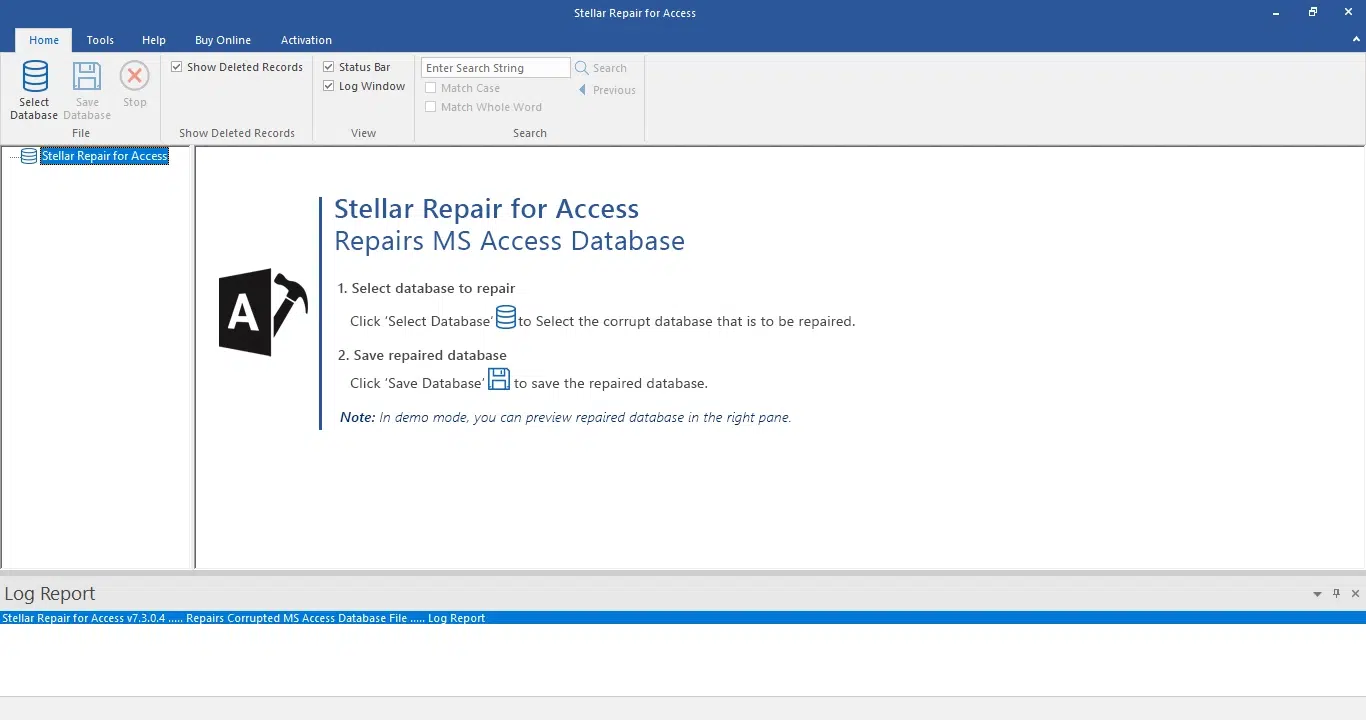
If the split database is severely corrupted, then you can use a specialized Access repair tool, such as Stellar Repair for Access. It can repair highly corrupted database files, including both front-end and back-end files, with complete integrity. It can easily recover all database objects – forms, macros, tables with relationships, and VBA queries. In addition, it allows you to perform specific object recovery from MDB/ACCDB files. The tool supports repairing database created in Microsoft 365, Access 2024, 2019, 2016, 2013, and lower versions up to Access 2002.