

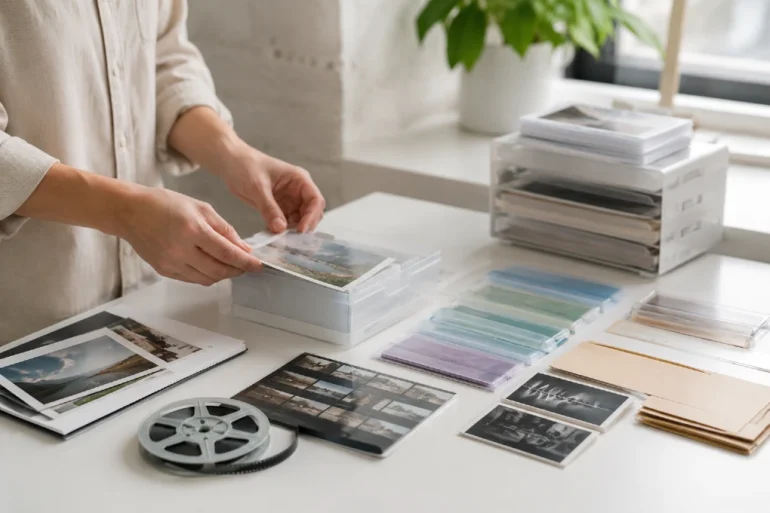
A Simple Media System can make the difference between a messy digital workspace and a smooth, organized content operation. If you run a blog, manage videos, store brand images, handle client files, or publish content across different platforms, you already know how quickly media files can pile up. One folder becomes ten. File names stop making sense. The “final version” somehow has five copies.
That is where a smarter media setup becomes useful.
A media system does not have to be complicated. In fact, the best one is often simple enough for everyone on a team to understand, but strong enough to support daily content work. Whether you are a blogger, small business owner, marketer, publisher, or website manager, having a clear way to store, label, find, and reuse digital content can save time and reduce mistakes.
What Is a Simple Media System?
A Simple Media System is a structured way to manage digital files such as images, videos, audio files, graphics, PDFs, presentations, and other content assets.
It usually includes a few basic parts:
- A clear folder structure
- Consistent file naming
- Searchable tags or categories
- Cloud or local storage
- Access controls
- Backup rules
- A workflow for uploading, reviewing, and publishing files
The goal is not to build a complex enterprise platform. The goal is to make digital content easier to manage, especially when files are used repeatedly across websites, blogs, social media, email campaigns, and internal projects.
Think of it as a clean digital library. Every file has a place. Every team member knows where to look. Old files are not mixed with current assets. Important media does not disappear when someone leaves the team.
That sounds simple, but for many businesses and content creators, it solves a real problem.
Why Digital Content Management Gets Messy So Fast
Digital content grows quietly.
At first, you may only have a few blog images or product photos. Then you add video clips, thumbnails, social media graphics, logos, screenshots, PDFs, audio files, and downloaded assets from different campaigns. Before long, your media library becomes difficult to control.
The problem usually starts with small habits:
- Files are saved with names like “image1.jpg” or “final-final-new.png”
- Multiple people upload the same file in different places
- Old images are reused by mistake
- Videos are stored without dates or project names
- No one knows which version is approved
- Large files slow down websites or storage systems
A Simple Media System helps prevent these issues before they become expensive.
For example, if a website editor needs a product image, they should not spend 20 minutes searching through random folders. If a designer updates a banner, the older version should not keep circulating in future campaigns. If a blog team publishes weekly content, they should be able to find featured images quickly and know which ones are already used.
Good media organization is not only about neatness. It supports speed, accuracy, brand consistency, and better publishing habits.
How a Simple Media System Supports Smarter Workflows
A smarter workflow means fewer delays and fewer repeated tasks.
When media files are organized properly, content teams can move from idea to publishing with less friction. Writers can find article images faster. Designers can access brand assets without asking around. Editors can check approved visuals before publishing. Business owners can review content without digging through email threads.
A Simple Media System supports this by creating a predictable path for every file.
For example:
- A new image is created or uploaded.
- It is named using a clear format.
- It is placed in the correct folder.
- It is tagged by topic, project, or content type.
- It is reviewed and approved.
- It is published or archived.
- A backup copy is stored safely.
This process may sound basic, but it removes confusion. It also makes your content operation easier to scale.
If you publish one article a month, messy storage may not feel like a problem. If you publish five articles a week, manage several writers, or run multiple websites, the same messy storage becomes a real bottleneck.
Core Features of an Effective Media Management Setup
A good system does not need hundreds of features. It needs the right ones.
Here are the core features that matter most.
Clear File Organization
The foundation of a Simple Media System is a logical structure. This can be based on year, project, content type, client name, campaign, or website category.
For example, a blog website might organize folders like this:
| Main Folder | Subfolder Example | Purpose |
|---|---|---|
| Blog Images | Technology, Travel, Business | Store article visuals by category |
| Videos | Shorts, Tutorials, Reviews | Keep video assets separated |
| Brand Assets | Logos, Fonts, Banners | Store approved branding files |
| Social Media | Facebook, Instagram, Pinterest | Manage platform-specific content |
| Archive | 2023, 2024, Old Campaigns | Keep older files without clutter |
This type of structure makes sense to most people, even without training.
Consistent File Naming
File names are often ignored, but they matter a lot.
A file called “IMG_4582.jpg” tells you nothing. A file called “simple-media-system-dashboard-2026.jpg” is far more useful.
A practical naming format could look like this:
topic-contenttype-date-version
Example:
simple-media-system-blog-image-2026-v1.jpg
This makes files easier to search, sort, and understand.
For websites, descriptive image names can also help with SEO when used naturally. They give search engines more context about the file, especially when paired with proper alt text and page content.
Search and Tags
Folders are useful, but search makes a media library faster.
Tags can help you find files by:
- Topic
- Campaign
- Author
- Client
- Format
- Status
- Usage rights
- Publishing platform
For instance, one image could be tagged as “technology,” “blog featured image,” “approved,” and “2026 campaign.” That makes it easier to reuse later without searching manually through every folder.
Version Control
One of the most common content problems is version confusion.
Someone downloads an old logo. Someone publishes an outdated banner. A writer uses the wrong thumbnail. These mistakes happen when teams do not know which file is current.
A Simple Media System should make file status obvious.
Use labels like:
- Draft
- In Review
- Approved
- Published
- Archived
For file versions, use simple labels such as:
- v1
- v2
- final
- approved
Avoid names like “final-new-latest-real-final.” They may feel funny, but they create confusion later.
Access Control
Not everyone needs access to everything.
A writer may need article images. A designer may need brand assets. A freelancer may only need one project folder. An admin may need full control.
Basic access control helps protect important files and prevents accidental changes.
This is especially useful when working with clients, remote teams, or outside contractors.
Backup and Recovery
Media files can take months or years to build. Losing them can be painful.
A smart system should include backups. These can be cloud backups, external drives, or automatic backup tools. The important thing is to avoid relying on only one storage location.
A simple backup rule is this:
Keep one working copy, one backup copy, and one separate recovery copy for important media.
This may sound cautious, but it can save a business from serious problems after accidental deletion, device failure, or account issues.
Simple Media System for Bloggers and Publishers
Bloggers often deal with more media than they realize.
A single article may include a featured image, screenshots, infographics, author images, social media graphics, and downloadable files. Multiply that by hundreds of posts, and the media library becomes difficult to manage.
A Simple Media System helps bloggers keep content assets connected to the right articles.
For example, a blog owner can create folders based on content categories:
- Technology
- Business
- Travel
- Health & Fitness
- Home Improvement
- Entertainment
Inside each category, files can be organized by article title or month.
This makes future updates much easier. If an old article needs a new image, the editor can quickly locate the original visual assets. If a post is refreshed for SEO, the media can be reviewed and updated at the same time.
It also helps with internal quality control. Old, blurry, oversized, or irrelevant images can be replaced before they hurt the reader experience.
Simple Media System for Small Businesses
Small businesses often use media across many places: websites, product pages, ads, email newsletters, brochures, presentations, and social media.
Without a system, teams waste time asking questions like:
“Where is the latest logo?”
“Which product photo should I use?”
“Do we still use that old banner?”
“Who has the video file from last month?”
A Simple Media System gives everyone a shared source of truth.
For example, a local home improvement company could keep separate folders for completed projects, customer testimonials, service images, before-and-after photos, and seasonal promotions. When the marketing team needs visuals for a new campaign, they can find approved media in minutes.
This keeps branding consistent and reduces the chance of using outdated or low-quality files.
Real-World Scenario: A Messy Blog Becomes Easier to Manage
Imagine a growing blog website with several categories, including Technology, Business, Travel, Health, and Lifestyle.
At first, the owner uploads images directly into the website media library without naming them properly. Some files are downloaded from designers, some from freelancers, and some from older campaigns. After two years, the media section has thousands of files.
The problems start slowly.
Writers reuse the same images too often. Editors cannot find original graphics. Large images slow down pages. Some visuals no longer match the article topics. The website looks inconsistent.
Then the owner creates a simple media process.
Files are renamed before upload. Images are sorted by category. Old assets are archived. Featured images are compressed before publishing. Each article folder includes the final image, source file, and thumbnail version.
Within a few weeks, the team works faster. The website looks cleaner. Updating old posts becomes easier. No expensive software was needed at first. The real improvement came from building a simple habit-based system.
That is the value of smarter digital content management.
How Media Organization Can Improve Website Performance
A media system is not only about finding files. It can also affect website speed.
Large, uncompressed images and videos can slow down web pages. Slow pages can frustrate readers, increase bounce rates, and make mobile browsing less enjoyable. Since many users browse from phones, media size and format matter.
A Simple Media System can include basic optimization steps before files are uploaded.
Helpful practices include:
- Compress images before publishing
- Use modern formats when suitable
- Resize images to the correct display size
- Avoid uploading huge original files when a smaller version is enough
- Store original high-resolution files separately
- Use descriptive alt text for important images
For example, a 5000-pixel-wide image may look the same on a blog page after resizing, but it can weigh much more than needed. A simple rule is to prepare web-ready images before upload, while keeping the original file in storage.
This keeps your website cleaner and easier to maintain.
Best Practices for Building a Simple Media System
You do not need to rebuild everything in one day. Start with the areas that create the most confusion.
Start With a Folder Structure
Choose a structure that matches how you work.
For a blog, categories may work best. For an agency, client names may work better. For a product business, product lines may make more sense.
The best folder structure is the one your team can follow without thinking too hard.
Create Naming Rules
Write down a simple naming rule and use it consistently.
A good format includes:
- Topic or project name
- Content type
- Date or year
- Version number
Example:
business-email-campaign-banner-2026-v1.png
This makes search easier and reduces confusion.
Separate Drafts From Approved Files
Draft media should not sit next to final media without labels.
Create folders or tags for:
- Draft
- Review
- Approved
- Published
- Archive
This helps editors and team members avoid using unfinished assets.
Keep Original Files Safe
For edited images or videos, store original files separately. This gives you flexibility if you need to make changes later.
For example, keep the original PSD, AI, RAW, or high-resolution video file in an “Originals” folder. Use a web-ready version for publishing.
Review Old Media Regularly
A media library should not become a dumping ground.
Set a schedule to review files every few months. Remove duplicates, archive outdated visuals, and update folders that have become messy.
This keeps your Simple Media System useful over time.
Common Mistakes to Avoid
Even a good setup can fail if people ignore the basics.
Here are common mistakes that weaken media management:
- Creating too many folders
- Using unclear file names
- Forgetting to back up important files
- Mixing drafts with final assets
- Giving too many people full editing access
- Uploading oversized files to websites
- Keeping duplicate versions everywhere
- Not documenting the system
The biggest mistake is making the system too complicated.
If people cannot understand it quickly, they will avoid using it. A simple system that people follow is better than a perfect system that no one uses.
Tools That Can Support a Simple Media System
The right tool depends on your needs and budget.
For individuals or small teams, simple cloud storage may be enough. For larger teams, digital asset management platforms may offer stronger tagging, permissions, version control, and workflow features.
Common options include:
- Cloud storage platforms
- Website media libraries
- Project management tools
- Digital asset management software
- Shared drives
- Content management systems
- Backup tools
The tool is less important than the process. A messy team can make even expensive software confusing. A clear team can make basic tools work well.
Before choosing a platform, ask:
- How many people will use it?
- What file types do we manage most?
- Do we need approval workflows?
- Do we need client access?
- How much storage do we need?
- How important is search?
- Do we need integrations with a website or CMS?
These questions help you avoid paying for features you do not need.
Why Simplicity Matters More Than Fancy Features
Many businesses jump straight into advanced tools before fixing basic habits.
They want automation, dashboards, permissions, and integrations, but their file names are still unclear. Their folders are still random. Their team still does not know which assets are approved.
A Simple Media System works because it starts with clarity.
When the rules are easy, people follow them. When the system is predictable, files stay organized. When the workflow is simple, new team members can learn it quickly.
That is why simplicity is not a weakness. It is often the reason the system survives daily use.
Actionable Tips for Smarter Digital Content Management
Here are practical steps you can apply right away:
- Audit your current media library and identify the messiest areas.
- Create 5 to 8 main folders instead of dozens of confusing ones.
- Rename important files using a consistent format.
- Compress web images before uploading them.
- Create a separate archive for old content.
- Use tags for topics, campaigns, or approval status.
- Limit editing access to people who really need it.
- Back up important files in more than one location.
- Write a short one-page media management rule sheet.
- Review the system every quarter.
These steps may seem small, but they can improve your publishing workflow quickly.
For example, a blogger who publishes three posts per week can save hours each month by organizing images properly. A small business can avoid brand mistakes by keeping only approved logos and banners in the main folder. A marketing team can move faster when every campaign has a clean media folder from the start.
How a Simple Media System Helps With Brand Consistency
Brand consistency is not only about colors and logos. It is also about using the right visuals in the right way.
If one team member uses an old logo, another uses a blurry product photo, and another uses the wrong banner size, the brand starts to look careless.
A Simple Media System helps prevent that.
Approved brand assets should be easy to find. Old versions should be archived. File names should make the purpose clear. If a logo is meant for dark backgrounds, the file name should say so. If an image is only for social media, that should be clear too.
This matters even more for businesses that publish across multiple channels. A clean media library keeps the website, social media, email newsletters, and ads visually aligned.
Using a Simple Media System With a Content Calendar
A content calendar tells you what is being published. A media system helps you manage the assets behind that content.
Together, they create a smoother workflow.
For example, if your blog calendar includes five upcoming articles, each article can have a matching media folder. That folder can hold the featured image, screenshots, charts, thumbnails, and social media graphics.
This makes publishing less stressful. Instead of searching for files at the last minute, everything is already connected to the content plan.
A useful folder format might be:
2026-05-article-title
Inside that folder, you can store:
- Featured image
- Supporting images
- Social graphics
- Source files
- Final compressed files
This keeps each content piece organized from planning to publication.
Frequently Asked Questions
Is a Simple Media System only for large companies?
No. Small blogs, freelancers, startups, local businesses, and content creators can all benefit from better media organization. In fact, smaller teams often see results faster because they can change habits quickly.
Does it require expensive software?
Not always. Many people can start with cloud storage, clear folders, file naming rules, and a backup plan. Advanced software becomes useful when you manage large teams, many assets, or complex approval workflows.
How often should media files be reviewed?
A quarterly review is a good starting point. Active websites and busy marketing teams may need monthly cleanup. The goal is to remove duplicates, archive old files, and keep approved assets easy to find.
Can media organization help SEO?
Yes, indirectly. Clean file names, optimized image sizes, relevant alt text, and better content workflows can support stronger website performance and a better user experience. It is not a magic ranking trick, but it helps with the technical and editorial side of publishing.
What is the first step to build a better system?
Start by organizing your most-used files. Do not try to fix everything at once. Create a simple folder structure, rename key assets, and set clear rules for future uploads.
Conclusion
A Simple Media System is not just a storage method. It is a smarter way to handle the digital content that powers your website, blog, business, or creative workflow.
When media files are organized, named properly, backed up, and easy to search, daily work becomes smoother. Teams waste less time. Websites stay cleaner. Brand assets remain consistent. Publishing becomes less stressful.
The best part is that you do not need to make it complicated. Start small. Build a folder structure that makes sense. Use clear file names. Separate drafts from approved assets. Compress files before publishing. Back up what matters.
Over time, these simple habits create a stronger content operation. Whether you manage a blog, a business website, or a growing digital library, a Simple Media System gives your content a better foundation.
In a world where online publishing depends on images, videos, documents, and other digital assets, having a clean system is no longer optional. It is one of the easiest ways to work faster, stay organized, and make your content look more professional.