

For years, I thought online privacy was mostly about using strong passwords and avoiding suspicious websites. As long as my computer seemed to be working normally, I assumed everything was secure.
That changed after I came across an article discussing webcam hijacking and ransomware attacks. It explained how cybercriminals sometimes target webcams or encrypt personal files without the victim realizing what’s happening until it’s too late.
I had never experienced anything like that, but it made me stop and think.
My laptop camera was always uncovered, and years of personal photos, financial documents, and work files were sitting on my computer with very little extra protection. I realized I had been focusing on convenience instead of prevention.
Rather than waiting for a security problem to appear, I decided it was time to improve my privacy.
I Started by Looking at My Own Habits
Before installing any software, I reviewed the way I used my computer every day. I discovered several applications still had permission to access my webcam even though I hadn’t used them in months. Some programs were installed years ago, while others had permissions I didn’t even remember granting.
I also noticed that many of my important files were scattered across different folders without any organized backup. Nothing looked dangerous, but it reminded me that privacy isn’t only about avoiding malware. It’s also about controlling what applications can access.
Finding an Extra Layer of Protection
After improving some basic Windows privacy settings, I wanted additional protection that didn’t require complicated configuration. While researching different security tools, I decided to try IObit Malware Fighter.
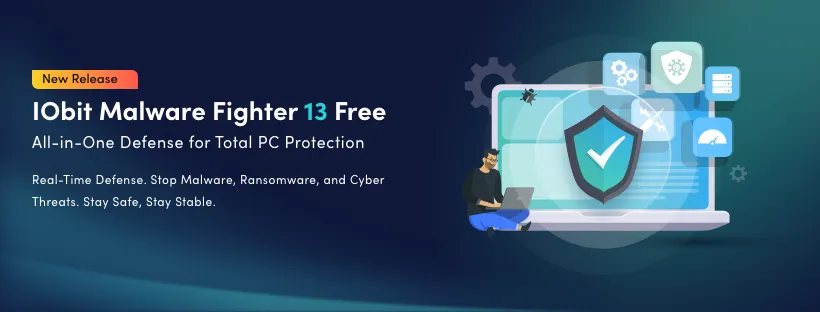
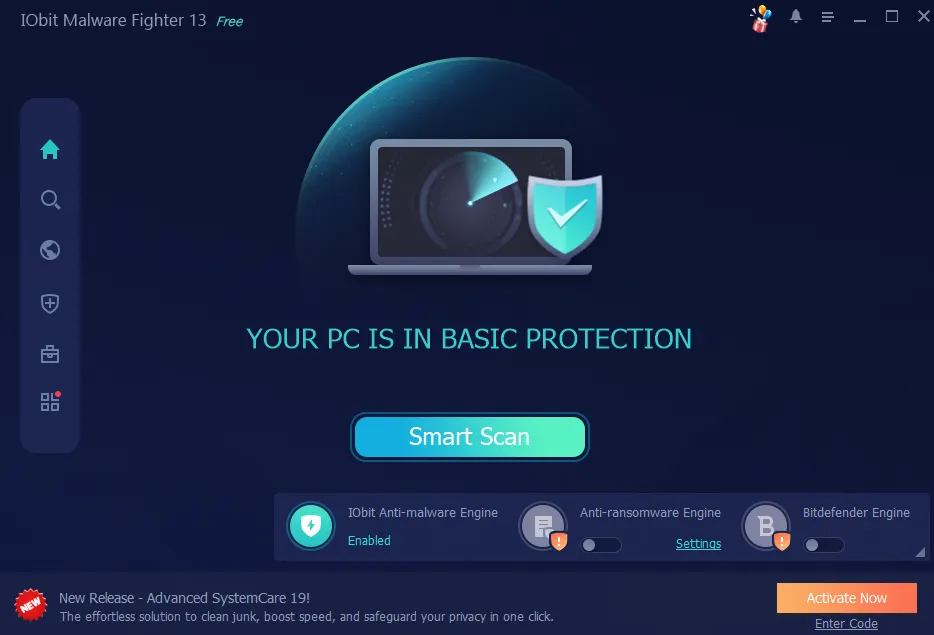
The installation process was straightforward, and the interface felt easy to understand from the beginning. Instead of overwhelming me with technical settings, the dashboard clearly displayed the security status of my computer. That simplicity was exactly what I had been looking for.
Features That Gave Me More Confidence
After using IObit Malware Fighter for several weeks, several features became part of my regular routine.
Real-Time Protection
Instead of remembering to perform manual scans every day, the real-time protection quietly monitors the system in the background. I appreciate that it works without constantly interrupting my workflow.
Malware Scanning
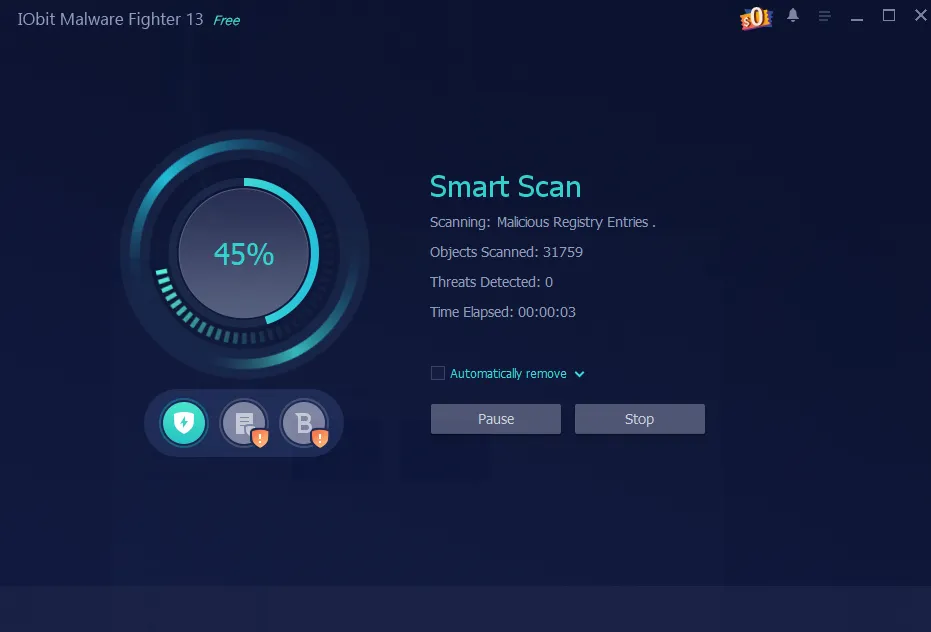
Whenever I download new software or connect an external storage device, I usually perform a smart system scan. The process is simple and gives me extra confidence before opening new files.
Webcam Protection
One feature that immediately caught my attention was webcam protection. Although I still use a physical webcam cover whenever possible, knowing that software could help monitor unauthorized webcam access added another level of reassurance. Since video calls have become part of everyday life, protecting camera access feels more important than ever.
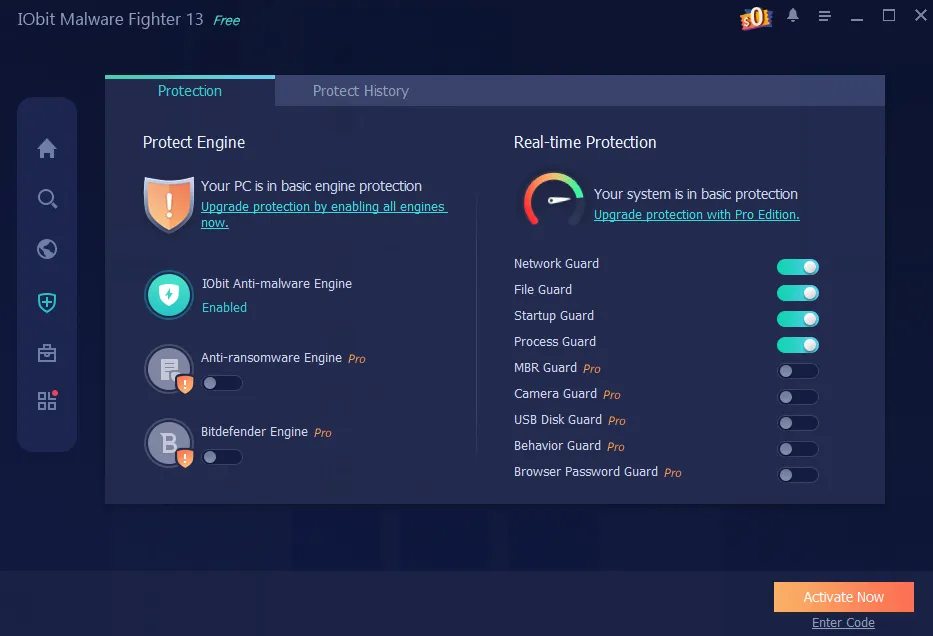
Ransomware Protection
Many of my personal files exist only in digital form. Family photos, tax documents, work projects, and important records are all stored on my computer. Having ransomware protection helped me feel more comfortable knowing there was another layer helping protect those files against unauthorized encryption attempts.
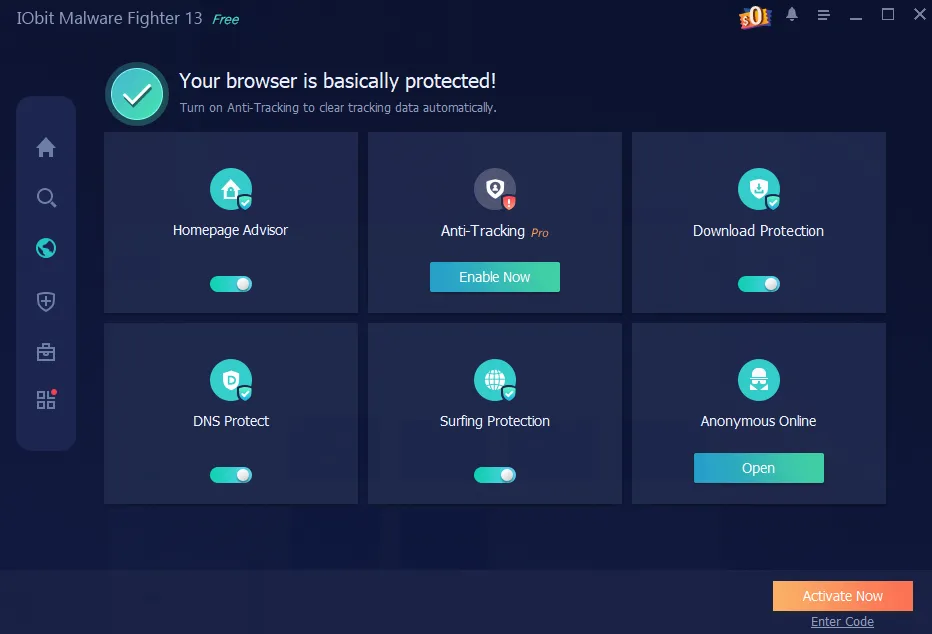
Safe Browsing
Most of my day is spent online. Whether I’m reading articles, downloading software, or checking emails, having additional protection while browsing provides another useful layer of security.
My Privacy Routine Today
Installing security software wasn’t the only change I made.
I also created a few habits that have become part of my normal routine.
- I install Windows updates regularly.
- I review webcam permissions every few months.
- I avoid downloading software from unfamiliar websites.
- I back up important documents regularly.
- I run scheduled scans with IObit Malware Fighter.
- I enable two-factor authentication whenever it’s available.
None of these habits require much effort, but together they make me feel much more confident about my computer’s security.
Why I Still Use a Free Antimalware Solution
Some people believe Windows Security is enough on its own. While I think Windows provides solid built-in protection, I personally prefer having another layer running alongside it.
That’s why I continue using a reliable free antimalware solution. I don’t expect any single program to stop every possible threat. Instead, I believe good security comes from combining trusted software with responsible online habits.
For me, that layered approach feels much more practical.
Pros
- Beginner-friendly interface.
- Webcam Protection adds another privacy layer.
- Ransomware Protection helps safeguard important files.
- Real-Time Protection runs quietly in the background.
- Quick and Full Scan options are easy to use.
- Free version offers useful everyday protection.
Cons
- Some advanced features require the paid version.
- Full scans may take longer on older systems.
The Biggest Lesson I Learned
This experience changed the way I think about online privacy.
Before, I assumed privacy only became important after something bad happened.
Now I believe it’s much easier to prevent problems than recover from them.
Making a few small improvements today can save a great deal of stress later.
Final Thoughts
Looking back, I’m glad I decided to improve my computer’s privacy before facing a real security issue. Using IObit Malware Fighter gave me additional confidence through features like Real-Time Protection, Webcam Protection, Ransomware Protection, Malware Scanning, and Safe Browsing without making security feel complicated.
Combined with a dependable free antimalware solution and a few practical security habits, I’ve created a routine that’s easy to maintain and gives me greater peace of mind every time I use my computer.