

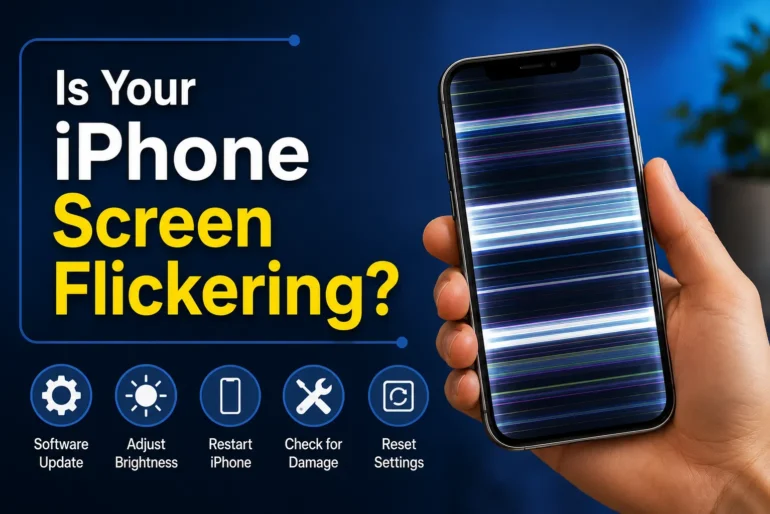
Screen flickering on an iPhone is one of the most disruptive display problems a user can encounter. One moment the screen is working fine; the next, it’s flashing, strobing, or going completely dark without warning. This problem affects a significant portion of Apple device users, with display-related issues consistently ranking among the top reasons iPhones are brought in for repair. Notably, the same category of display failures extends across Apple’s product line. Reports of an ipad air white spot, unresponsive MacBook screens, and iPhone flickering all trace back to overlapping causes: hardware stress, software instability, and component ageing.
This post breaks down exactly what causes iPhone screen flickering and provides five actionable solutions, ordered from quickest to most involved.
Key Takeaways
- A force restart resolves most software-triggered flickering episodes instantly.
- Outdated iOS versions are a documented cause of display glitches; updating often eliminates the issue.
- Auto-brightness and True Tone settings can trigger flickering on older iPhone models when enabled simultaneously.
- Physical damage, including heat exposure and screen pressure, requires professional assessment, not DIY fixes.
- A factory reset is a last resort but has a high success rate when all other solutions have failed.
Why iPhone Screens Flicker: Root Causes
Understanding the cause is the first step toward the right fix. iPhone screen flickering falls into two categories: hardware and software.
Common Hardware Causes
- Loose or damaged display cable: The flex cable connecting the display to the logic board can become dislodged, especially after a drop.
- Ageing or failing battery: An inconsistent power supply from a degraded battery causes the display to receive unstable voltage, which produces flickering.
- Physical screen damage: Cracks, pressure points, or exposure to moisture compromise display integrity at the hardware level.
Software-Related Causes
- iOS bugs: Specific iOS versions have documented display rendering issues. Apple typically addresses these in subsequent patch updates.
- App conflicts: Third-party apps that access display or GPU resources aggressively can cause visual instability, particularly during launch or background refresh.
- Background process overload: Too many processes running simultaneously strain the GPU, producing intermittent screen artifacts or flickering.
5 Ways to Stop iPhone Screen Flickering Today
Work through these solutions in order. Start with the fastest and least invasive option before moving to more intensive fixes.
Solution 1: Force Restart Your iPhone
A force restart clears active memory and terminates any rogue process causing display instability. This is the single fastest fix for software-triggered flickering.
How to force restart by model:
- iPhone 8 and later: Press and release Volume Up, press and release Volume Down, then hold the Side button until the Apple logo appears.
- iPhone 7 / 7 Plus: Hold Volume Down and Sleep/Wake simultaneously until the Apple logo appears.
- iPhone 6s and earlier: Hold Home and Sleep/Wake simultaneously until the Apple logo appears.
If the flickering stops after the restart, a background process was likely the cause.
Solution 2: Update iOS to the Latest Version
Apple releases iOS updates specifically to address display driver bugs and GPU rendering errors. Running an outdated iOS version is one of the most common and preventable causes of screen flickering.
How to update:
- Open Settings
- Tap General
- Select Software Update
- Install any available update
After updating, monitor the device for 24 hours to confirm the fix holds.
Solution 3: Adjust Display Settings
Certain display settings interact poorly on older hardware and can trigger flickering.
Settings to adjust:
- Disable Auto-Brightness: Go to Settings > Accessibility > Display & Text Size > turn off Auto-Brightness.
- Turn off True Tone: Go to Settings > Display & Brightness > disable True Tone.
- Reduce Motion: Go to Settings > Accessibility > Motion > enable Reduce Motion. This reduces GPU load from animations.
These adjustments are low-risk and take under two minutes to apply.
Solution 4: Check for Physical Damage
Inspect the screen carefully under bright light for hairline cracks, pressure discoloration, or unusual dark patches. These are visual indicators of hardware damage that software fixes cannot address.
Heat damage is a specific risk worth noting. Devices left in direct sunlight or in hot vehicles develop display problems that worsen progressively. This is comparable to heat damage macbook pro screen users report, where prolonged heat exposure degrades the display cable insulation and causes permanent color or brightness irregularities.
Signs that professional repair is necessary:
- Flickering is isolated to one area of the screen
- The screen is warm to the touch even when idle
- Flickering appears only under screen pressure
- The device was recently dropped or submerged
At this stage, attempting DIY repairs risks further damage. Contact Apple Support or visit an Apple Authorized Service Provider for a professional diagnosis.
Solution 5: Reset All Settings or Restore iPhone
If none of the above solutions has resolved the flickering, a deeper software corruption is likely. Resetting all settings eliminates configuration conflicts without deleting personal data.
How to reset all settings:
- Go to Settings > General > Transfer or Reset iPhone
- Tap Reset > Reset All Settings
- Enter your passcode and confirm
If flickering persists after this step, a full factory restore through iTunes or Finder is the next option. Back up all data to iCloud or a computer before proceeding with a restore.
iPhone Screen Flickering: Key Data
| Factor | Detail |
| Most common cause | iOS software bugs and app conflicts |
| Models most affected | iPhone 6s, iPhone X, iPhone 12 series |
| Average repair cost (screen replacement) | $129 to $329 depending on model |
| Battery replacement cost (if cause) | $49 to $99 through Apple |
| Success rate of force restart | Resolves most software-triggered cases instantly |
| iOS update effectiveness | Documented fix for version-specific display bugs |
When to Seek Professional Help
DIY solutions have clear limits. Seek professional repair when:
- Flickering persists after a factory restore
- The screen shows burn-in, dead zones, or permanent discoloration
- The device was exposed to heat, water, or significant impact
- Battery health (Settings > Battery > Battery Health) reads below 80%
Apple’s out-of-warranty screen repair costs range from $129 for older models to $329 for current Pro models. For devices with battery-induced flickering, a battery replacement at $49 to $99 is a cost-effective alternative to a full screen repair.
Fix the Flicker Before It Gets Worse
iPhone screen flickering rarely resolves on its own. Left unaddressed, software glitches escalate and hardware issues deteriorate. The five solutions above cover the full spectrum from a 30-second force restart to a full factory restore.
Start with Solution 1. Move sequentially. If flickering continues past Solution 4, book a diagnostic appointment with Apple rather than attempting component-level repairs without professional tools.
The fix is almost always simpler than it looks. Most users resolve screen flickering within the first two steps.
Frequently Asked Questions
Why is my iPhone screen flickering after an iOS update?
Some iOS updates introduce display driver conflicts on specific hardware. Check Apple’s support forums to confirm whether the update is a known issue. If confirmed, Apple typically releases a patch within one to two weeks. In the meantime, adjusting display settings or disabling True Tone can reduce the severity.
Can a bad battery cause iPhone screen flickering?
Yes. A degraded battery delivers inconsistent voltage to the display, which causes intermittent flickering, especially under high CPU load. Check battery health under Settings > Battery > Battery Health. Anything below 80% warrants a replacement.
Does screen flickering mean the iPhone needs a new screen?
Not automatically. The majority of flickering cases are software-related and resolve without any hardware replacement. Physical screen replacement is only necessary when the display cable is damaged or the screen panel itself has failed.
Is iPhone screen flickering covered under Apple warranty?
Display defects caused by manufacturing faults are covered under Apple’s one-year limited warranty and AppleCare Plus. Damage caused by drops, heat exposure, or water is not covered and will incur out-of-warranty repair fees.
How long does it take to fix iPhone screen flickering?
A force restart takes under one minute. An iOS update typically takes 10 to 20 minutes. A factory restore takes 30 to 60 minutes. Professional screen or battery repairs through Apple are usually completed same-day or within 24 hours.