

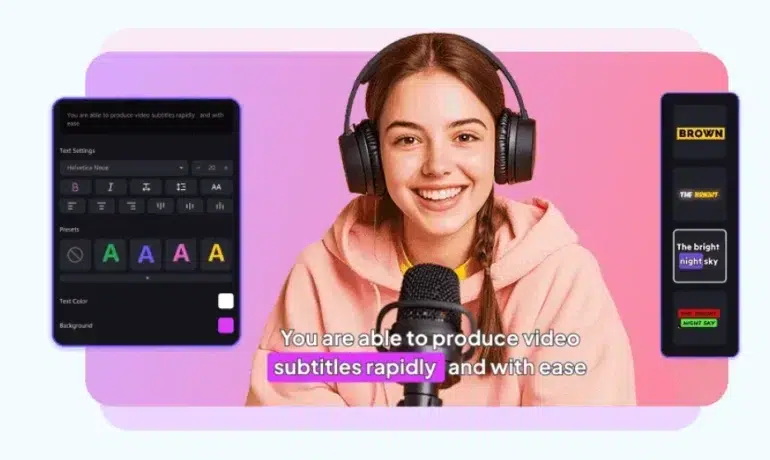
Do you want to know how to add text on YouTube video content? Adding text makes your videos easier to watch and understand. It helps viewers who keep the sound off during busy moments. It also gives your video a clean professional look.
This guide walks you through every step from adding text before upload to editing the text after your video goes live. You will learn about adding caption styles, adding subtitle tracks, and other useful tricks too. By the end you will feel confident handling text on any upload.
Why add text to your videos?
Text adds real value to any video, and it takes little effort to include. The four reasons you should never skip this step.
YouTube SEO improves when you add text, since it helps YouTube index your video content more clearly. This can help attract new subscribers and improve your search engine visibility in the longer run. People often watch videos without sound at work or in public. Adding subtitle tracks keeps these silent viewers engaged with your message.
Combining audio and visual text also improves comprehension for everyone. Viewers remember more when they read a line and hear it spoken. Dynamic text breaks up long scenes and keeps pacing fresh. It reduces visual fatigue and holds attention longer than plain footage.
How to add text to a YouTube video
Once you know your options you can easily add text to a YouTube video. The text can be edited either before you upload your video or after it has been live.
Three simple techniques to try that range in flexibility from the most flexible to the fastest.
Method 1: Using Edimakor
Edimakor is a free video text editor built for creators.It enables you to add cool text, caption overlays and subtitles before even uploading. Here are steps to take as you begin your project. Follow these steps to get started with your project.
- Download and install Edimakor on your computer first.
- Open the software and import your video file.
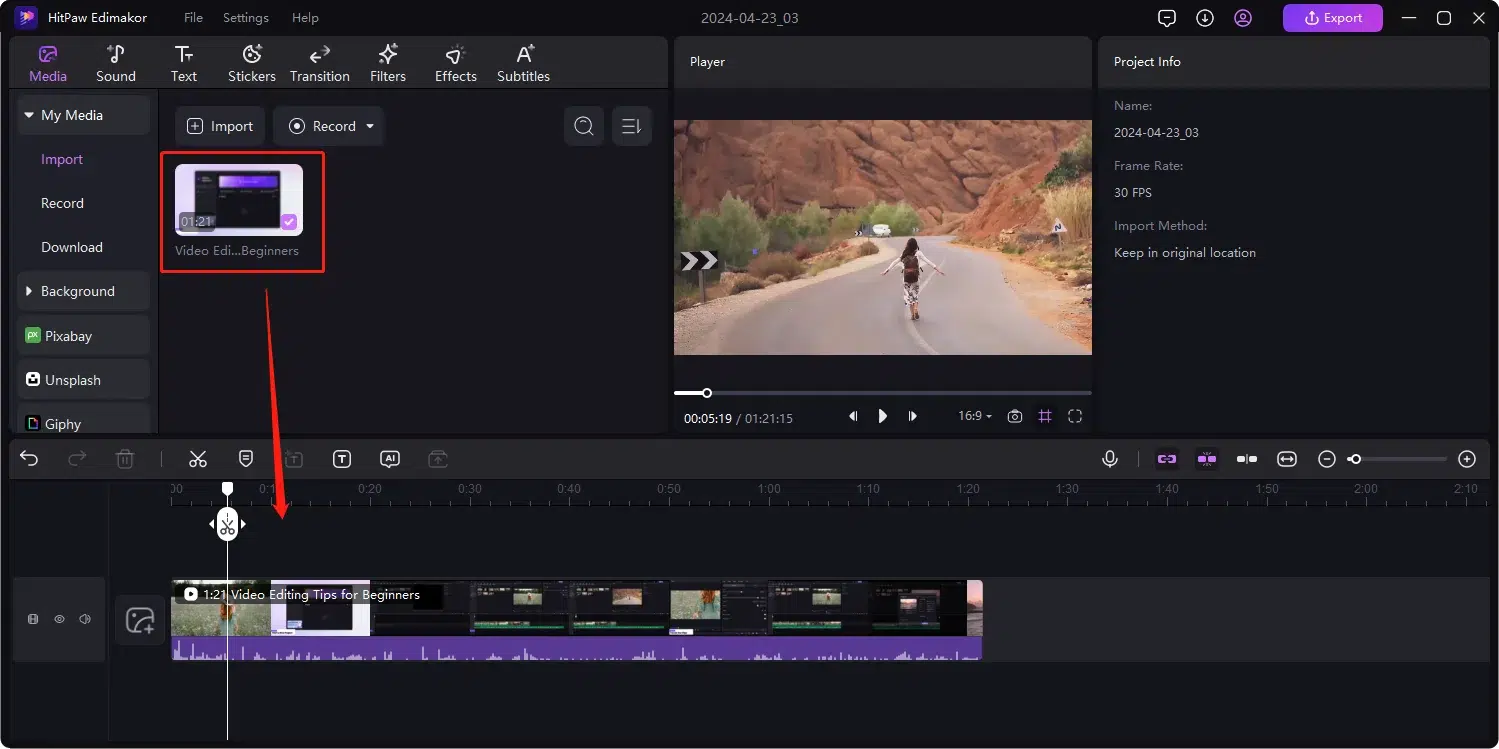
- Click on the Text tool located in the toolbar.
- Choose a text style, font and color that suits your video theme.
- Type your message and adjust its position on screen.
- Set the start and end time for the text to appear clearly.
- Preview the video and make any final changes needed.
- Export finished video and upload it straight to YouTube.
Edimakor also supports adding subtitle tracks in multiple languages at once. This makes your content accessible to a much wider audience. Many creators use this tool because it saves time compared to manual editing.
Method 2: Using the YouTube Mobile App
You cannot add text overlays directly to YouTube video after it has been uploaded and published. YouTube allows creators to add text directly to Shorts using built in editing tools in the mobile app. This is useful for adding quick captions, notes or messages that appear on your Short while viewers watch it. You can customize the text style, position and timing before publishing your video.
Follow these steps:
- Open the YouTube app and tap + (Create).
- Select Create a Short then record a video or upload one from your gallery.
- Tap Next then select the Text (Aa) icon.
- Type your text and customize the font, colour, size and position.
- Use Timeline to choose when the text appears and disappears, then tap Next.
- Add your title and audience settings, then tap Upload Short to publish.
Method 3: For Videos Already Published
If your video is already live you still have plenty of options left. You can add closed captions through YouTube Studio without much hassle.
- Sign in to YouTube Studio using your channel account.
- Click on Subtitles found in the left menu.
- Select the video you want to update.
- Choose Add language and pick your target language.
- Upload a caption file or type captions manually yourself.
- Publish the changes once you feel satisfied with the result.
You can also add video notes or cards to highlight key points. These small additions can improve viewer retention time and encourage rewatching.
Tips for Adding Text to YouTube Videos
Some minor things can make a huge difference in the performance of your text.
- Limit the amount of text so that the viewer can read it in a few seconds.
- Make sure text is not too small for smaller mobile screens.
- Choose colors that stand out clearly against your video background.
- Avoid covering important visuals or faces with your text.
- Match your text style with your overall channel branding for consistency.
- Always preview your video before publishing it to catch mistakes.
If you want a simple way to edit the text, tools like Edimakor make the process fast and painless. You can try adding caption styles and animated text without much prior editing experience. Testing different placements and colors often reveals what your audience responds to best.
Conclusion
Now you know how to add text on YouTube video content with ease. Whether you prefer adding text before upload or adding subtitle tracks after publishing, there is a method here for every creator.
Try Edimakor for a smooth editing experience packed with useful text tools. These are minor details that can greatly improve engagement and contribute to long term growth of your channel.