
Most smart home gear sold under dozens of different brand names runs on the same underlying platform, and Tuya Smart is the app that ties it together. Plugs, bulbs, door sensors, thermostats, cameras, water leak detectors: if the box says “works with Tuya” or “Smart Life compatible,” odds are good it pairs with this one app rather than forcing you to install yet another manufacturer-specific tool.
That consolidation is the whole point. The app is listed under Lifestyle, published under the name Tuya Inc., and its pitch is short: smart life, smart living. In practice that means one login, one device list, and one place to build the automations that make a house feel less manual.
From remote toggles to if-this-then-that rules
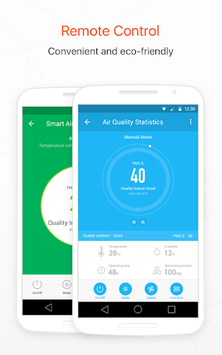
The core function is remote control. Once a device is paired to your account, you can switch it on or off from anywhere with a data connection, which covers the usual scenarios: killing a space heater you left running, turning porch lights on before you get home, checking whether the garage plug is live.
Beyond simple toggles, the app supports adding and controlling multiple devices at once. That matters in a real house, where you rarely have one smart thing. You end up with a floor plan’s worth of them, and clicking through separate apps for each brand gets old fast.
Voice control runs through Amazon Echo and Google Home, so the app can sit in the background once the initial pairing is done. Plenty of households use Tuya Smart purely as the setup and rules engine, then speak to devices day to day.
The interesting part is interworking between devices. Tuya Smart lets one device’s state trigger another’s behavior, with conditions built around temperature, location, and time. A dehumidifier that kicks in above a humidity reading, lights that respond to sunset rather than a fixed clock time, a heater that shuts off when your phone leaves a geofence: these are the rules that separate a smart home from a collection of remote-controlled gadgets.
Device sharing is handled at the account level, so family members get access without passing around one login. And the app pushes real-time alerts, which is the feature that carries the most weight when it’s tied to a leak sensor or a door contact rather than a light bulb.
Who ends up relying on it
Renters like it because most Tuya-compatible hardware is plug-in or stick-on, nothing that needs rewiring or a landlord conversation. A few smart plugs and a sensor or two cover a lot of ground.
Homeowners with a growing setup use it differently. Once you pass fifteen or twenty devices, the app becomes an inventory system as much as a remote, and the grouping and room assignment features start earning their keep.
Then there are the people managing a second property. Vacation rentals, a parent’s house, a workshop out back. Remote alerts and off-site control are the entire reason they bought the hardware, and Tuya Smart is what makes it usable from a distance.
Why Tuya Smart behaves differently on a desktop
On a phone, the app is built for quick single actions. Open it, tap a switch, close it. That works when you’re standing in the driveway realizing you left the iron plugged in.
It works less well when you’re doing the fiddly work: naming twenty devices, sorting them into rooms, or writing a multi-condition automation where a temperature threshold, a time window, and a location trigger all have to line up. Those screens involve a lot of scrolling and small targets on a handset.
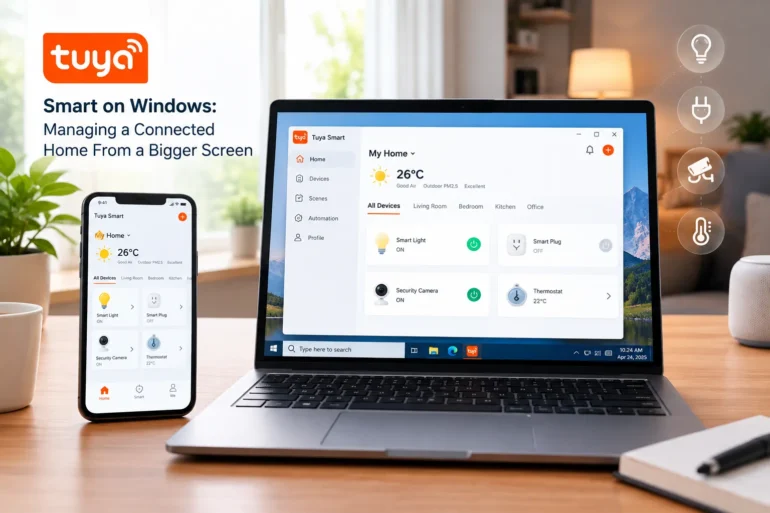
A larger display and a real keyboard change that. Tuya Smart is an Android app, so running it on Windows means using an Android emulator, which puts the same interface in a resizable desktop window. People who want to sort a long device list or build automation rules with a mouse instead of a thumb often download Tuya Smart for Windows and keep it open alongside a browser, rather than switching back and forth on a phone.
There’s a practical monitoring angle too. If you have cameras or sensors on the account, leaving the app visible in a corner of your desktop while you work is easier than picking up a phone every time an alert fires.
A few quirks show up once you go that route:
- Device pairing usually expects the app to reach your 2.4GHz Wi-Fi network, so the initial setup of a new gadget is often smoother on a phone standing next to it
- Bluetooth-based pairing for some devices may not work in a desktop environment at all
- Your account syncs, so devices added on the phone show up on the desktop instance immediately
- Push notifications behave differently on an emulated environment than on a phone, so don’t make the desktop your only alert channel
Where the setup can trip you up
The biggest source of confusion with Tuya Smart isn’t the app, it’s the hardware. Two devices that look identical can use different firmware, and one might expose a feature the other doesn’t. Check what a product’s listing says about Tuya or Smart Life support before buying, not after.
The second thing: automations execute in the cloud, not locally. If your internet drops, scheduled rules and remote control go with it, though most devices keep their physical switches working. Anything you’d consider safety-critical, a smoke alarm or a lock, deserves a plan for what happens when the network isn’t there.