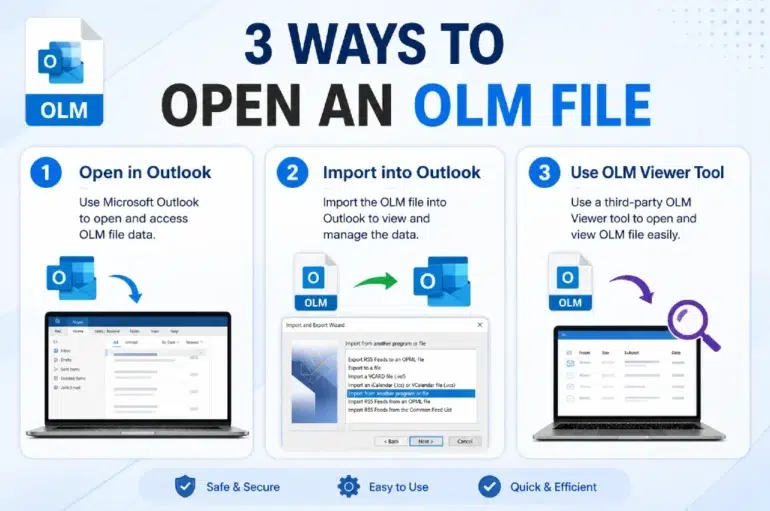
You cannot open an OLM file directly using the Outlook client on a Windows 11, 10, 8.1 & 8 system, as there is no native support for the archive file format. There isn’t a straightforward approach to open OLM files without any challenges because of one reason – the OLM file format that is exclusive to macOS and is only supported by the Outlook for Mac app. Hence, it is difficult to open this archive file on any other OS or system.
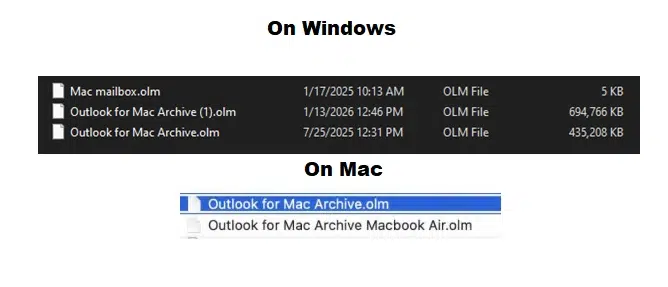
To make it easier for you to open OLM files with ease, we will discuss 3 methods in this blog. These should help you open OLM files on any system, whether you are on a Mac, Windows, or Linux. Let’s read further.
What is an OLM File?
An OLM or Outlook for Mac data file is an archive mailbox file that is created when you export mailbox items – email messages, attachments, contacts, calendars, and more – from Outlook for Mac. This file contains a copy of all your mailbox data that you can use to back up your email account data or to move mailbox/es from one Mac to another. Its file format is .olm.
What is the Need to Open OLM Files?
There are some reasons why you’d want to open OLM files:
- When you are migrating from one platform to another, i:e., Mac to Windows
- To share the mailbox data with users on different email platforms
- To access or recover old emails/mailbox data
- To consolidate mailbox data on a single platform
How Do You Open an OLM File?
Here, we’ll discuss three common situations and see how to open OLM file without challenges. Let’s look at the stepwise methods in detail.
Situation 1: Open OLM File/s on a Mac
As mentioned before, the OLM file is created by Outlook for Mac. Hence, the file format (.olm) is supported by it. So, if you are trying to open OLM files on a Mac, simply import them into the email client. But, to ‘Import’ and open the OLM file, you need to first switch to the Legacy Outlook. Follow the step-by-step process below:
Part 1: Download the app from the App Store
Note: Skip this part if you have already installed the app.
- Open the App Store on your Mac system.
- Search for Outlook. Download it.
Part 2: Import OLM file/s in Outlook for Mac
Note: Make sure you are on Legacy Outlook before you proceed.
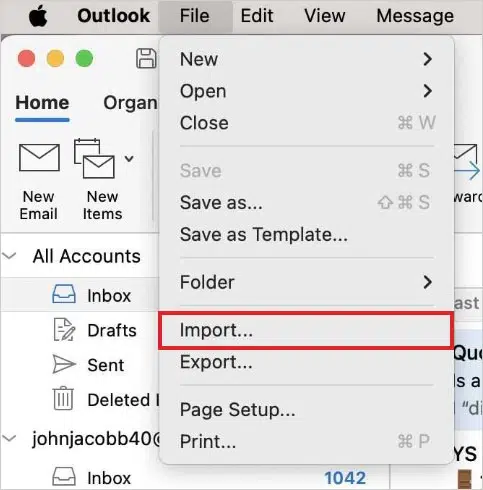
- Click on File > Import.
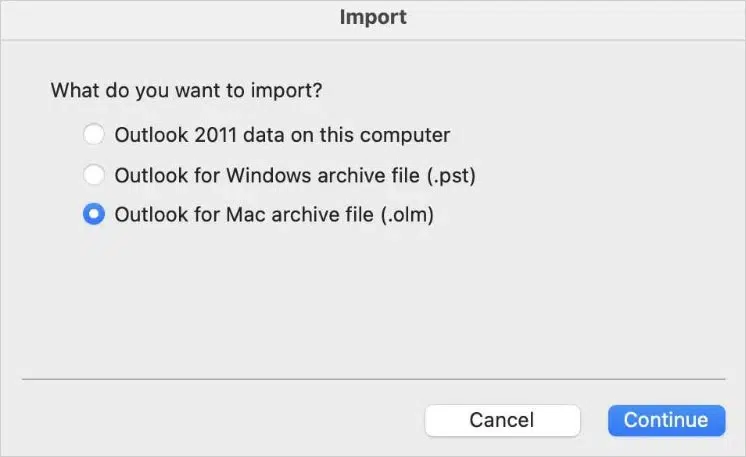
- The Import window will open.
- Choose the Outlook for Mac archive file (.olm) option. Click Continue.
- Navigate to the OLM file location and select it. Click Import.
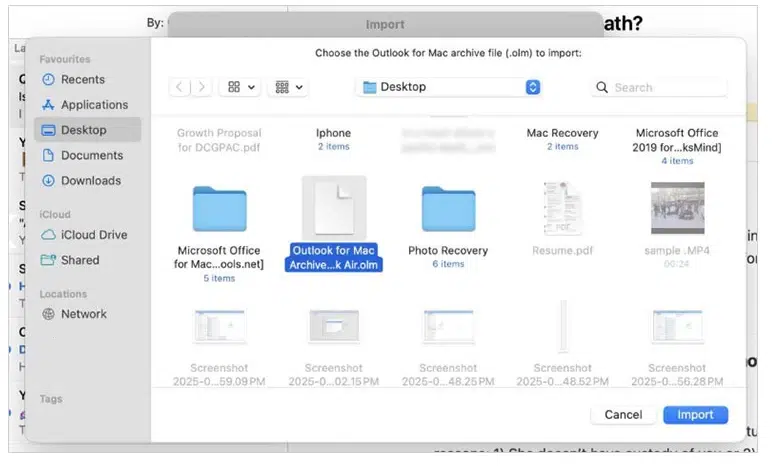
- It will begin importing the OLM file into Outlook.
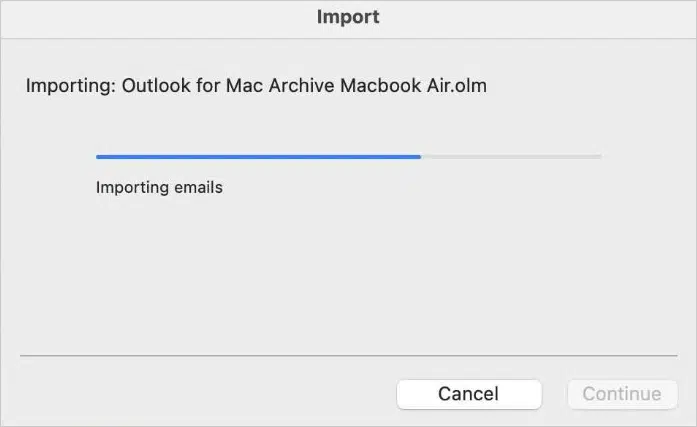
- Click Finish to complete the process.
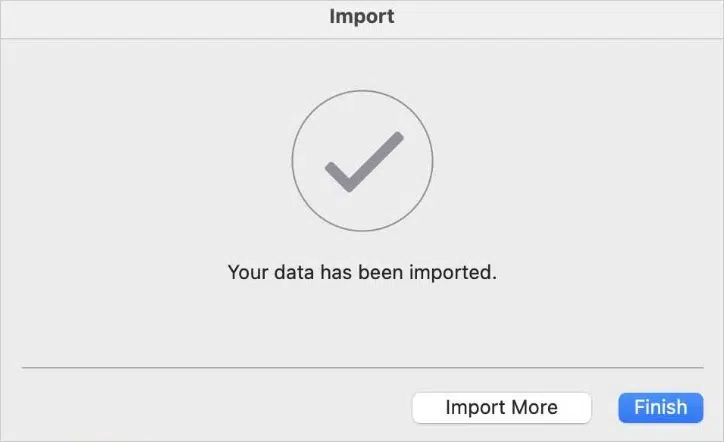
The selected OLM file will open in the app. You can now see all its data.
Situation 2: Open an OLM File on Any System
If you are looking for a quick way to open the OLM file and check its contents, then the free OLM to PST converter online by Stellar is for you. It is a web-based utility that lets you open an OLM file and view the folders on any system – whether a Mac, Windows, or Linux system. You can also use it to convert an OLM file to PST in 3 simple steps: Upload > Convert > Download.
Highlights of the free OLM to PST tool:
- Open OLM files on the go
- View OLM file structure using a downloadable HTML file
- Works on any system running on macOS, Windows, or Linux via a web browser
- Instant file conversion
- No additional software download or installation needed
- Converts a single OLM file of size ≤ 100 MB for free
Now, let’s see the stepwise process to use this online tool:
- Launch a web browser (Mozilla Firefox, Google Chrome, etc.) on your Windows/Mac/Linux system.
- Go to the free online OLM to PST converter tool webpage.
- Click on Sign in at the top-right corner and sign up using your email ID.
- After creating your account, click on Upload OLM File.
- Navigate to the location of the OLM file on your system. Select it and click on Open.
- Wait for the tool to upload the file. Once the status is updated to File Uploaded, click on Start Conversion.
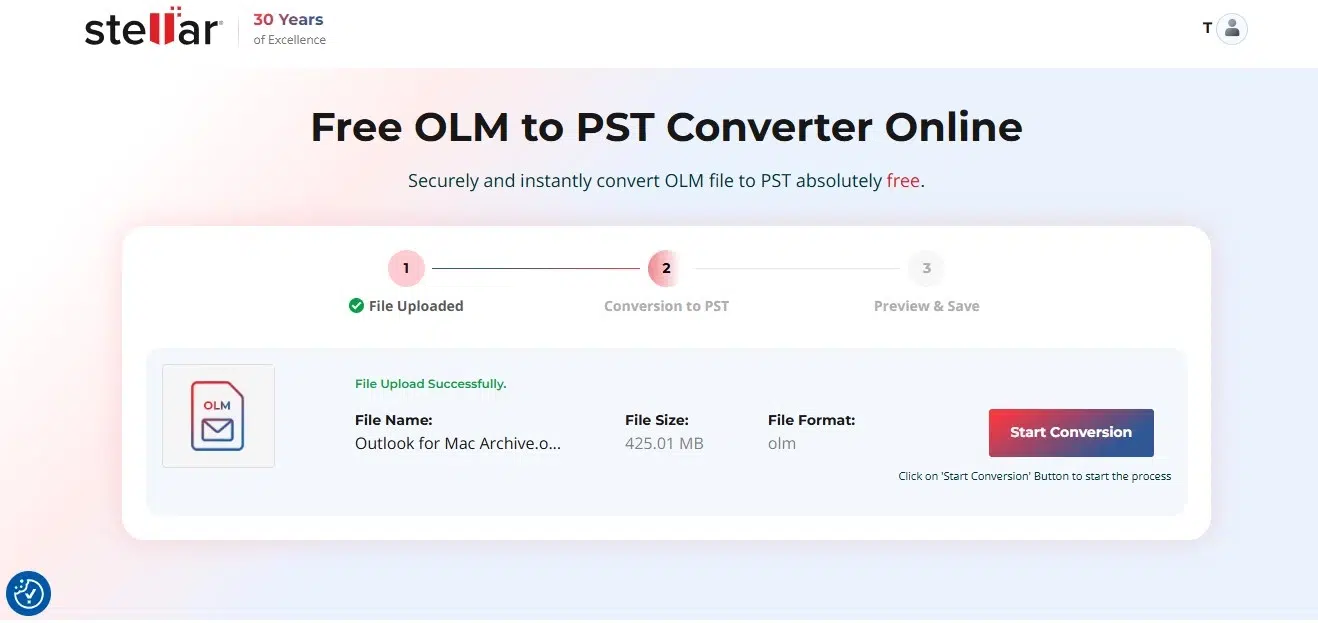
- The utility will first scan and analyze the selected OLM file. Then, it will automatically convert it afterward.
- After the file is converted to PST format, the File Converted Successfully window will appear.
- Here, you will see two options to choose from – Preview or Save PST File.
- To open the OLM file and verify the mailbox data, click on Preview – the tool will download an HTML file on your system. Then open the HTML file via any web browser.
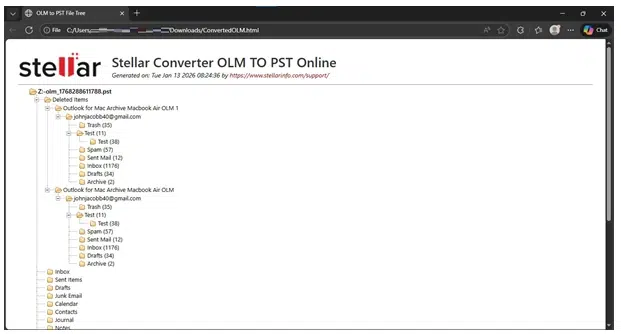
You can also convert the OLM file to PST. Click on the Save PST File button. It will download the converted OLM file as PST on your system.
Situation 3: Open OLM File/s on Windows PC
The above online tool can convert a single OLM file of size not exceeding 100 MB to PST for free. But if there are multiple OLM files of different sizes to convert, you can use a dedicated desktop application that you can use to open multiple OLM files of varying sizes on your Windows PC. For this, you can use Stellar Converter for OLM. It is a powerful OLM to PST file converter that lets you scan the OLM file and open it to see all its contents. Using this tool, you can:
- Convert the OLM file to PST
- Save OLM file data in RTF, PDF, HTML, and other file formats
- Directly export OLM file contents to an existing Outlook profile
- Apply filters to save selected mailbox data
- Import OLM mailbox data to Office 365 (Technician only)
Follow the steps below to use Stellar Converter for OLM to open OLM file on your Windows PC:
- Download Stellar Converter for OLM on your Windows PC. Install it.
- Launch it.
- The Select OLM File window will appear.
- Click on Browse to select the OLM file you want to open.
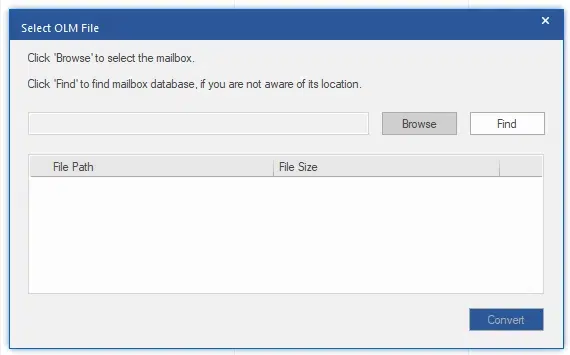
- After selecting the OLM file, click on Convert. The tool will begin scanning the selected OLM file.
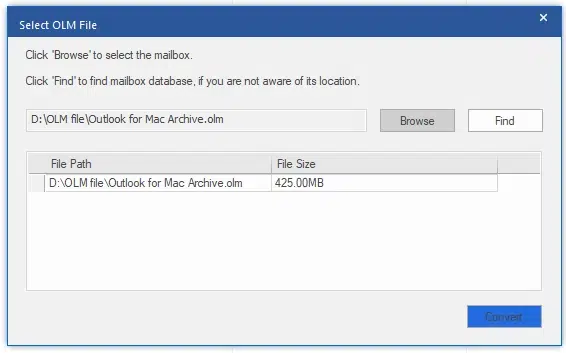
- After the tool has finished scanning the OLM file, it will list all the mailbox items.
- On this screen, you can use the Navigation Pane options at the bottom to view the mailbox items, such as:
- Emails
- Calendar
- Contacts
- Tasks
- Notes
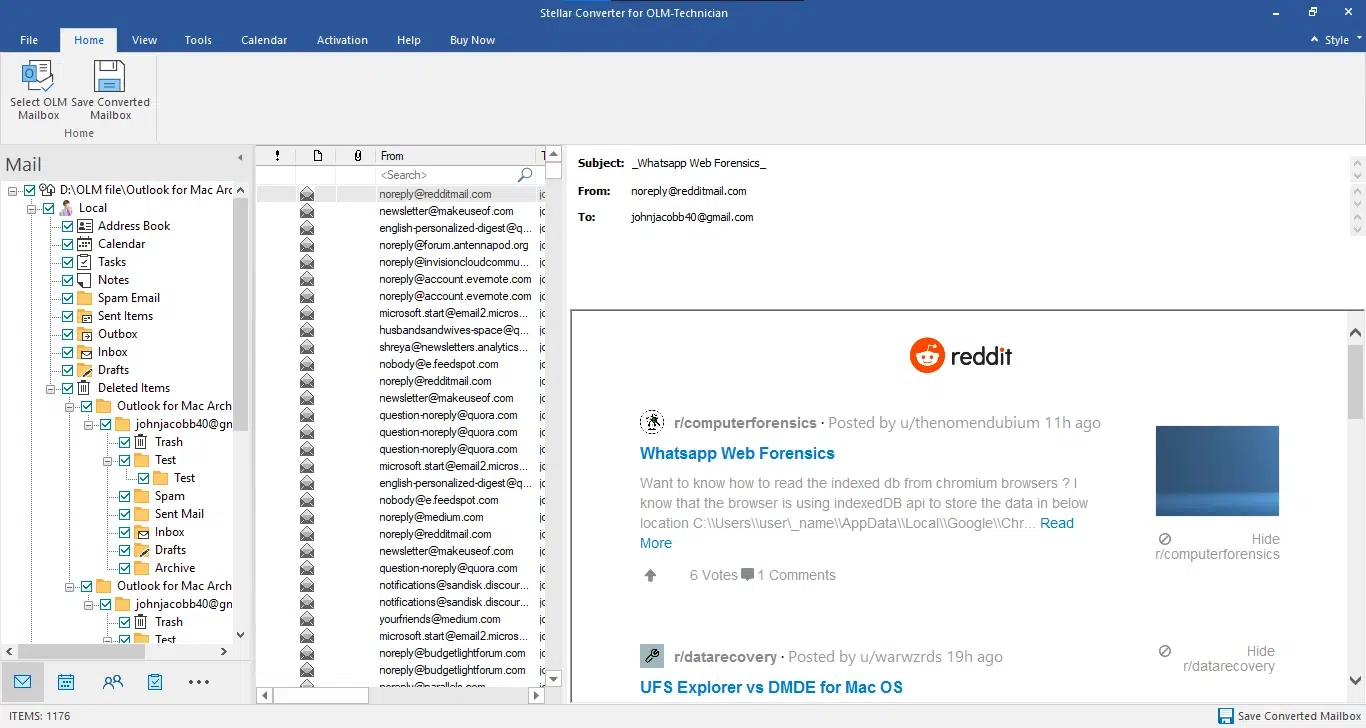
Note: The demo version of Stellar Converter for OLM allows you to only preview the mailbox items. If you want to save the OLM file items to PST or any other file format, you will need to activate it by purchasing the license.
Bottom Line
This guide explored the various methods to open an OLM file. As the OLM file is an exclusive file format, it can’t be opened directly on any system except for a Mac, and that too when it has Outlook for Mac installed. Therefore, it becomes necessary to use tools like the free online utility or the dedicated OLM to PST converter.
Which helped you open your OLM files with ease? Let us know in the comments below.
FAQ
Q. Why is the Import option grayed out in my Outlook for Mac App?
A. The import option appears to be grayed out in Outlook for Mac when you are using the New Outlook. You can fix this by reverting to the Legacy Outlook. However, this could also happen when:
- You are using the demo version of Outlook for Mac
- Administrator has deactivated the import/export functionality
- The Outlook app installed on your Mac is outdated
- Unnecessary or corrupt plugins and add-ins installed in the Outlook for Mac app
- The version of Outlook for Mac installed on your Mac is incompatible with macOS
Q. Can I export OLM file data to Office 365 using the OLM to PST converter tool?
A. Yes, with the Technician edition of Stellar Converter for OLM, you can effortlessly export mailbox items to Office 365 profiles.