

Legacy applications carry real business value: years of logic, workflows, and user trust built into systems that just work. But “just working” increasingly falls short when users expect to format content, embed media, and collaborate in real time without touching a line of HTML.
Bringing a modern editing experience into an older codebase is one of those tasks that sounds deceptively simple until you’re three hours deep in a jQuery version conflict. The truth is, it’s manageable, but it takes a clear plan.
A JavaScript WYSIWYG editor (What You See Is What You Get) gives non-technical users a visual interface for creating rich content. Instead of writing raw HTML, they click a toolbar and see formatted output instantly. For legacy applications that once forced users to type <b> tags by hand, this is a meaningful quality-of-life upgrade.
In this guide, we’ll walk through what actually goes into a successful integration: assessing your stack, handling the common stumbling blocks, optimising for performance, and keeping things maintainable for the long haul. Where relevant, we’ll reference how tools like Froala approach these challenges, not because it’s the only option, but because it’s one of the more battle-tested editors when it comes to legacy compatibility.
Key Takeaways
- Assess before you build: Audit your stack for JS conflicts, CSS issues, and browser support requirements before choosing or installing an editor.
- Target the right fields: Not every textarea needs rich text; focus on fields where formatting genuinely improves the user experience.
- Sanitise on both sides: Client-side sanitisation is not enough; always re-sanitise user-submitted HTML on the server before storing or rendering it.
- Lazy-load for performance: Initialise the editor on demand rather than on page load to protect legacy page performance.
- Centralise your configuration: Manage editor setup in one place to make future upgrades and maintenance significantly easier.
Why Legacy Applications Need Modern Rich Text Editing
Before diving into the how, it’s worth being clear on the why. Modernising rich text editing is often framed as a “nice to have”, but in many applications, it’s quietly become a bottleneck.
The Growing Demand for Content Editing
Content creation has spread beyond dedicated editorial teams. Marketing, support, legal, and operations departments all need to publish and manage content in ways that weren’t anticipated when many legacy systems were designed. Simultaneously, user expectations have shifted: people are accustomed to Google Docs-style interfaces, and asking them to learn HTML syntax creates unnecessary friction and errors.
Reducing the HTML knowledge barrier isn’t just a UX improvement; it directly affects content quality, publishing speed, and adoption rates across teams.
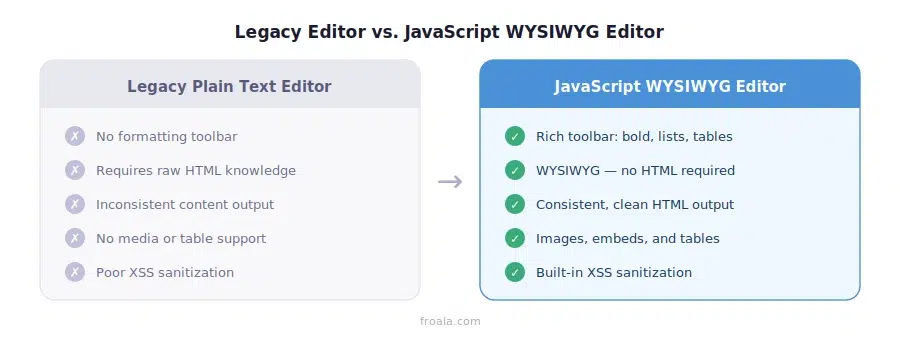
Limitations of Traditional Legacy Editors
Plain textarea inputs and basic text editors weren’t designed for the content demands of modern web applications. Common frustrations include:
- Formatting inconsistencies: Different users produce different HTML, which breaks front-end rendering.
- Security gaps: Unstructured HTML input is a common vector for cross-site scripting (XSS).
- No media support: Images, tables, and embeds require workarounds or external tools.
- Poor accessibility: Many older editors weren’t built with WCAG compliance in mind.
These limitations compound over time and often result in technical debt that’s harder to clean up the longer it sits.
Benefits of a JavaScript WYSIWYG Editor
A well-chosen JavaScript WYSIWYG editor addresses these gaps without requiring a full platform rebuild. Users get an intuitive, familiar editing experience. Developers get consistent, sanitised HTML output. And content looks right whether it’s rendered in the editor or published to a production page.
The improvement in content creation speed is real: when users don’t have to think about markup, they focus on the message instead.
Assessing Legacy Stack Compatibility
With the rationale clear, the next step is an honest assessment. Dropping any editor into a legacy stack without understanding what’s already there is a reliable way to create new problems while solving old ones.
Understanding Existing Architecture
Start with an inventory of your front-end environment:
- JavaScript libraries in use: jQuery versions, custom scripts, build tools (or lack thereof).
- Server-side technology: PHP, Java, .NET, and Rails each has different implications for HTML storage and retrieval.
- Content storage format: Is existing content stored as plain text, escaped HTML, or structured data?
Many legacy stacks aren’t using module bundlers, which means you’ll need to load the editor via CDN or script tags rather than npm. That’s fine, but you need to know it going in.
Identifying Integration Constraints
A few constraints come up repeatedly:
- Browser support requirements: Enterprise legacy apps sometimes need to support older IE or Edge versions. Most modern editors have dropped IE11 support; verify the compatibility matrix before committing.
- Dependency conflicts: If your stack already loads jQuery globally, an editor that bundles its own version can cause silent failures.
- Global namespace pollution: Older scripts often rely on global variables. An editor initialising on the same page can override them if not properly scoped.
Evaluating Editor Requirements
Beyond technical fit, consider what the editor actually needs to do:
- Does your team need a minimal toolbar or a full formatting suite?
- Are plugins available for the specific features required (code blocks, mentions, file uploads)?
- What are the accessibility and compliance requirements for your industry?
Getting clear on requirements before evaluating editors saves significant rework later.
Preparing for Integration
Good preparation makes the integration itself far smoother. This phase is often skipped in the rush to ship, and it’s usually why integrations hit unexpected walls midway.
Auditing Current Content Workflows
Walk through how content currently moves through your application:
- What fields currently use text inputs or textareas?
- Which of those would genuinely benefit from rich formatting?
- Is there legacy content that will need to be migrated or re-rendered?
Not every text field needs a WYSIWYG editor. Targeting the right ones keeps the integration focused and reduces complexity.
Establishing Technical Requirements
Set clear benchmarks before writing any code:
- API compatibility: Will the editor’s output work with your existing form submission logic?
- Storage format: How will HTML be stored? Is there a character limit or encoding requirement?
- Performance targets: What’s an acceptable load time hit? On a legacy page already loading several scripts, another heavy bundle can push users past tolerance.
Creating a Rollout Strategy
A staged rollout reduces risk significantly. Consider:
- Pilot deployment: Start with one non-critical form in an internal tool or staging environment.
- Parallel testing: Run old and new editors side by side temporarily to catch edge cases.
- Stakeholder alignment: Make sure the people who own content workflows are involved in testing; they’ll catch issues that developers won’t.
Step-by-Step Integration Process
With preparation complete, here’s how a typical integration unfolds.

Installing the JavaScript WYSIWYG Editor
Most modern editors support both CDN and package manager installation:
<!– CDN approach (works without a build tool) –>
<link rel=”stylesheet” href=”<https://cdn.jsdelivr.net/npm/froala-editor/css/froala_editor.min.css>”>
<script src=”<https://cdn.jsdelivr.net/npm/froala-editor/js/froala_editor.min.js>”></script>
Or via npm in environments that support it:
npm install froala-editor
For legacy stacks without module bundlers, the CDN approach is usually the path of least resistance. Load the assets in your <head> or just before the closing </body> tag, depending on your existing script loading order.
Connecting the Editor to Legacy Forms
The most common approach is initialising the editor on an existing <textarea>. This lets you preserve your existing form submission logic with minimal changes:
// Vanilla JS initialisation
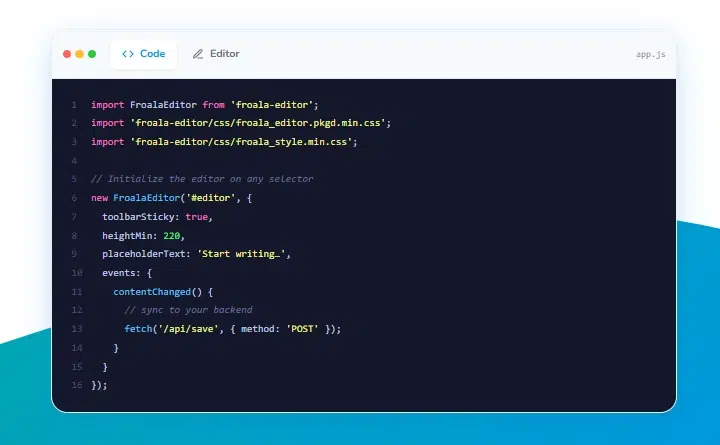
new FroalaEditor(‘#content-field’, {
toolbarButtons: [‘bold’, ‘italic’, ‘underline’, ‘insertTable’, ‘html’],
heightMin: 200,
});
When the form submits, the editor automatically syncs its content back to the underlying textarea, so your server-side code receives HTML just as it would receive plain text before. No changes are needed to the backend handling in most cases.
Managing Data Storage and Retrieval
Storing rich HTML introduces a few considerations:
- Database column type: Switch from VARCHAR to TEXT or LONGTEXT to accommodate longer HTML strings.
- Encoding: Ensure your database connection is using UTF-8 to handle special characters correctly.
- Sanitisation: Never trust user-submitted HTML directly. Sanitise on the server side using a library like DOMPurify (JavaScript) or HTMLPurifier (PHP), even if the editor provides built-in sanitisation.
For backward compatibility, existing plain-text content often needs to be wrapped in <p> tags before rendering in the new editor to avoid display issues.
Common Challenges and How to Solve Them
Integration rarely goes smoothly from start to finish. Here are the issues that come up most often and how to handle them.
Handling Legacy JavaScript Conflicts
Namespace collisions are the most common issue in jQuery-heavy stacks. If both your existing code and the editor try to define $, one will win, and the other will break silently.
Fix: Use the editor’s noConflict() mode if available, or wrap your initialisation code in an IIFE that captures the right jQuery reference:
(function($) {
// $ is safely scoped here
new FroalaEditor(‘#editor’, { /* config */ });
})(jQuery.noConflict());
Library version mismatches are trickier. If your application depends on jQuery 1.x behaviours and the editor expects 3.x, you may need to load both versions or update incrementally. Progressive enhancement strategies (loading the editor only if the environment supports it) can help maintain stability during the transition.
Ensuring Consistent Styling
Editor styles and legacy CSS have a tendency to fight each other. The editor’s default styles may inherit unexpected values from your existing stylesheet, and the editor’s own styles may bleed into other elements on the page.
Two approaches help here:
- Increase CSS specificity for the editor container so your legacy styles don’t override it.
- Scope editor output styles by giving the rendered content area the same CSS class used inside the editor; this ensures content looks identical in editing and display modes.
Managing Security Risks
Rich text editors dramatically expand the attack surface for XSS. Users can technically submit script tags, event handlers, or data URIs through the editor if sanitisation isn’t airtight.
Best practices:
- Enable the editor’s built-in HTML sanitisation and configure an allowlist of permitted tags and attributes.
- Re-sanitise on the server before storing or rendering content; never rely solely on client-side sanitisation.
- If content is ever rendered for a different user (comments, shared documents), treat it as untrusted input regardless of source.
Optimising Performance in Older Applications
Legacy pages often already carry significant front-end overhead: multiple script files, inline styles, and no bundler to tree-shake unused code. Adding a rich text editor increases that load. These strategies help keep the impact manageable.
Reducing Front-End Overhead
Selective feature loading is the most effective lever. Most editors let you load only the plugins you actually use. If your users only need basic formatting (bold, italic, lists), you don’t need to load image upload, code view, or table plugins.
Lazy loading is particularly valuable in legacy environments: initialise the editor only when the user clicks into the content field, rather than on page load. This keeps initial page performance unchanged for users who never touch the editor:
document.getElementById(‘content-field’).addEventListener(‘focus’, function initEditor() {
new FroalaEditor(this, { /* config */ });
this.removeEventListener(‘focus’, initEditor);
}, { once: true });
Improving Editor Responsiveness
For applications dealing with large documents or high-volume content fields:
- Set a heightMax to prevent the editor from growing the page layout uncontrollably.
- Avoid initialising multiple editors simultaneously on a single page; initialise them on demand.
- Keep the DOM inside the editor lean: large amounts of inline formatting (many nested <span> elements) can slow down operations.
Monitoring User Experience
After launch, monitor rather than assume. Useful signals:
- Time to interact on pages that include the editor.
- Form submission error rates and integration bugs often surface here before users report them.
- User feedback from content creators: they’ll quickly notice if the editor behaves differently from their expectations.
Future-Proofing Your Implementation
Integrating a WYSIWYG editor into a legacy application is a meaningful change. How you structure it today determines how painful it is to maintain two years from now.
Supporting Future Upgrades
The biggest risk with a legacy integration is tightly coupling the editor to surrounding code. If the editor initialisation logic is scattered across 12 different template files, upgrading the editor later means touching all 12.
Instead, centralise editor initialisation in a single module or script, and pass configuration in from the outside. This makes version upgrades a one-file change rather than a project:
// editor-init.js — one place to manage all editor behaviour
function initWysiwygEditor(selector, options = {}) {
const defaults = { /* your standard config */ };
return new FroalaEditor(selector, { …defaults, …options });
}
Document your configuration choices and any workarounds you implemented. Future maintainers (including yourself) will be grateful.
Scaling Editor Functionality
Starting with a minimal configuration and expanding over time is almost always better than shipping a fully-featured editor on day one. Consider what additional capabilities you might want to introduce later:
- Collaboration features: Real-time co-editing via operational transforms or CRDTs.
- File management: Integrated image and document upload workflows.
- Content templates: Pre-built structures that editors can start from.
Designing for extensibility from the start makes these additions far less disruptive.
Maintaining Long-Term Stability
Establish a maintenance cadence that includes:
- Regular editor updates: Security patches in particular should be applied promptly.
- Compatibility reviews when upgrading other dependencies in the stack.
- Regression testing of core editing workflows before any deployment that touches editor-related code.
Choosing the Right JavaScript WYSIWYG Editor for Legacy Environments
The editor market is mature enough that there are solid options at multiple price points and complexity levels. The “right” choice depends heavily on your specific constraints.
Key Features to Prioritise
For legacy environments specifically, prioritise:
- CDN availability: Not all editors distribute well outside of npm.
- Minimal external dependencies: The fewer additional libraries required, the fewer conflicts you’ll have.
- Configurable sanitisation: You need control over what HTML is permitted, not a black box.
- Graceful initialisation: The editor should fail quietly in unsupported environments, not break the whole page.
Evaluation Criteria
Beyond feature lists, evaluate:
- Documentation quality: Sparse docs mean hours of trial and error.
- Community activity: An active GitHub and forum suggest the editor is maintained and bugs get fixed.
- Performance in your specific environment: Run a proof of concept before committing, ideally on a real legacy page from your application.
Froala, for instance, is commonly cited for its straightforward initialisation API and the breadth of its plugin ecosystem, but the best way to evaluate any editor is to test it against your actual constraints.
Long-Term Business Considerations
Total cost of ownership matters more than license price. Factor in:
- Developer hours for initial integration and ongoing maintenance
- Support availability when something breaks in production
- The editor vendor’s long-term roadmap, you don’t want to integrate an editor that’s quietly in maintenance mode.
Conclusion
Integrating a JavaScript WYSIWYG editor into a legacy stack is rarely a five-minute task, but it’s also far from the risky undertaking it might initially seem. The applications that run into trouble are usually the ones that skip the assessment phase, underestimate CSS conflicts, or treat content sanitisation as an afterthought.
Done thoughtfully, the upgrade delivers real value: non-technical users gain a tool they can actually use, content quality improves, and the foundation is in place to extend the platform’s capabilities without a full rebuild.
Froala offers one approach worth evaluating for legacy environments, particularly for teams that need flexible initialisation, solid documentation, and a stable plugin ecosystem. But regardless of which editor you choose, the practices covered in this guide apply: audit first, integrate carefully, sanitise always, and build for maintainability from day one.
Frequently Asked Questions
What is a JavaScript WYSIWYG editor?
A JavaScript WYSIWYG editor is a browser-based content editor that lets users create formatted text using a visual toolbar, similar to a word processor, without writing any HTML. The output is structured HTML that can be stored in a database and rendered on a web page. Unlike plain textarea inputs, WYSIWYG editors handle formatting, media embedding, and layout through a visual interface.
Can a JavaScript WYSIWYG editor work with legacy applications?
Yes, most modern JavaScript WYSIWYG editors are designed to work alongside existing code, not replace it. They typically initialise on an existing textarea element and sync their content back to it on form submission, meaning your server-side logic doesn’t need to change. The main compatibility concerns are JavaScript conflicts (particularly with older jQuery versions), CSS specificity issues, and browser support requirements.
What are the biggest challenges when integrating into a legacy stack?
The most common issues are JavaScript namespace conflicts (especially in jQuery-heavy stacks), CSS bleed between the editor and the existing page, and content sanitisation gaps that create XSS vulnerabilities. Performance overhead from loading an additional library is also a concern on pages that are already script-heavy. All of these are solvable with the right approach; the key is addressing them deliberately rather than discovering them in production.
How can I improve performance after integration?
Load only the editor plugins you actually need, lazy-load the editor on first focus rather than on page load, and avoid initialising multiple editors simultaneously. For pages where performance is critical, use the browser’s Performance API or a tool like Lighthouse to measure the impact before and after integration, and set a clear acceptable threshold for load time impact.
What should I look for in a JavaScript WYSIWYG editor?
For legacy environments specifically: CDN availability (npm-only editors are harder to integrate), minimal external dependencies, configurable HTML sanitisation, solid documentation, and evidence of active maintenance. It’s also worth evaluating how the editor fails. A well-built editor degrades gracefully in unsupported environments rather than throwing uncaught errors that break surrounding page functionality.