

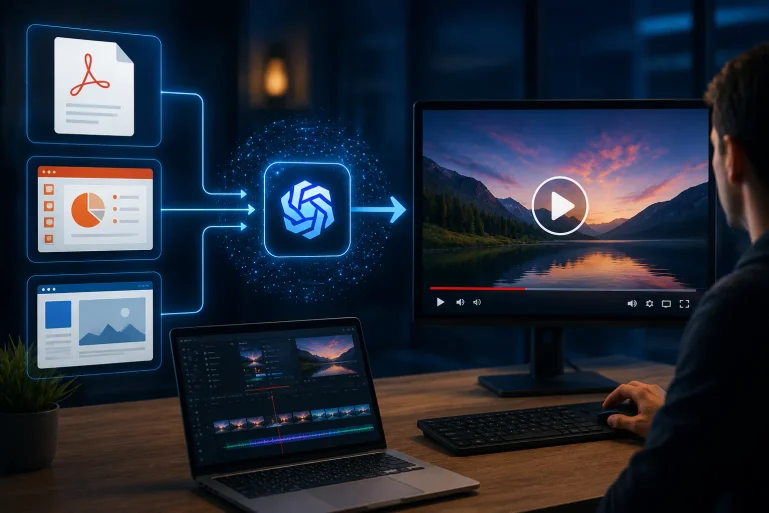
Wan 3.0 can use structured material—including text, images, video, audio, documents, and web pages—as reference input on supported routes. That makes a PDF, slide deck, or product page useful raw material for a short video. It does not make the document a verified script, and it does not require the model to reproduce every number, logo, label, or product detail correctly.
The dependable workflow has a human step in the middle. First compress the source into a clear video brief. Then supply only the reference material needed for that brief, generate the clip, and reconcile every visible or spoken claim with the source. Wan 3.0 can produce up to 30 seconds, so selection is part of the job; a crowded document cannot simply be poured into a short timeline.
Freeze the Exact Source Before Summarizing It
Save the version of the PDF or deck that has actually been approved. For a web page, capture the relevant copy and visual assets at a known date because page content can change between briefing and review.
Check whether the material is authorized for reuse. A public page can contain licensed photography, partner logos, quoted research, and product imagery that is not cleared for a new generated scene. Record which elements may be adapted, which must appear exactly, and which should remain outside the video.
Do not ask Wan 3.0 to resolve contradictions between two editions. If the deck says a feature launches in September while the page says October, send the discrepancy to the owner. The generator should receive the approved answer, not competing sources.
Reduce the Document to One Video Promise
A source document usually contains navigation, supporting evidence, disclaimers, background, and several messages written for different readers. A short video needs one promise. Write a single sentence stating what the viewer should understand or do after watching.
Next, extract only the material that earns screen time. A practical brief includes:
- the intended viewer and destination;
- one approved message in the exact language required;
- the action or visual progression;
- facts and numbers that may appear;
- logos, products, people, and colors that must match a reference;
- claims or details the model must not infer.
This brief is not a decorative summary. It is the control document used to judge the render. If a sentence cannot be traced to the source or an approver, remove it before prompting.
Turn Pages Into Beats Instead of Filming Them Page by Page
A twelve-slide deck rarely needs twelve scenes. Group the material by function: establish the subject, show the change or mechanism, demonstrate the result, then arrive at the approved closing action.
For a product page, the hero area may provide the opening composition while a specification section supplies one verified detail. The frequently asked questions block may explain a limitation that belongs in narration or on-screen copy.
Write each beat as an observable event. “The bottle rotates a quarter turn while the camera stays level” is actionable. “Communicate innovation” is not. Place exact copy in a separate line and plan to add critical typography during editing when possible; generated lettering still needs character-by-character inspection.
Build a Fact Sheet and a Visual Reference Pack Separately
Facts and appearance require different checks. Put names, quantities, dates, dimensions, compatibility statements, and approved claims into a small fact sheet with their source locations. This sheet is for the reviewer even when the interface accepts the original document.
Build a visual pack from approved originals: clean logo files, product views, packaging, color references, and any authorized people. State the role of each file. A front product photograph controls button placement; a side view controls thickness; a brand guide controls color. A mood image should never override product geometry.
This separation prevents a common mistake: assuming that because the model can read a document, it will treat every line as binding and every embedded image as exact. Document input supplies context. It is not a fact-checking service or a locked design layer.
Choose the Wan 3.0 Input Family Before Uploading Assets
Wan 3.0 supports several ways to guide a clip, but the interface may separate them into different task families. A first-and-last-frame job uses an opening image and, when needed, an ending image. A reference-led job can use a broader set of reference material, including documents or web pages on a route that exposes those inputs.
Those frame and reference families may be mutually exclusive within one task. Check the actual Wan 3.0 controls instead of borrowing assumptions from another ClipDance route such as seedance 2.5. If the job needs a precise opening composition, build and approve that frame first. If it needs the model to interpret a document and related media, use the reference route and make the brief especially explicit.
Upload less material rather than more conflicting material.
Write the Prompt From the Brief, Not From the Whole PDF
The prompt should direct the clip through time. Name the opening view, the action, camera behavior, protected product details, and the final state. Include only approved language that the model must know. Do not paste several pages of copy and expect it to choose the same hierarchy as the editor.
For example:
Begin on the approved front view of the black desk speaker. Camera moves slowly to the right while the grille pattern, two top buttons, proportions, and logo placement remain unchanged. The background light shifts from cool gray to warm white. End on the approved three-quarter product view. Add no interface, feature label, extra control, or performance claim.
The instruction creates visible criteria—button count, grille, proportions, mark placement, background change, and closing view—without guaranteeing a faithful product.
Reconcile the Render Against Facts and Appearance
Watch the first render once without pausing to understand its flow. Then review it frame by frame where the product turns, text appears, a logo becomes visible, or narration makes a claim. Compare with the source files, not memory.
Numbers deserve a literal check. Confirm every digit, unit, date, percentage, and qualifier. A correct-looking statistic can still be transposed or detached from its limitation. Logos need outline, spacing, color, and clear-space review. For a product, check silhouette, ports, controls, materials, packaging text, and scale in relation to hands or furniture.
Keep a discrepancy log tied to timestamps. “At 00:07, an extra side port appears” is actionable. “Product feels wrong” is not. Correct factual copy in the edit timeline rather than repeatedly asking generation to typeset it. If geometry changes during motion, revise the reference or simplify the action before altering unrelated prompt language.
When the source-to-render process is automated, reAPI can serve as a multi-model gateway. A Wan 3.0 job enters through its video submission endpoint, returns a task ID, and is checked until the finished output is available. reAPI remains separate from ClipDance and did not create Wan 3.0, so asset roles and review criteria must be documented when moving between interfaces.
Questions About Document-to-Video Work
Does uploading a PDF mean every statement will appear?
No. The document provides reference context. The editor still chooses the message, maps it to beats, and checks the output against the approved source.
Can Wan 3.0 verify a statistic from a web page?
No. Confirm the figure with the responsible source before generation, then compare every visible or spoken digit in the render with that approved record.
Should the whole slide deck be shown in the video?
Usually not. Select the slides that support the one video promise. Rebuild essential charts or copy in the edit timeline when accuracy and readability matter.
Run a Source-to-Render Reconciliation Before Handoff
Open four things side by side: the frozen source, the video brief, the approved visual pack, and the final render. Read every claim aloud while pointing to its source. Pause on each product view and compare its shape, controls, mark, and color with the approved photograph.
Record any mismatch by timestamp, owner, and required correction. Reopen the corrected export and repeat only the failed checks, plus the seconds on either side. The clip is ready for handoff when its message, numbers, logo, and product appearance agree with the approved material—not merely when the document was accepted as an input.