


Most file upload bugs never show up in a demo. They show up three weeks after launch, when someone on a hotel Wi-Fi tries to upload a 400MB video, or when a user on an older Android phone taps “choose file” and nothing happens. JavaScript file upload testing is one of those areas that looks simple on the surface and gets shallow QA coverage as a result, until it doesn’t.
This checklist walks through the test cases that actually matter: reliability under bad network conditions, validation and security, user-facing feedback, cross-browser and cross-device behaviour, and how to turn all of it into something your team can automate instead of re-testing by hand every release. It’s written for QA engineers, frontend developers, and anyone who owns the upload flow and wants a more complete picture of what to test before calling it done.
Key Takeaways
- Happy-path testing catches almost nothing; most upload bugs live in edge cases like flaky networks, odd file types, and concurrent uploads.
- Reliability testing should cover slow connections, dropped connections, and resuming an upload after interruption; not just a clean, fast upload.
- Validation needs to happen on both the client and the server; client-side checks are a UX convenience, not a security control.
- UX test cases (progress accuracy, cancel/retry, error messaging) affect how much support load your upload flow generates.
- Automating network throttling, fixture files, and regression checks in CI turns a one-time QA pass into a repeatable safety net.
Before getting into the specifics, it helps to understand why upload testing tends to get shortchanged in the first place, because that’s usually where the coverage gaps start.
Why Upload Testing Gets Skipped
Upload flows tend to get a quick pass during QA cycles because they “just work” in the browser sitting on a fast office connection, which hides most of the actual risk.
The Illusion of “It Works”
A file upload test case in a sprint demo usually looks the same every time: pick a small image, watch the progress bar move, see a success message. That test passes. It also tells you almost nothing.
- Happy-path uploads pass easily, because the conditions are ideal: fast network, small file, modern browser, nothing interrupting the request.
- Failures appear only in the field, once real users bring their own devices, connections, and file sizes into the mix.
- Edge cases dominate real usage, since production traffic includes far more variation than any single test session accounts for: spotty mobile data, unusual file formats, users switching tabs mid-upload, and so on.
The gap between “works in the demo” and “works for users” is exactly where most reported bugs come from.
What to Cover Instead
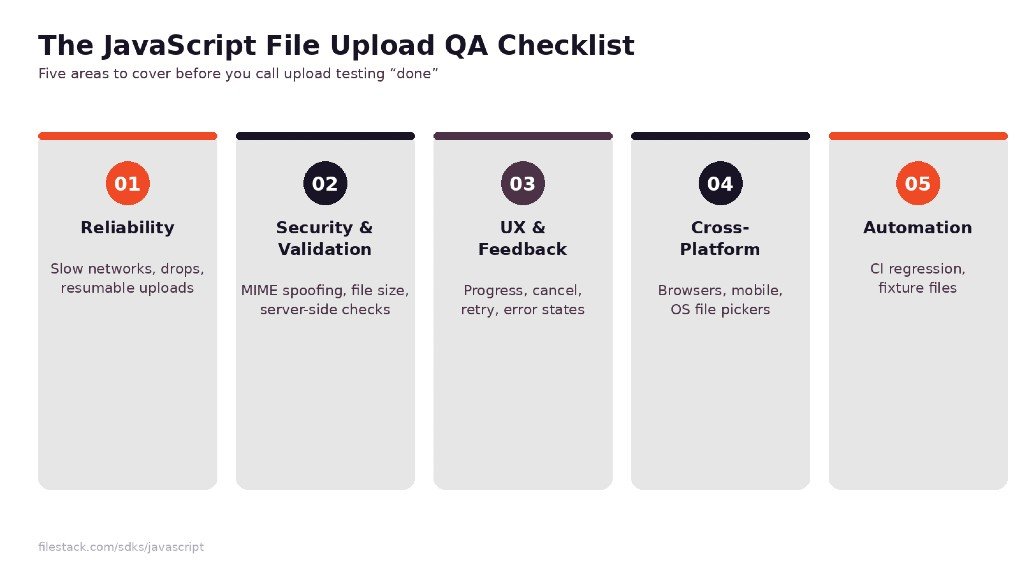
A more complete set of JavaScript file upload test cases usually falls into three buckets:
- Reliability under bad conditions: slow networks, timeouts, dropped connections, and resumability.
- Security and validation, confirming that both the client and the server reject what they’re supposed to reject.
- Cross-device and cross-browser behaviour, because file inputs, drag-and-drop, and camera capture don’t behave identically everywhere.
The rest of this checklist is organised around those three areas, plus UX feedback and automation, so you can treat it as a working reference rather than a one-time read.
With the “why” out of the way, it’s worth getting concrete about what reliability testing actually involves; this is usually where the biggest coverage gaps live.
Reliability Test Cases
Reliability testing is about proving the upload survives conditions that aren’t ideal, since ideal conditions are the exception in production, not the rule.
Network Conditions
Network variability is the single biggest source of real-world upload failures, and it’s also the easiest category to under-test if you only ever upload on a stable connection.
- Slow and high-latency connections: Test on throttled 3G-equivalent speeds to confirm the UI stays responsive and doesn’t appear frozen.
- Dropped connections mid-upload: Simulate a connection loss partway through a transfer and check what the user sees and what state the client is left in.
- Resuming after interruption: For any flow that claims resumable upload testing support, verify the upload picks up from where it left off instead of restarting from zero.

File Conditions
Beyond the network, the file itself is a variable worth testing deliberately, since assumptions about “normal” files rarely hold once real users are involved.
- Very large files: This is where large file upload testing earns its place in the checklist; confirm chunking, timeouts, and memory behaviour on files well beyond your typical test asset.
- Zero-byte and unusual files: Empty files, files with no extension, and files with unusual MIME types can expose validation gaps that normal test files never trigger.
- Many files at once: Batch uploads test concurrency handling, and they’re a common source of race conditions in progress tracking and error state.
Reliability testing proves the upload can survive bad conditions. The next question is whether it correctly rejects the things it should never accept in the first place.
Validation and Security Test Cases
Validation and security testing confirms that the upload flow only accepts what it’s supposed to, and does so in a way that can’t be bypassed from the browser console.
Input Validation
This is the layer most QA checklists already cover to some degree, but it’s worth treating as a full file upload security testing pass rather than a quick spot-check.
- Rejected types and oversized files: Confirm the UI and the request itself reject anything outside the allowed types and size limits, not just the file picker’s accept attribute.
- Spoofed MIME types: Rename a disallowed file type so its extension and declared MIME type look legitimate, and confirm the check isn’t relying on the filename alone.
- Malicious filenames: Test filenames with path traversal characters, script tags, or unusual encodings to confirm they’re sanitised before being stored or displayed.
Backend Enforcement
Client-side checks are for user experience. They are not a security boundary, and testing should reflect that distinction clearly.
- Server-side validation, not client-only: Bypass the browser entirely (a direct API call works fine) and confirm the same rules are enforced server-side.
- Scanning behaviour on bad files: For flows with malware or content scanning, verify a flagged file is actually blocked or quarantined, not just logged.
- Signed policy expiry handling: If uploads use signed URLs or upload policies with expiry windows, test what happens when a token expires mid-session.
Getting validation right protects the system. The next layer is about protecting the experience, what the user actually sees while all of this is happening.
UX and Feedback Test Cases
Even a technically correct upload can generate support tickets if the interface doesn’t communicate what’s happening clearly enough.
User-Facing Behaviour
This is where a QA pass often reveals gaps that have nothing to do with the upload mechanism itself and everything to do with what the user is told.
- Accurate progress indication: Confirm the progress bar reflects real transfer progress rather than a rough approximation, especially on large or chunked uploads.
- Cancel and retry actions: Test that cancelling actually stops the request (not just hides the UI element) and that retry doesn’t duplicate a partial upload.
- Clear error messaging: Network failures, validation rejections, and server errors should each produce a message a non-technical user can act on, not a generic “something went wrong.”
These test cases usually don’t take long to run, but they carry a disproportionate amount of weight in how the upload experience actually feels to end users.
Feedback and UX cover what the user sees on one machine. The next step is confirming that experience holds up across the range of browsers and devices your users actually bring.
Cross-Platform Test Cases
Cross-browser file upload testing exists because file inputs, drag-and-drop APIs, and mobile capture behaviour are implemented differently across browsers and operating systems, and those differences show up in real usage far more than most teams expect.
Compatibility
A practical baseline for coverage looks like this:
- Major desktop browsers: Chrome, Firefox, Safari, and Edge each handle drag-and-drop, multiple file selection, and large payloads slightly differently.
- Mobile browsers and capture: Mobile file upload testing should include both file picker selection and direct camera capture, since the two paths can behave inconsistently.
- Different OS file pickers: Windows, macOS, iOS, and Android all present native file pickers with their own quirks around file naming, path handling, and permissions.
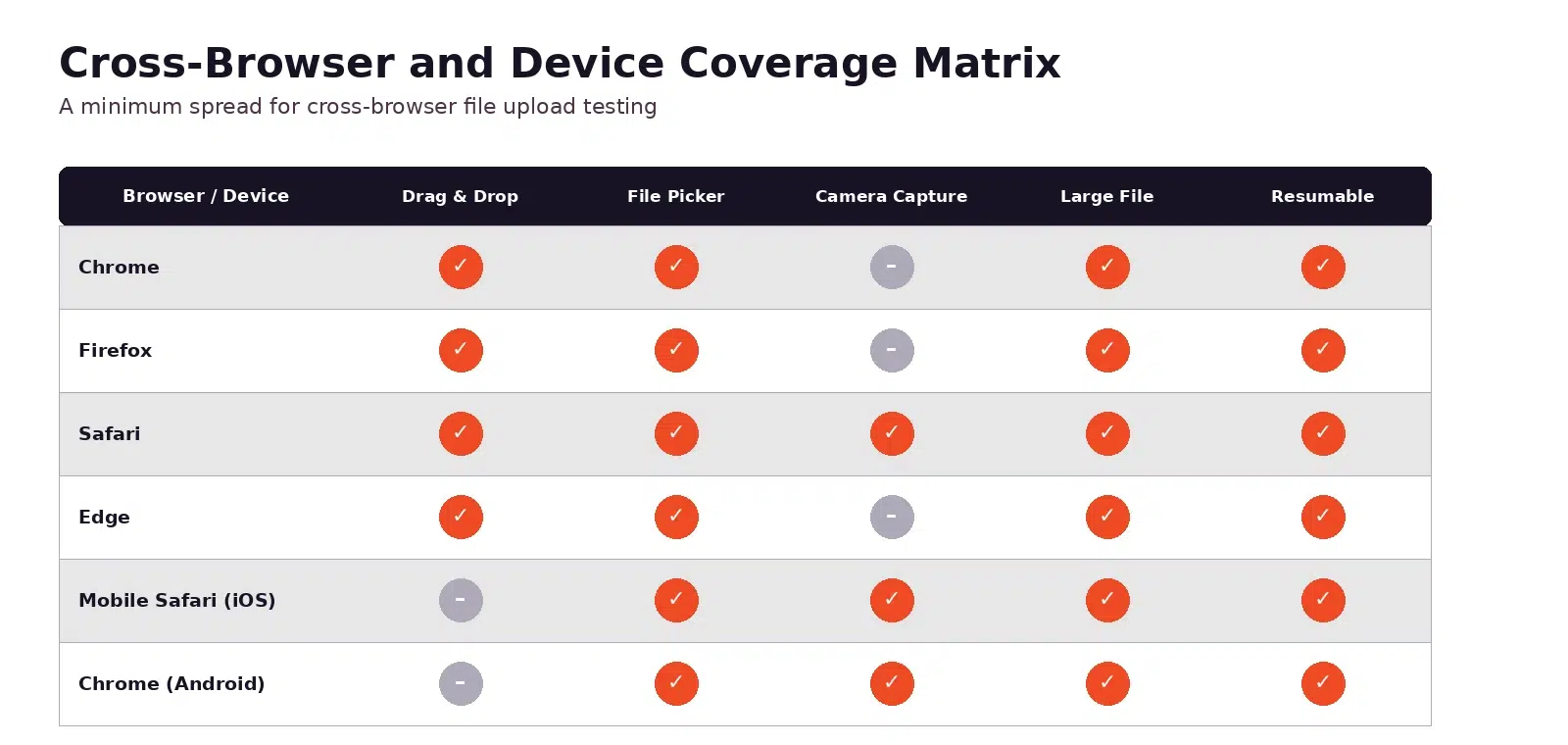
None of these test cases needs to be exhaustive on their own, but skipping mobile capture or one major browser tends to be exactly where post-launch bug reports come from.
Running this full checklist manually once is useful. Running it manually every release isn’t sustainable, which is where automation comes in.
Automating the Checklist
Automated file upload testing turns this checklist from a one-time QA pass into a regression suite that catches the same class of bugs before every release, instead of after.
Making It Repeatable
A few practices make this checklist realistic to maintain over time:
- Scripted network throttling: Tools like Chrome DevTools Protocol or Playwright’s network conditions let you script slow-connection and drop scenarios instead of testing them by hand each time.
- Fixture files for edge cases: Keep a small, versioned library of test files (oversized, zero-byte, spoofed MIME type, unusual filenames) so edge cases are consistent across runs and across team members.
- Regression tests in CI: Wire the core JavaScript file upload test cases into your CI pipeline so a change to the upload component gets flagged before it reaches production.
Teams that outsource the underlying upload mechanics to a dedicated JavaScript file upload SDK often find this checklist gets shorter in practice, since chunking, resumability, and cross-browser handling are already covered at the library level, leaving QA to focus on validation rules and application-specific behaviour rather than re-testing transport reliability from scratch.
Whether you build the upload layer in-house or rely on an SDK for the transport logic, the test cases in this checklist stay the same; only the amount of custom code you’re responsible for testing changes.
Conclusion
A JavaScript file upload rarely fails in the way it was tested. It fails on a slower connection, with a larger file, on a browser nobody checked, or because a validation rule only existed on the client.
Building a checklist around reliability, security, UX, and cross-platform behaviour, and then automating as much of it as possible, closes most of the gap between what QA sees before launch and what users run into afterwards.
Treat this as a living checklist rather than a one-time audit, and revisit it whenever the upload flow, SDK, or backend validation logic changes.
FAQs
How do I test a JavaScript file upload?
Start with the happy path to confirm the basic flow works, then move into edge cases: slow and dropped network conditions, oversized and unusual files, validation bypass attempts, and behaviour across browsers and devices. A structured checklist like this one helps make sure none of those categories gets skipped.
Which file upload edge cases should QA test?
The highest-value edge cases are large files, zero-byte files, unusual or spoofed MIME types, malicious filenames, many files uploaded at once, and interrupted or dropped connections mid-transfer.
How can I simulate an interrupted file upload?
Use browser dev tools or a proxy tool to throttle or drop the network connection mid-request, or disable the network adapter briefly during an active upload. Automated testing tools such as Playwright and Cypress can script this behaviour for repeatable test runs.
How should I test resumable and multipart uploads?
Interrupt the upload at different points in the transfer (early, middle, and near completion), then confirm the client resumes from the correct chunk rather than restarting. Also test what happens if the resume attempt happens after a long delay or a page reload.
Which browsers and mobile devices should I test?
At minimum, cover Chrome, Firefox, Safari, and Edge on desktop, plus Safari on iOS and Chrome on Android for mobile. Include both file picker selection and direct camera capture on mobile devices.
Can JavaScript file upload tests run in CI?
Yes. Network throttling, fixture files, and core upload test cases can all be scripted with tools like Playwright, Cypress, or Chrome DevTools Protocol and wired into a CI pipeline so upload behaviour is checked automatically on every change.
How do I test file upload security safely?
Test in a non-production environment using fixture files designed to be malicious in a controlled way: spoofed MIME types, path traversal filenames, oversized payloads, and confirm rejection happens server-side, not just in the UI. Avoid testing with real malware samples outside of a properly isolated environment.