
The “iPhone Unavailable” screen has become one of the most common issues reported by iPhone users in recent years. Whether you’ve forgotten your passcode, entered the wrong code too many times, or received a locked device from someone else, seeing this message can prevent you from accessing your iPhone altogether.
Fortunately, Apple provides several ways to reset and recover a locked device. There are also specialized iPhone unlocker tools that can simplify the process when traditional methods aren’t practical. This guide covers everything you need to know about unlocking an unavailable iPhone in 2026.
What Does “iPhone Unavailable” Mean?
The “iPhone Unavailable” message is a security feature introduced by Apple to protect user data from unauthorized access. When someone enters the wrong passcode multiple times, the iPhone temporarily disables itself and displays a waiting period. Continued incorrect attempts may eventually lead to a permanent lockout until the device is erased and reset. This mechanism helps prevent brute-force passcode attacks and keeps personal information secure. The “iPhone Unavailable” message may appear for below reasons:
- Forgotten Passcode: It is the cause users encounter most often. Users may not use their passcode frequently due to Face ID or Touch ID and eventually forget it.
- Multiple Incorrect Attempts: Entering the wrong passcode repeatedly causes Apple to gradually increase the lockout period.
- Children Entering Random Passcodes: It’s not uncommon for children to accidentally lock a device after multiple incorrect attempts.
- Second-Hand Devices: Some users purchase a used iPhone and discover that they cannot access the device because they don’t know the passcode.
Regardless of the cause, the good news is that there are several ways to resolve the issue.
Method 1: Wait and Try Again
If the device displays a countdown timer, you can simply wait until the lockout period expires. Once the timer ends, enter the correct passcode, and unlock the device normally. This method only works if you remember the passcode. If you’ve completely forgotten it, you’ll need to use another solution.
Method 2: Use Apple’s Erase iPhone Option
On some iPhone models running newer versions of iOS, Apple provides an “Forgot Passcode” option directly on the lock screen. To use this method, ensure the device is connected to the internet. Tap Forgot Passcode on the iPhone Unavailable screen, tap iPhone Reset, and sign in Apple ID and password to erase iPhone to factory settings, or tap Enter Previous Passcode to unlock it if you remember it.
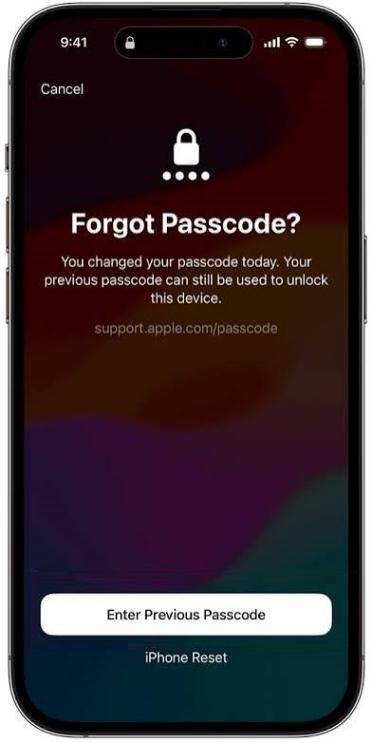
After the erase is complete, you can set up the iPhone again and restore your data from a backup. However, this method requires access to the original Apple ID credentials or previous passcode. It is great option if you are looking for how to unlock iPhone passcode without computer.
Method 3: Use Recovery Mode to Restore iPhone
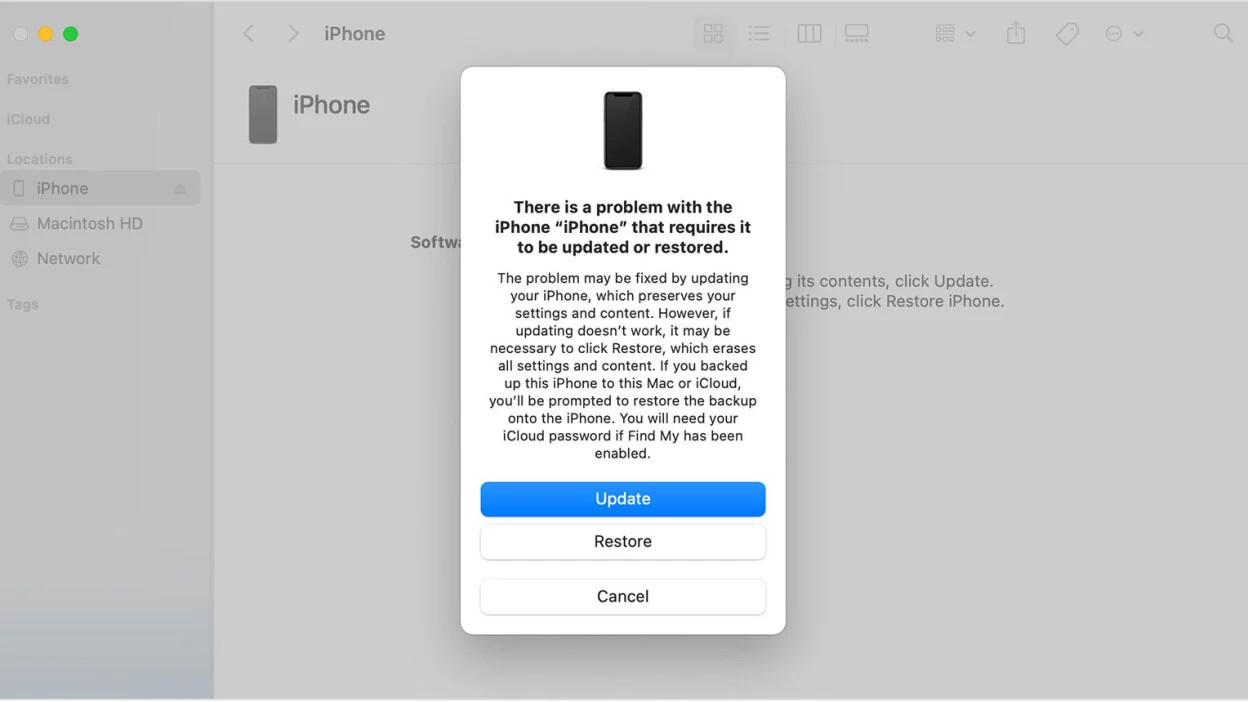
Recovery Mode is Apple’s official solution for removing the “iPhone Unavailable” screen. Power off the device completely. Put your iPhone enter in Recovery Mode. Launch Finder if you’re using macOS, or iTunes if you’re on Windows. Select Restore when prompted. The required package will be retrieved and installed without manual intervention. After the process finishes, the iPhone will restart and return to the setup screen.
Method 4: Unlock iPhone Unavailable Screen with MagFone iPhone Unlocker
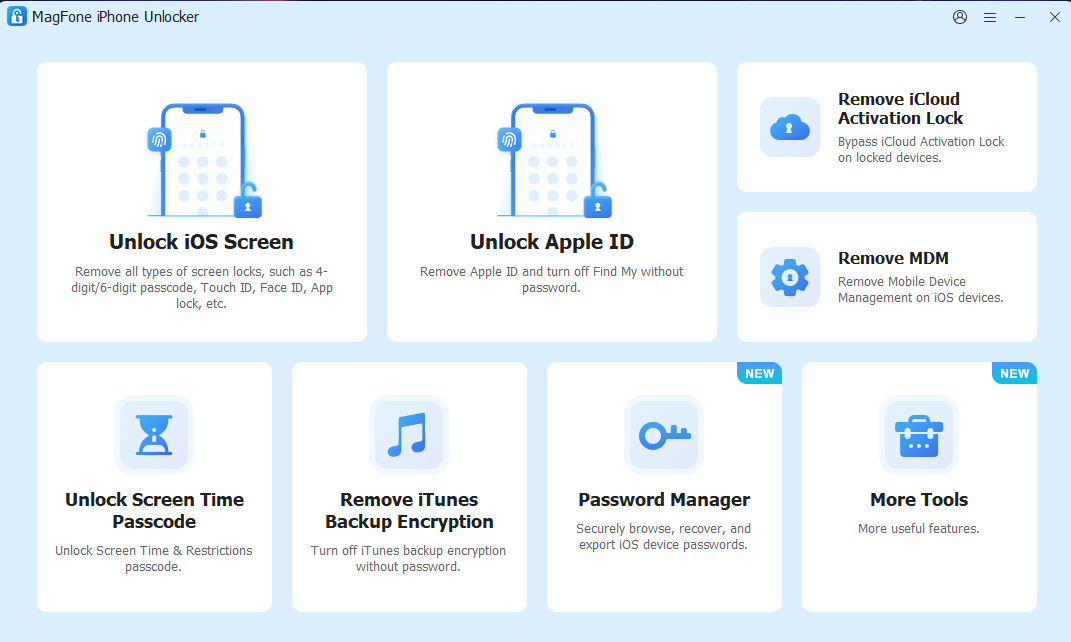
For users looking for a more straightforward solution, dedicated unlocking software can simplify the process. MagFone iPhone Unlocker is designed to help users remove various types of iPhone screen locks, including situations where the device displays the “iPhone Unavailable” message. The software supports almost all iPhone models and iOS versions and provides step-by-step instructions throughout the unlocking process.
Key Features of MagFone iPhone Unlocker
- Unlock iPhone without passcode or Face ID
- Fix disabled and unavailable iPhones
- Bypass iCloud activation lock
- Remove MDM & Screen Time without data loss
Step 1: Get MagFone iPhone Unlocker and install it on your PC or Mac. Use a USB cable to connect the locked iPhone. Select Remove iOS Screen to start.
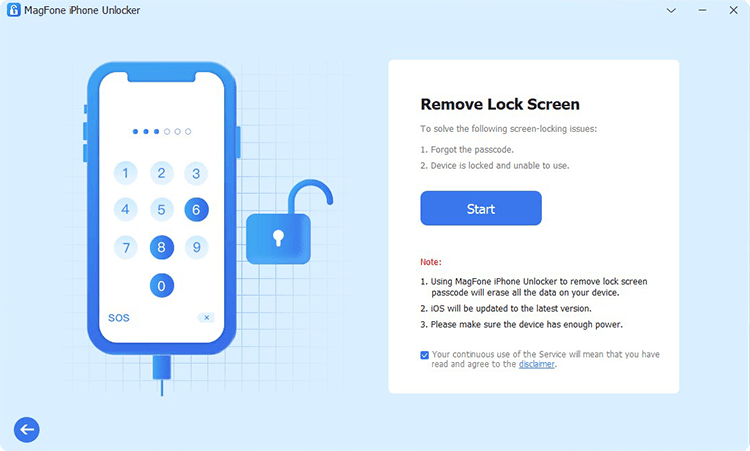
Step 2: Follow the on-screen instructions provided by the MagFone to put your iPhone in Recovery mode. It will identify your device and download the appropriate firmware package.
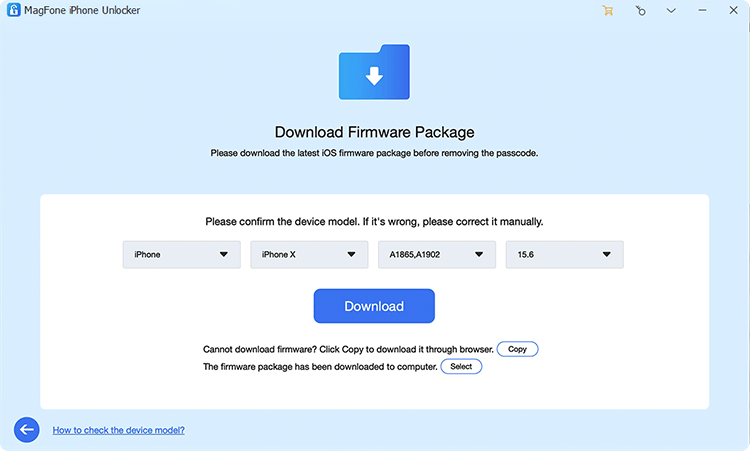
Step 3: Click Unlock and wait until the procedure is complete. When finished, you may set up the device as new or restore your saved data.
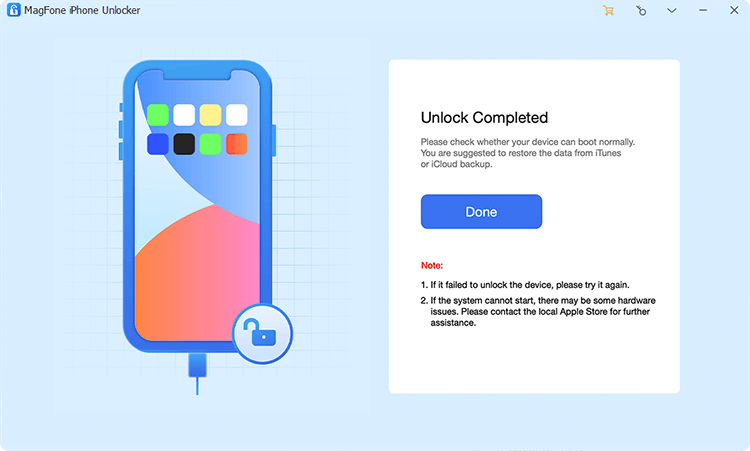
Compared with manually navigating Apple’s recovery procedures, this approach is often easier for users with limited technical experience, especially for some users who looking for how to unlock iPhone without iTunes.
Will Unlocking an Unavailable iPhone Delete Data?
In most cases, yes. Apple’s security system is designed to protect user information, which means removing the passcode generally requires erasing the device. If you have a recent backup stored in iCloud or on a computer, you can restore your data after unlocking the device. To minimize future data loss, it’s a good idea to enable automatic iCloud backups regularly.
How to Prevent the iPhone Unavailable Screen
You can try below tips to prevent this problem from happening in the future:
- Use a memorable passcode.
- Keep Face ID or Touch ID enabled.
- Update your Apple ID recovery information.
- Create regular backups.
- Avoid repeated incorrect passcode attempts.
Final Thoughts
The “iPhone Unavailable” message may seem alarming at first, but it doesn’t mean your device is permanently inaccessible. Depending on your situation, you can wait for the timer to expire, use Apple’s built-in erase feature, restore the device through Recovery Mode, or use a dedicated unlocking solution.
For users who want a simpler and more guided approach, MagFone iPhone Unlocker provides an efficient way to remove screen locks and regain access to an unavailable iPhone in just a few steps. It is also a great tool if you are wondering how to remove Apple ID from iPhone as well. With the right method, you can unlock your device and get back to using your iPhone without unnecessary complications.