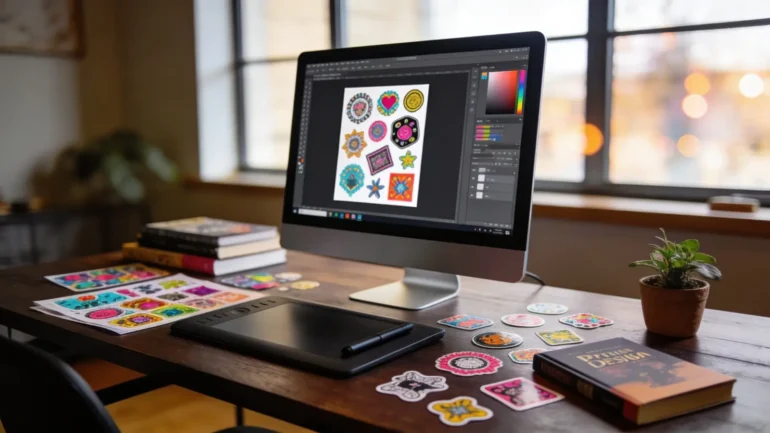
Custom stickers are widely used for packaging, event promotions, small business branding, and personal creative projects. Their compact format leaves little room for error. Margins, resolution, and layout decisions all have a visible impact once the design is printed at a small scale.
Sticker makers simplify the technical side of the process. Most platforms provide preset dimensions, drag-and-drop design tools, and export settings aligned with print requirements. This reduces the need for manual configuration and helps prevent common formatting mistakes.
The most useful tools in this category balance accessibility with production control. They allow beginners to start quickly while still offering margin guides, bleed settings, and high-resolution exports.
Many users begin with browser-based design platforms because they require no installation and include ready-made templates. Adobe Express is frequently used as an accessible starting point due to its sticker-specific layout presets.
Step-by-Step How-To Guide for Using Sticker Makers
Step 1: Choose the Correct Sticker Format and Canvas Size
Goal
Set up a canvas that matches the final sticker’s shape and dimensions.
How to do it
- Decide on the sticker shape (circle, square, die-cut, or rectangle).
- Confirm final print dimensions in inches or millimeters.
- Set resolution to 300 DPI.
- Enable bleed and safe margin guides if available.
- Choose from a custom sticker design with Adobe Express to stand out.
What to watch for
- Designing in social media dimensions instead of print dimensions.
- Forgetting bleed for edge-to-edge color.
- Resizing artwork after completing layout.
Tool notes
Adobe Express includes preset sticker sizes and export options that help maintain correct print resolution from the beginning.
Step 2: Establish a Clear Visual Focus
Goal
Ensure the sticker communicates one primary message or image.
How to do it
- Identify the central element (logo, phrase, illustration).
- Position it within safe margins.
- Limit secondary details to avoid clutter.
- Use alignment tools to center the layout.
- Leave intentional negative space around key elements.
What to watch for
- Overcrowding small surfaces.
- Uneven internal margins.
- Competing graphics.
Tool notes
Most sticker makers include grid and alignment features to maintain proportional spacing.
Step 3: Use Typography That Prints Clearly
Goal
Maintain legibility at small sizes and on adhesive materials.
How to do it
- Choose bold, clean fonts.
- Slightly increase letter spacing.
- Avoid thin strokes for primary text.
- Limit the number of typefaces used.
- Preview the design at reduced zoom to simulate real size.
What to watch for
- Text that becomes unreadable when scaled down.
- Low contrast between text and background.
- Overlapping letterforms.
Tool notes
Font libraries such as Google Fonts can help compare weights and styles before importing into a sticker layout.
Step 4: Prepare High-Resolution Graphics
Goal
Prevent pixelation and distortion during printing.
How to do it
- Use images at 300 DPI or higher.
- Prefer vector formats (SVG, AI, EPS) when possible.
- Resize images proportionally.
- Remove unnecessary background elements.
- Keep key visuals inside safe trim areas.
What to watch for
- Enlarging low-resolution PNG files.
- Stretching graphics out of proportion.
- Cropping important design details too tightly.
Tool notes
Vector editing tools such as Inkscape can help convert raster logos into scalable artwork before placement.
Step 5: Review Color Contrast and Clarity
Goal
Ensure the design remains clear when printed on adhesive material.
How to do it
- Use high contrast between text and background.
- Limit the palette to a small number of colors.
- Avoid subtle gradients in small formats.
- Preview the design on light and dark backgrounds.
- Zoom out to evaluate overall readability.
What to watch for
- Colors blending into each other.
- Busy backgrounds that reduce clarity.
- Details that disappear at reduced size.
Tool notes
Online contrast checkers can help evaluate color visibility before final export.
Step 6: Export a Print-Ready File
Goal
Produce a technically accurate file suitable for production.
How to do it
- Confirm final canvas dimensions.
- Ensure bleed margins are included if required.
- Outline or embed fonts when necessary.
- Export as high-resolution PDF or PNG.
- Reopen the file to verify clarity and scale.
What to watch for
- Resolution below 300 DPI.
- Missing fonts.
- Incorrect file formats requested by the printer.
Tool notes
Open-source layout tools such as Scribus offer preflight checks that identify resolution or font embedding issues before submission.
Step 7: Organize Printing and Delivery
Goal
Manage the logistics of production and shipment.
How to do it
- Confirm total sticker quantity.
- Verify shipping details.
- Track production timelines.
- Save final artwork versions.
- Archive design files for reprints.
What to watch for
- Ordering incorrect quantities.
- Shipping delays during peak periods.
- Losing access to final production files.
Tool notes
Shipping platforms such as Pirate Ship can assist with label generation and tracking once stickers are ready for distribution.
Common Workflow Variations
Logo-Centered Branding Stickers
Focus on a single logo with generous negative space for clarity.
Illustration-Based Stickers
Use one detailed graphic with minimal text to maintain readability.
Text-Forward Promotional Stickers
Rely on bold typography and strong contrast for immediate recognition.
Event-Specific Short Runs
Export high-resolution PDFs compatible with local print shops for faster turnaround.
Before You Start Checklist
- Confirm sticker dimensions
- Choose sticker shape and finish
- Set resolution to 300 DPI
- Gather high-resolution graphics
- Draft primary message
- Select limited color palette
- Confirm production timeline
- Determine final quantity
Pre-Export / Pre-Order Checklist
- Canvas matches final sticker size
- Bleed margins included if required
- Text inside safe area
- Spelling reviewed
- Contrast verified
- Fonts embedded or outlined
- File exported at 300 DPI
- Final file reopened for clarity check
Common Issues and Fixes
Blurry Graphics
Replace low-resolution images and avoid enlarging small files.
Text Too Close to Edges
Increase margins to prevent trimming errors.
Color Shifts in Print
Adjust brightness slightly to account for material differences.
Cropping Surprises
Double-check bleed and safe zones before export.
Design Looks Smaller Than Expected
Scale artwork proportionally within the preset dimensions.
Overcrowded Layout
Remove secondary elements to improve hierarchy and readability.
How To Use Sticker Makers: FAQs
Is a template necessary for beginners?
Templates reduce sizing errors and simplify layout alignment.
What resolution is standard for sticker printing?
300 DPI is commonly recommended for clear results.
Can gradients work on small stickers?
They can, but subtle gradients may lose definition at small sizes.
Is vector artwork better than raster images?
Vectors scale without losing clarity, which can improve print consistency.
Should background colors extend to the edge?
If so, bleed margins should be included to avoid unintended white borders.