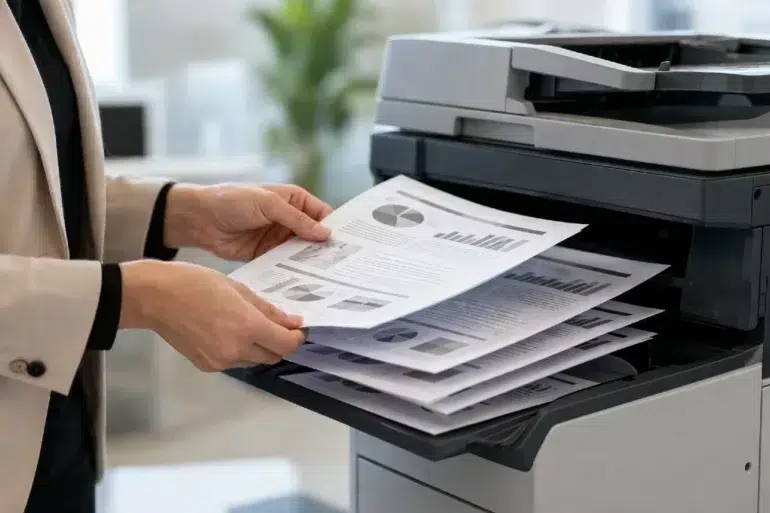
Have you ever stood by the office printer, waiting for a thirty-page report to finish, only to realize you have to spend the next twenty minutes manually sorting through stacks of paper? It is a tedious, soul-crushing task that most of us have dealt with at some point. This is exactly where collate printing comes to the rescue. It is one of those features we often click without thinking, yet it fundamentally changes how we handle document production in both home offices and high-volume corporate environments.
At its simplest, collating is the process of organizing your printed pages into a specific, ready-to-use order. Instead of getting ten copies of page one, then ten copies of page two, the printer smartens up and gives you complete sets from start to finish. It sounds basic, but the mechanics behind how a modern copier handles this digital and physical sorting are quite fascinating.
Understanding the nuances of this feature can save you hours of manual labor. Whether you are preparing a dozen handbooks for a meeting or printing out a multi-chapter manuscript, knowing how to toggle these settings ensures your workflow remains seamless. Let’s dive deep into the world of organized printing and see what actually happens behind that plastic casing.
What Exactly Is Collate Printing?
When you look at the print dialog box on your computer, you will usually see a small checkbox labeled “Collate.” If you leave it unchecked, the printer follows a linear path. If you need five copies of a three-page document, it will spit out five copies of page one, followed by five of page two, and finally five of page three. You are then left with three messy piles that require manual assembly.
Collate printing flips this logic. By selecting this option, the printer treats each set as a single unit. It prints pages one, two, and three, then repeats that cycle four more times. The result? Five neatly organized packets that are ready for a staple or a binder the moment they hit the output tray.
This isn’t just a convenience for the person standing at the machine; it is a vital function for businesses that deal with high-volume documentation. From legal briefs to educational packets, the ability to automate the sequence of pages is a cornerstone of modern document management.
The Evolution of Collating Technology
In the early days of printing, collating was a mechanical nightmare. Large offset presses required massive “collator” attachments—huge rotating drums or long conveyor belts with bins that would physically grab one page from each stack to form a set. It was loud, prone to paper jams, and took up half a room.
Today, the process is largely handled by software and internal memory. Modern digital copiers use a “scan once, print many” philosophy. The machine stores the entire document in its internal RAM or hard drive. Once the digital map of the document is held in the memory, the printer can recall the pages in any order it needs without having to re-scan the original or re-process the data from the computer.
How Printers Handle Collating Physically
While the digital side handles the order, the physical hardware of the printer has to deal with the output. High-end office copiers often have specialized finishing units to make collated sets even easier to identify.
Offset Stacking
If you have ever seen a stack of papers where each set is slightly shifted to the left or right of the one below it, you have seen offset stacking. The printer’s output tray moves slightly back and forth between sets. This makes it incredibly easy to grab one full copy without accidentally taking the first page of the next set.
Multiple Output Bins
Some industrial-grade printers feature a “mailbox” system. Each collated set is sent to a different physical bin. This is particularly useful in a shared office where multiple people are printing long documents simultaneously; it keeps everyone’s work physically separated.
Electronic Collating
This is what most of us use with our standard inkjet or laser printers at home. There are no moving trays or multiple bins. The printer simply processes the data in the 1, 2, 3 sequence. While it doesn’t separate the sets physically as well as an office copier, it still saves you the hassle of manual sorting.
Comparing Collated vs. Uncollated Printing
To truly appreciate the value of collate printing, it helps to look at a direct comparison of how these two methods function during a standard print job.
| Feature | Collated Printing | Uncollated Printing |
| Page Order | 1, 2, 3 | 1, 2, 3 |
| Primary Use | Multi-page reports, booklets, presentations. | Flyers, single-page forms, business cards. |
| Post-Printing Effort | Zero to minimal (ready to staple). | High (requires manual sorting). |
| Speed | Can be slightly slower on older machines. | Often faster for the hardware to process. |
| Memory Usage | High (needs to store the whole document). | Low (processes one page at a time). |
As you can see, the choice depends entirely on what you are producing. If you are printing 500 copies of a single-page promotional flyer, uncollated is the way to go because there is nothing to sort. But for anything involving a sequence, collating is the undisputed champion.
The Role of Printer Memory and Buffer
A common question people ask is why their printer slows down when they select the collate option. The answer lies in the RAM (Random Access Memory) of the device.
When you print uncollated, the printer only needs to remember one page at a time. It loads page one, prints it ten times, clears it, and moves to page two. When you collate, the printer has to keep the data for the entire document ready for immediate recall. If you are printing a 50-page document with high-resolution images, that is a lot of data.
If the printer’s internal memory is low, it might have to “re-spool” the data from the computer for every single set, which causes those annoying pauses between copies. Modern office copiers are essentially powerful computers with large hard drives specifically to avoid this bottleneck.
Practical Scenarios for Collate Printing
Let’s look at a few real-world examples where this feature becomes a life-saver.
1. Educational Settings
Imagine a teacher preparing a 10-page exam for a class of 30 students. Without collating, the teacher would have 10 stacks of 30 pages scattered across a desk. They would have to walk around the table 30 times, picking up one page from each stack. With collate printing, the teacher simply picks up 30 individual packets from the tray, staples them, and they are done.
2. Legal and Medical Offices
In law firms, “bundles” or “discovery documents” can consist of hundreds of pages. These must be in a perfect chronological or categorical order. A mistake in manual sorting could lead to a legal error. Using the printer’s internal collating and finishing features (like automatic stapling) ensures the integrity of the document set.
3. Real Estate Presentations
When a real estate agent is preparing a listing presentation for a client, the visual flow matters. The cover letter, the property photos, the market analysis, and the contract must follow a specific narrative. Collating ensures that every prospective client receives the information in the exact order the agent intended.
Troubleshooting Common Collating Issues
Sometimes, you check the box, but the printer doesn’t cooperate. Here are the most common reasons why:
- Driver Mismatch: Sometimes the computer’s print driver and the printer’s internal software disagree on who should be “in charge” of the collating. If your sets aren’t coming out right, try toggling the “Mopy Mode” or “Job Storage” settings in your printer properties.
- Insufficient Memory: If a job is too large for the printer’s RAM, it might default to uncollated printing or simply fail. In these cases, it is better to print in smaller batches (e.g., five sets at a time).
- Application Overriding Settings: Programs like Adobe Acrobat or Microsoft Word have their own print dialogs. Sometimes these settings override the default printer preferences. Always double-check the “Preview” or “Settings” pane within the app itself.
The Software Side: How Word and PDF Viewers Help
Most modern software is designed to make collate printing the default. In Microsoft Word, for instance, when you increase the number of copies to more than one, the “Collate” box usually checks itself automatically.
PDF readers like Adobe Acrobat are even more sophisticated. They can handle “Reverse Print Order” alongside collating. This is useful for printers that output pages face-up; by reversing the order and collating, the first page of the set ends up on top of the pile rather than at the bottom.
Finishing Options: The Perfect Partner to Collating
Collating is just the first step in automated document finishing. If you are using a high-end office multifunction printer (MFP), you likely have access to several “finisher” modules that work in tandem with collating:
- Stapling: The machine collates the set and then physically staples the corner or the side before dropping it in the tray.
- Hole Punching: Perfect for documents destined for three-ring binders.
- Saddle Stitching: This collates the pages, folds them in half, and staples them along the spine to create a professional-looking booklet.
- Z-Folding: Used for large maps or architectural drawings that need to be folded to fit within a standard-sized collated report.
Environmental and Cost Considerations
You might wonder if collating costs more. In terms of ink and paper, the cost is identical to uncollated printing. However, there is a minor impact on energy consumption and mechanical wear.
Because the printer’s motor and laser (or inkjet head) must work in a more complex cycle, the job may take slightly longer, leading to a marginal increase in power usage. Furthermore, the constant “seeking” of data in the memory puts more work on the internal processor. For a standard office, these costs are negligible compared to the massive savings in human labor costs.
Why Some Professionals Still Print Uncollated
Despite the benefits, there are niche cases where you might intentionally avoid collating:
- Custom Paper Stocks: If page one is on thick cardstock and page two is on standard paper, most home printers can’t switch trays automatically. You would print all of page one on the cardstock, then all of page two on the standard paper, and then manually combine them.
- Quality Control: For extremely high-stakes documents, some people prefer to print uncollated so they can inspect all copies of a specific page at once to ensure there are no streaks or ink blots before moving to the next page.
- Batch Processing for Bindery: Professional print shops often print uncollated if the documents are going to a separate industrial binding machine that requires stacks of identical pages to function.
Future Trends in Document Sorting
As we move further into the digital age, the “printer” is becoming more of a “document workstation.” We are seeing the rise of AI-driven sorting, where the machine can recognize different sections of a document and automatically insert colored divider tabs or different paper types between collated sets.
Cloud printing also plays a role here. You can send a collated job from your phone while on a train, and the office printer will have the sets organized and stapled by the time you walk through the door. The integration of software and hardware has made the physical act of sorting paper almost obsolete.
Tips for Efficient Collating
To get the most out of your hardware, keep these tips in mind:
- Check Your RAM: If you frequently print large, collated jobs, consider upgrading the memory in your office printer. Most business-class machines have an expandable RAM slot.
- Use Print Presets: If you always print 10 collated and stapled copies of a weekly report, save those settings as a “Preset” or “Quick Print” profile in your driver. It saves you four or five clicks every time.
- Update Your Drivers: Manufacturers frequently release firmware updates that improve how printers handle memory and collating sequences. If your printer feels “clunky” during large jobs, an update might be the fix.
- Mind the Face-Down vs. Face-Up: Know how your printer deposits paper. If it prints face-up, ensure your software is set to print in reverse order so your collated sets are ready to read without you having to flip the whole stack over.
The Human Element of Document Management
While we love our gadgets, the goal of technology is to serve the person using it. Collate printing is a prime example of a “hidden” technology that preserves our most valuable resource: time. It allows us to focus on the content of our work rather than the mechanics of the paper it is printed on.
Next time you hear the rhythmic clicking of a copier as it shifts its tray to separate your reports, take a moment to appreciate the complex dance of memory and mechanics happening inside. It is a small marvel of engineering that keeps our offices running smoothly.
When it comes to high-volume tasks, the precision of a machine will always beat the manual efforts of a human hand. By mastering the settings on your device, you ensure that every presentation, meeting, or classroom session starts on the right foot—with every page exactly where it is supposed to be.
Whether you are a student finishing a thesis or a manager preparing for a board meeting, the humble collate button is your best friend. It transforms a chaotic pile of paper into a structured flow of information.
In an era where efficiency is king, understanding these basic functions allows you to work smarter, not harder. The printer might just be a box in the corner of the room, but its ability to organize our thoughts into physical sets is a vital part of the modern professional landscape.
As we look toward the future, the line between digital organization and physical output will continue to blur. But for now, the simple act of checking that “Collate” box remains one of the most effective ways to streamline your workday and keep your documents in perfect order.
For those looking to understand the broader history of how we have organized information through the ages, a look at the evolution of the printed page reveals just how far we have come from the days of manual labor and movable type to the automated efficiency we enjoy today.
Summary of Key Benefits
- Time Efficiency: Eliminates the need for manual sorting.
- Professionalism: Ensures sets are identical and correctly ordered.
- Reduced Error: Minimizes the risk of missing or duplicated pages in a set.
- Automation: Works with stapling and folding modules for a complete “hands-off” experience.
By embracing these features, you turn your printer from a simple output device into a powerful finishing tool that enhances your productivity and the quality of your printed materials.