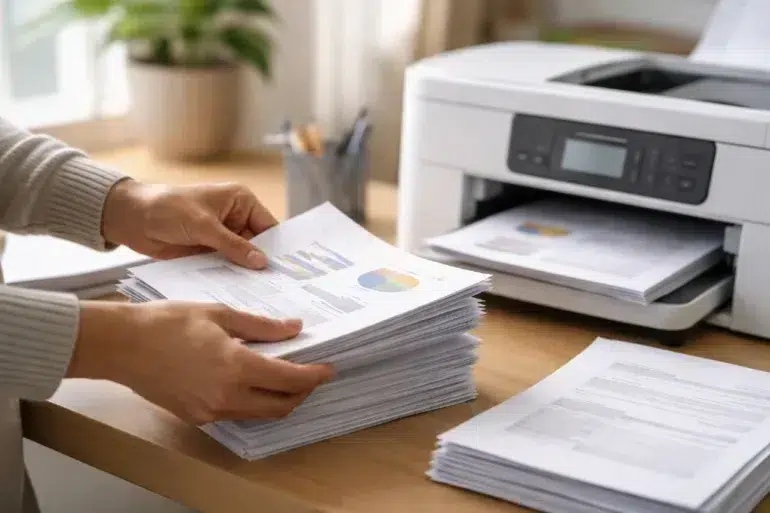
If you’ve ever printed multiple copies of a document and noticed an option labeled “collate,” you might have paused and wondered what it actually does. The phrase What Does Collate Mean When Printing comes up often, especially for students, office workers, and anyone handling multi-page documents.
In simple terms, collating determines the order in which printed pages are arranged when you print multiple copies. It sounds like a small detail, but it can save a lot of time and prevent confusion, especially when dealing with long reports, booklets, or presentations.
Let’s break it down in a clear and practical way so you can understand how it works and when to use it.
What Does Collate Mean When Printing?
When you select the collate option while printing, your printer organizes each complete set of pages in order before printing the next copy.
For example, imagine printing a 5-page document with 3 copies:
- With Collate ON:
Copy 1: Pages 1, 2, 3, 4, 5
Copy 2: Pages 1, 2, 3, 4, 5
Copy 3: Pages 1, 2, 3, 4, 5 - With Collate OFF:
All copies of Page 1
All copies of Page 2
All copies of Page 3
All copies of Page 4
All copies of Page 5
This simple setting can make a big difference depending on how you plan to use the printed documents.
Why Collation Matters in Printing
At first glance, collation might seem like a minor option. But in real-world situations, it can save significant time and effort.
Key Reasons to Use Collation
- Keeps documents organized automatically
- Eliminates the need to manually sort pages
- Reduces errors when distributing copies
- Saves time in professional and academic settings
Imagine printing 50 copies of a 20-page report without collation. You’d have to manually sort 1,000 pages into proper order. With collation turned on, the printer does all the work for you.
When Should You Use Collate?
Knowing when to use collate is just as important as understanding what it does.
Best Situations for Collation
- Printing reports or assignments
- Preparing presentations or handouts
- Creating training materials
- Printing booklets or manuals
In these cases, each copy needs to be complete and ready to use immediately.
When You Might Not Need Collation
There are also situations where turning off collation makes more sense.
- Printing single-page flyers
- Producing bulk copies of one page
- Sorting documents manually for specific purposes
For example, if you’re printing 100 copies of a single-page advertisement, collation doesn’t matter.
How to Enable or Disable Collate
Most modern printers and software make it easy to control this setting.
On Windows
- Open your document
- Click “Print”
- Look for the “Collate” checkbox
- Toggle it on or off
On Mac
- Open the print dialog
- Find the “Copies & Pages” section
- Select or deselect “Collated”
In Applications Like Microsoft Word or PDF Readers
The collate option is usually visible in the print settings panel. It’s often a simple checkbox you can turn on or off.
Collated vs Uncollated Printing: Quick Comparison
| Feature | Collated Printing | Uncollated Printing |
|---|---|---|
| Page order | Complete sets | Grouped by page |
| Convenience | High | Low for multi-page docs |
| Best for | Reports, booklets | Bulk single pages |
| Manual sorting | Not needed | Required |
This comparison helps you quickly decide which option fits your needs.
Real-Life Example of Collation
Let’s say you’re a teacher printing exam papers for your class. Each exam has 10 pages, and you need 30 copies.
- With collation: Each student receives a complete exam set ready to use
- Without collation: You’ll have stacks of each page and must assemble them manually
In this case, using collate saves both time and effort.
Common Mistakes People Make
Even though the concept is simple, many people still misuse the collate setting.
Frequent Errors
- Forgetting to enable collate for multi-page documents
- Assuming printers always collate automatically
- Printing large jobs without checking settings
These mistakes can lead to wasted time and frustration.
Does Collating Affect Printing Speed?
Yes, it can.
When collation is enabled, the printer may take slightly longer because it organizes each set of pages before starting the next one. However, this extra time is usually minimal compared to the time saved from not sorting pages manually.
For most users, the convenience outweighs the small delay.
Collation in Modern Printing Technology
Today’s printers, especially in offices, are equipped with advanced features that handle collation more efficiently.
Advanced Features Include
- Automatic sorting trays
- Stapling and binding options
- Duplex (double-sided) printing with collation
These features are commonly found in high-end printers and multifunction devices.
Organizations like HP and Canon continue to improve printing technology to make document handling easier and more efficient.
Collate vs Staple: What’s the Difference?
Some people confuse collation with stapling, but they are not the same.
- Collate: Organizes pages in the correct order
- Staple: Physically binds the pages together
You can use both features together for a complete document solution.
Tips for Efficient Printing
To make the most of your printing experience, keep these tips in mind:
- Always preview your document before printing
- Double-check the collate setting for multi-page jobs
- Use duplex printing to save paper
- Choose the right paper size and quality
Small adjustments can lead to better results and fewer mistakes.
Frequently Asked Questions
Is collate necessary for every print job?
No, it’s only useful when printing multiple copies of multi-page documents.
Does collate work with all printers?
Most modern printers support collation, but older models may have limited functionality.
Can I collate double-sided prints?
Yes, collation works with duplex printing as well, ensuring each copy is properly ordered.
What happens if I forget to collate?
You’ll need to manually arrange the pages into correct order after printing.
Practical Insight: Why Offices Rely on Collation
In professional environments, efficiency matters. Offices often handle large volumes of documents daily.
Using collation helps:
- Reduce manual workload
- Improve document accuracy
- Speed up distribution
According to productivity studies, automating repetitive tasks like sorting can significantly improve workflow efficiency.
Understanding the Printing Process
To better understand collation, it helps to look at the broader printing process. Printers follow a sequence of instructions sent from your computer, including page order, number of copies, and layout settings.
You can learn more about the technical side of this process through this concept of printing process, which explains how documents are transferred from digital to physical form.
Conclusion
So, what does collate mean when printing? It simply ensures that each copy of a multi-page document is printed in the correct order. While it might seem like a small feature, it plays a crucial role in saving time and keeping documents organized.
Whether you’re printing school assignments, office reports, or training materials, understanding and using collation can make your workflow much smoother. It eliminates the hassle of manual sorting and helps you focus on more important tasks.
In a world where efficiency matters, even small features like this can make a big difference. Once you get used to using the collate option correctly, you’ll likely never go back to printing without it.