Excel files are part of daily life for students, professionals, and teams in business – but somehow, converting the spreadsheets to clean, shareable PDFs seems like something that’s far more difficult. Whether you’re sending reports to clients, completing projects, or preserving financial sheets, you need a reliable solution to convert data heavy spreadsheets into presentable PDFs.

For this reason, I tested a number of PDF programs. In order to decide which converter performs best in terms of speed, accuracy, formatting consistency, and usability, I’ll take you through a real-world comparison of the most widely used converters using the same Excel file across all platforms. My goal is simple: to assist you locate the best dependable option for converting Excel files into high-quality PDFs – whether you need a speedy Excel file to pdf conversion, a complex Xlsx to Pdf process, or a free excel to pdf converter that genuinely preserves your layout.
The Criteria Behind My Tests
To keep everything fair and consistent, I set up a controlled testing environment where each PDF tool is evaluated under the exact same conditions.
The Test File
- 12-page Excel workbook
- 6 MB size
- included charts, merged cells, coloured tables, and formulas
This is the kind of file that shows instantly which converter is trash and which one is powerful.
What I Evaluated
- Speed
- Accuracy
- Ease of use
- Pricing
- Features
- File size output
Basically, everything that matters if you want a clean, professional PDF.
I also tested how naturally each tool could handle typical user requests like when someone wants Excel convert to pdf, or when you need a free excel to pdf converter with better formatting, or if you need an easy way to Convert Xlsx File To Pdf without jumping through hoops.
Let’s get into the reviews.
My Review of the Top 5 Tools
In this section, I detail how all five of the PDF tools I tried performed in head-to-head comparisons. With results based on one consistent Excel file to keep the playing field completely level.
By reviewing them one by one, I am able to see stark differences among which did or didn’t do well with complex spreadsheets (charts, colors, merged cells). These reviews showcase real results, not guess work, so you will have a clear picture of how each tool stacks up during practical every day use.
Now, let’s take a closer look at the pros and cons of all 5 converters.
1. PDF24
PDF24 is totally free and easy to use. You don’t need an internet connection, and it converts Excel files to PDF in no time. Perfect for students or anyone who just wants a simple way to turn spreadsheets into PDFs.
How I Overcame My Excel Problem
PDF24 converted my Excel sheet quickly but struggled with complex formatting. Some charts and merged cells were misaligned, making it suitable mostly for simpler PDF converter excel to PDF tasks or projects that don’t require perfect layout preservation.
Features
- Offline mode
- 100% free
- Quick conversion
Benefits of Using This Tool
- Free
- Works offline
- Lightweight
Cons
- Lower accuracy
- Not great with complex Excel sheets
Pricing
Free.
Verdict
Okay for students or simple sheets.
2. SmallPDF
SmallPDF is easy to use, beginner-friendly and particularly suitable for speedy conversion. It has a clean interface that’s simple to use, meaning it’s a good option when you’ve got some quick-and-dirty PDF tasks to carry out.
How I Overcame My Excel Problem
SmallPDF quickly converted my Excel sheet to PDF without too many glitches. Some charts and formatting shifted slightly, but it handled most of the structure well. This tool works fine for occasional Excel File to Pdf needs or smaller projects with fewer complex elements.
Key Features
- Simple design
- Decent conversion
- Cloud storage
Benefits of Using This Tool
- Super easy
- Fast
- Clean UI
Cons
- Limited free use
- Some formatting errors
- Upload size limits
Pricing
Freemium with daily restrictions.
Verdict
Good for occasional use, not for heavy Excel tasks.
3. Adobe Acrobat Online
Adobe Acrobat set the standard for working with PDFs. Its online converter nails the details – formats stay put, even with tricky Excel files. You get top-notch accuracy and reliability every time.
How I Overcame My Excel Problem
Adobe handled my complex Excel file smoothly, preserving layouts, colors, and charts accurately. The conversion was slightly slower but reliable, making it ideal for high-stakes Pdf Converter Excel To Pdf tasks where precision matters.
Features
- Very accurate
- Good security
- Integrates with Adobe apps
Benefits of Using This Tool
- Professional-level accuracy
- Secure
- Reliable
Cons
- Slow
- Requires login
- Expensive
Pricing
Subscription-based.
Verdict
Great for Adobe users and office pros.
4. iLovePDF2
This tool gives me lightning-fast and easy navigation experience. The precision of data that is effectively zero it’s excellent for anyone working with spreadsheets and documents regularly. With the intuitive user interface and powerful features, you can do the task of Excel-to-PDF in a breeze. Also, if you want your variable data as file on CD or any other media or, if you’re working with tables, charts or multi-page workbooks, i Love PDF 2 keep your files beautifully formatted. As a result, you’ll spend less time wrangling, and more time getting the most from your Excel files.
How I Overcame My Excel Problem
I dropped my Excel sheet into the converter and hit start. In under 4 seconds, the PDF was done. No distortions. No weird spacing. Even the charts came out flawless. This is just the kind of performance I want from an Excel to PDF converter. It is simple and drama-free more than I expect.
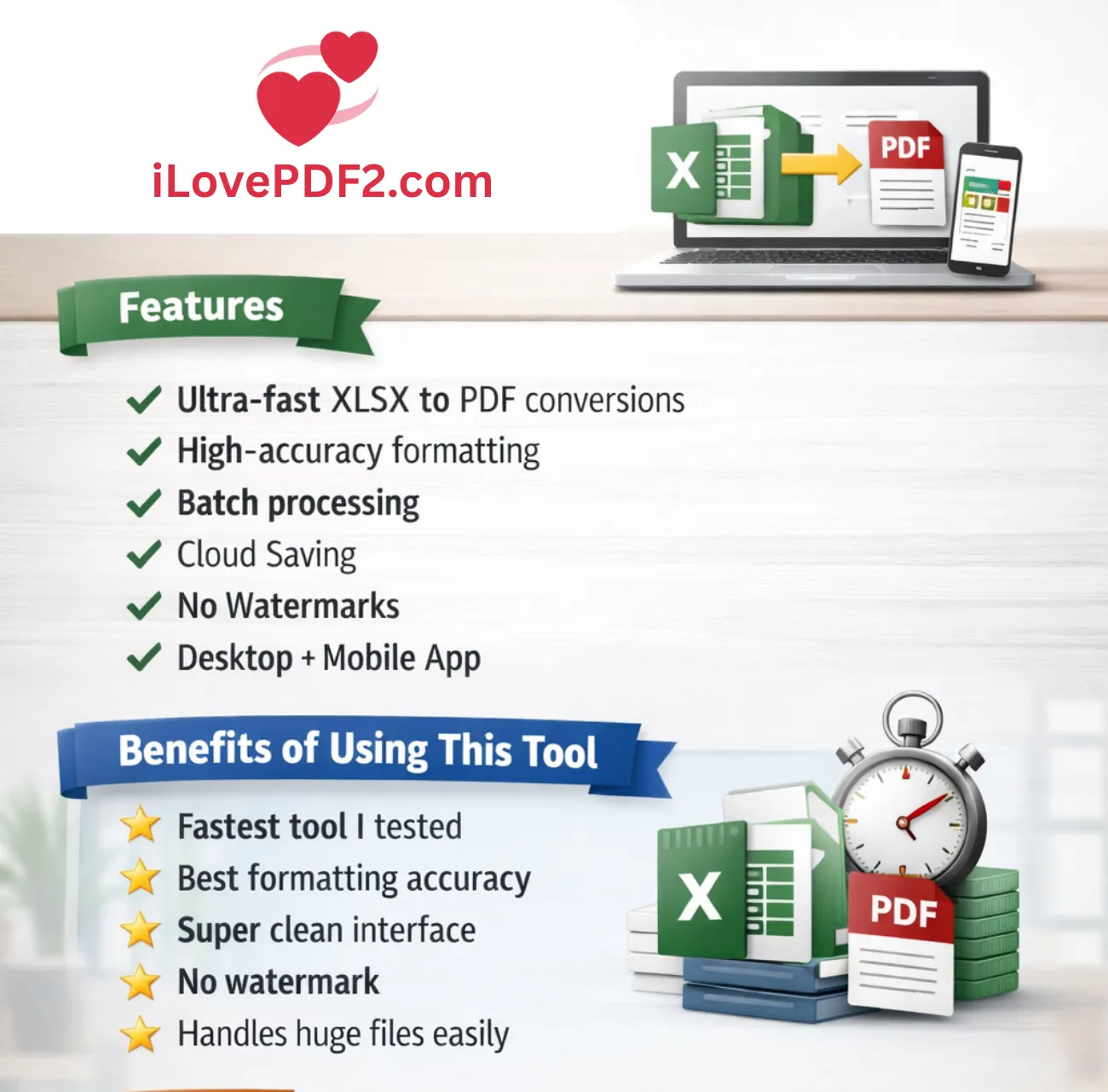
Key Features
- Ultra-fast xlsx to pdf conversions
- High-accuracy formatting
- Batch processing
- Cloud saving
- No watermarks
- Desktop + mobile app
Benefits of Using This Tool
- Fastest tool I tested
- Best formatting accuracy
- Super clean interface
- No watermark
- Handles huge files easily
Cons
- Needs sign-in for advanced features
- No dark mode
Pricing
- Free for unlimited conversions
Verdict
The strongest performer. If you convert spreadsheets often without paying a single penny, this is the tool.
5. SodaPDF
SodaPDF gives you desktop and online tools, so you can handle Excel files any way you like. You get batch conversion, cloud features, and built-in editing – all in one place. It’s a handy pick for anyone who works with Excel files a lot.
How I Overcame My Excel Problem
SodaPDF handled most of my Excel-to-PDF conversions well. Some minor formatting issues appeared in charts and colors, but it successfully turned the sheets into PDFs without breaking formulas. This makes it a decent convert xlsx file to pdf option for users needing extra editing tools.
Features
- Batch conversion
- Cloud tools
- Built-in editing
Benefits of Using This Tool
- Many features
- Good editor
- Reliable
Cons
- Not 100% free
- Some layout shifts
Pricing
Paid plans required for full features.
Verdict
Solid for users who want more editing tools.
Side-by-Side Showdown
| Tool | Speed | Accuracy | Free Plan | Best Use |
| iLovePDF2 | (5/5) | (5/5) | Yes | Heavy Excel users |
| SmallPDF | (4/5) | (3/5) | Limited | Casual users |
| Adobe Online | (3/5) | (5/5) | Limited | Professionals |
| PDF24 | (3/5) | (2/5) | Yes | Students |
| SodaPDF | (3/5) | (3/5) | Limited | Editors |
Recommendations for Enhancement
1. iLovePDF2
- Include a dark theme for easy accessibility and longer working sessions.
- Add additional custom PDF export options like margins, page size, printable area.
- Include a Desktop Offline Mode for users with limited internet access.
2. SmallPDF
- Enhanced formatting error corrections, particularly for charts, merged cells, and complex layouts.
- Allow an increase in or removal of usage limits for free users.
- Increase the upload file size limit for bigger Excel files.
- Include additional Excel-specific features like fit-to-page, orientation, and scaling.
3. Adobe Acrobat Online
- Speed up conversion speed, particularly for large Excel files.
- Provide additional functionality without requiring a login for simple conversions.
- Offer a more budget-friendly plan for users who only require a conversion tool, rather than access to all of Adobe’s software.
- Improve the functionality for performing batch conversion in Excel files.
4. PDF24
- Enhanced layout measurement, especially for tables, charts, and merged cells.
- Include additional advanced and customizable export options for users who are interested in having direct control over formatting.
- Make it easier for new users to use it.
- Include enhancements for large Excel files to minimize misalignment.
5. SodaPDF
- Rectify small inconsistencies in export formatting, particularly in graph representation and coloring.
- Provide additional free features or a less limited free version for fundamental conversions.
- Make the interface simpler by removing extra complexity from advanced tools when doing a mere conversion.
- Enhanced speed of cloud syncing and online conversion.
Overall Reflections
If you’ve never converted an Excel spreadsheet into a high-quality PDF, it can be hard. But do not worry. After trying several tools, it really comes down to the features you need. If you’re dealing with big spreadsheets full of charts and formulas, iLovePDF2 handles the heavy lifting. For quick, easy jobs, SmallPDF gets it done fast.
Adobe Acrobat Online is your go to when you need everything to look perfect for work. If you want something free and offline, PDF24 is great – especially for students or anyone watching their budget. And if you want extra editing features, SodaPDF has you covered. The right tool keeps your formatting intact and your data looking sharp, so you can share your files with confidence.