Forgot passcode on iPhone can instantly cut you off from your own device, no access to apps, photos, messages, or settings. After several incorrect attempts, the screen may display “iPhone unavailable,” leaving you with limited options.
Then how to get into iPhone when forgot password? While it may seem like a dead end, there are several proven ways to regain access. Whether you prefer using Apple’s built-in tools or a simpler iPhone unlock tool, this guide walks you through the most effective methods for what to do if you forgot your passcode for iPhone
Things to Check Before Resetting Your iPhone
If you forgot iPhone passcode, you will inevitably need to reset your iPhone. Before factory reset your iPhone, take a moment to go through a few quick checks:
- Try familiar passcodes carefully: Avoid guessing too many times to prevent longer lockouts
- Use Face ID or Touch ID: If still enabled, biometric login may still work
- Recall your Apple ID credentials: You’ll likely need them later
- Check for backups: iCloud or computer backups can help restore your data afterward
If none of these options work, you’ll need to proceed with unlocking methods that involve erasing the device.
How to Unlock iPhone When You Forgot Password
Method 1: Use iTunes or Finder to Restore iPhone
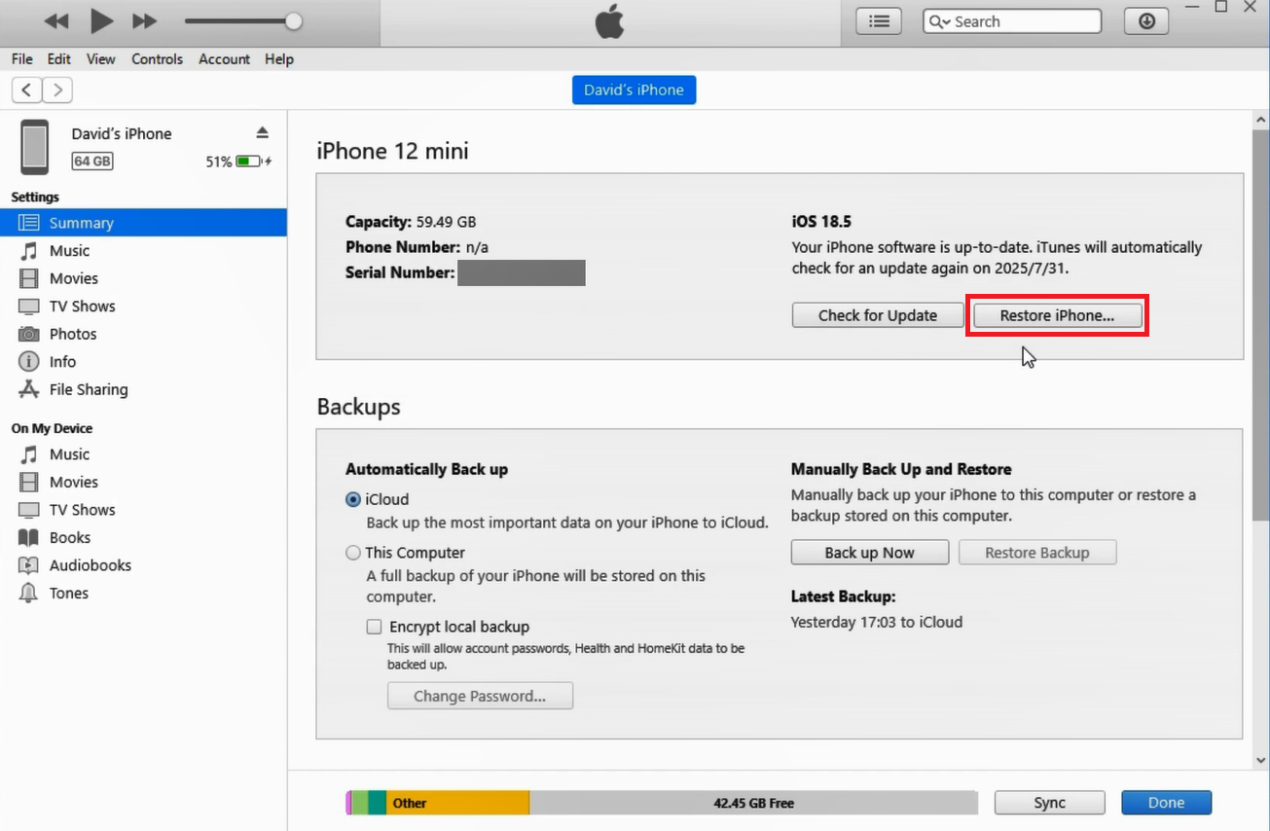
If you have access to a computer, restoring your iPhone through iTunes or Finder is a reliable way to remove a forgotten passcode. This method uses Recovery Mode to erase your device and reinstall the system, allowing you to set it up again from scratch.
Steps:
- Connect your iPhone to a computer and open iTunes (Windows/macOS Mojave) or Finder (macOS Catalina and later).
- Put your iPhone into Recovery Mode, button combination depends on your model.
For Phone 8 and later: Connect iPhone to a computer, press and release Volume Up, then Volume Down. Hold the Side button until Recovery Mode appears
For iPhone 7 / 7 Plus: Connect iPhone to a computer, hold Volume Down button and Side button, release when Recovery Mode appears
For iPhone 6s and earlier: Connect iPhone to a computer, hold Home button and Power button, release when Recovery Mode appears
- Wait until your device appears on the iTunes or Finder, then select it.
- Choose Restore iPhone when prompted to erase and reinstall iOS.
- After completion, set up your iPhone and restore from a backup if available.
Method 2: Erase iPhone via iCloud
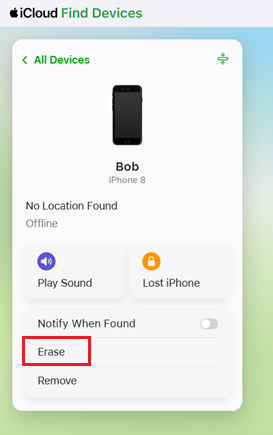
If Find My iPhone is enabled on your iPhone, you can remotely erase your device without needing physical access. This is a convenient option when you remember your Apple ID and your iPhone is connected to the internet.
Steps:
- Visit iCloud.com and sign in with your Apple ID and password.
- Click Find iPhone and select your locked device from the device list.
- Choose Erase from the options. Confirm the erase request and enter your Apple ID password if required.
- Once erased, set up your iPhone and restore your data from a backup.
Method 3: Use a Professional iPhone Unlocker
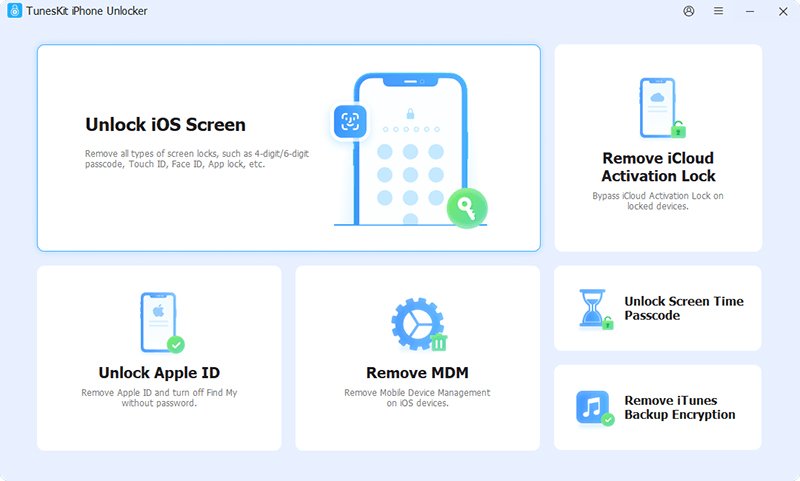
If you forgot iPhone passcode and want a faster, more user-friendly solution, using a professional tool like TunesKit iPhone Unlocker can simplify the entire process. It’s especially helpful in situations where standard methods are inconvenient, such as when dealing with a disabled iPhone or even figuring out how to unlock iPhone with broken screen when you can’t interact with the device normally.
Key Features:
- Easily fixes issues related to a forgot iPhone passcode without complex manual steps
- Helps in scenarios like face ID not working, iPhone unavailable, and iPhone locked to owner
- Supports removing Face ID, Touch ID, and 4-digit, 6-digit passcodes
- Compatible with a wide range of iPhone and iPad models and iOS versions
- Simple interface designed for beginners with clear guided instructions
Steps:
1. Download and install TunesKit iPhone Unlocker on your computer, then connect your iPhone to the computer.
2. Launch the program and select Unlock iOS Screen mode. Follow the on-screen instructions to enter Recovery Mode or DFU Mode.
3. Confirm your device information and download the firmware package.
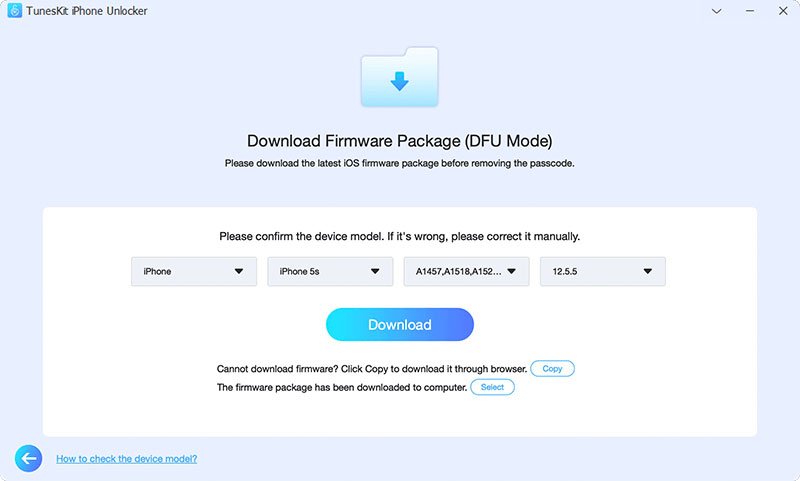
4. Click Unlock to remove the passcode and wait for the process to finish.
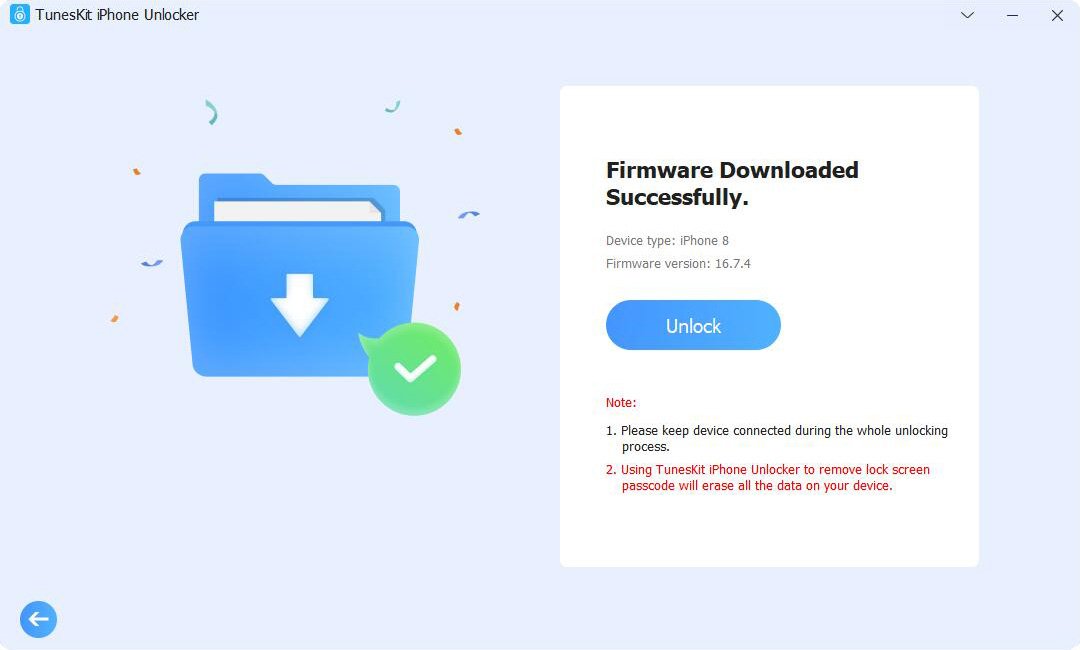
Method 4: Reset iPhone from Lock Screen (iOS 15.2+)
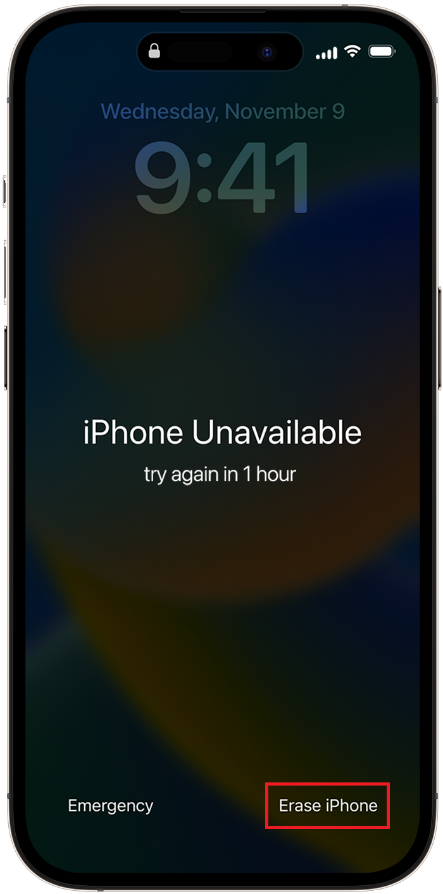
On devices running iOS 15.2 or later, Apple allows you to erase your iPhone directly from the lock screen after multiple failed attempts. This is one of the quickest options if you remember your Apple ID credentials.
Steps:
- Enter the wrong passcode until the Erase iPhone option appears.
- Tap Erase iPhone and confirm your choice.
- Enter your Apple ID password to proceed.
- Wait for the device to erase and reset automatically.
- Set up your iPhone and restore from a backup if available.
Tips to Avoid Forgetting Your Passcode Again
Once you regain access, it’s worth taking a few precautions:
- Create a memorable passcode: Avoid overly complex combinations you won’t remember
- Enable Face ID or Touch ID: Reduce reliance on manual entry
- Use a password manager: Securely store important credentials
- Back up your iPhone regularly: Use iCloud automatic backups
- Write it down securely: Keep a physical record in a safe place if necessary
These small habits can save you significant trouble in the future.
Conclusion: The Best Ways to Fix a Forgotten iPhone Passcode
Forgot passcode on iPhone can feel overwhelming, but there are multiple ways to know what to do if you forgot your iPhone password. The best approach depends on your situation, available tools, Apple ID access, and comfort level with technical steps. Generally, using TunesKit iPhone Unlocker is the simplest and most effective way to unlock iPhone. After unlocking your device, setting up regular backups and a manageable passcode will help ensure you don’t face the same problem again.