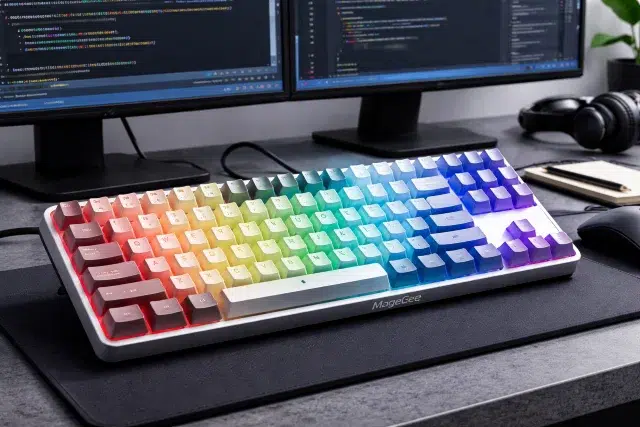
If you write .NET code for a living, your keyboard isn’t just a tool. It’s the thing you touch more than your mouse, more than your desk, sometimes more than your coffee mug. Over months of debugging, refactoring, and hammering out unit tests, small annoyances add up: stiff keys, sloppy stabilizers, cramped layouts, keys that wobble, or a board that makes your wrists feel tight by mid afternoon.
That’s exactly why the MageGee Keyboard keeps popping up in developer circles. It’s usually positioned as a budget friendly mechanical option, but the real question for long coding days is simple: does it actually hold up when your job is typing?
This article breaks down what matters for .NET developers who type all day, how a MageGee Keyboard fits into that reality, and how to set it up so your hands, speed, and focus stay intact.
Why .NET developers should care more about keyboards than most
A lot of jobs involve typing. .NET work involves relentless typing plus heavy shortcut use. You’re not just writing prose. You’re constantly mixing symbols, casing patterns, and quick navigation:
Ctrl + .suggestions and quick fixesCtrl + K, Ctrl + DformattingCtrl + R, Ctrl + Rrename refactorAlt + Entercode actions (depending on IDE)- Braces, parentheses, generics, lambdas, interpolated strings
That means your keyboard needs to support two things at the same time: comfort and precision. Research shows that keyboard design and setup affect wrist posture and muscle strain, and ergonomics guidance repeatedly emphasizes neutral wrist positioning and correct keyboard placement to reduce stress on hands and arms.
So when people ask whether the MageGee Keyboard is a good pick for .NET developers, it’s not about hype. It’s about whether it supports long sessions without pain or wasted motion.
A quick definition
A MageGee Keyboard is a line of consumer keyboards commonly sold in compact and full size layouts, often marketed around mechanical feel, RGB lighting, and gaming friendly responsiveness. The appeal is usually value: you get the look and feel many people associate with mechanical boards, without stepping into premium pricing.
But the “best pick” label depends on your daily reality: how much you type, your tolerance for noise, the layout you prefer, and how your workstation is set up.
What matters most for .NET developers who type all day
1) Switch feel and fatigue over long sessions
Typing fatigue isn’t only about speed. It’s about effort per keystroke multiplied by thousands of presses. Switch choice can influence typing performance and perceived comfort. A recent study looking at common mechanical switch types found switch characteristics can affect typing performance and subjective experience.
In practical terms:
- Lighter switches can feel fast and easy, but may increase accidental presses if you rest your fingers heavily.
- Heavier switches can reduce accidental triggers, but may cause fatigue if you’re typing continuously.
Many switch guides classify “light” ranges around the 35 to 50 gf area and “medium” around 45 to 60 gf, with tradeoffs in speed vs control.
How this ties to the MageGee Keyboard: MageGee boards are commonly offered in different switch styles (or switch-like feels), so your experience can vary a lot by model. If you’re a heavy typist, prioritizing a comfortable actuation and consistent key feel matters more than flashy lighting.
2) Layout choices: full size vs TKL vs 60/65%
Layout is where developer preferences get personal fast.
- Full size helps if you use the numpad for data entry, finance tasks, or frequent numeric input.
- Tenkeyless (TKL) removes the numpad, bringing the mouse closer and reducing reach, which can help shoulder comfort for long days.
- 65% and 75% layouts reduce desk footprint, but can require function layers for keys you might rely on in IDE navigation.
Ergonomics resources often mention that shorter keyboards can reduce overreaching and awkward shoulder positions, especially when mousing.
A MageGee Keyboard in a compact layout can be a surprisingly practical choice for developers who want more room for the mouse and a cleaner posture.
3) Stability, key wobble, and mental load
This sounds small, but it’s real. If keys wobble or stabilizers rattle, your brain notices. It steals attention in the background, especially during deep work.
For developers, “feel” is not a luxury feature. A stable board:
- supports consistent rhythm
- reduces micro-corrections
- makes shortcut sequences more reliable
The MageGee Keyboard is often chosen because it offers a mechanical style experience at a lower cost, but build quality varies across budget boards. When evaluating one, what you want is consistent key travel and solid stabilizers on the big keys you hit constantly: Enter, Shift, Backspace, and Space.
4) Noise and social compatibility
If you work from home alone, noise is taste. If you share space, it becomes a problem.
Clicky switches can be satisfying, but they can also become tiring or disruptive. In coding, you don’t want your own keyboard becoming the loudest thing in your attention.
A smart way to think about a MageGee Keyboard is to match the sound profile to your environment:
- Quiet office or calls all day: prioritize a quieter switch style and consider dampening.
- Personal space: pick what you enjoy, but remember long sessions can make sharp sounds feel harsher than you expect.
5) Ergonomics: your keyboard setup matters as much as the keyboard
This part gets ignored because it isn’t exciting. It also makes the biggest difference.
Authoritative ergonomics guidance emphasizes:
- placing the keyboard directly in front of you
- keeping shoulders relaxed and elbows close
- maintaining neutral wrist posture
- adjusting keyboard height and angle to reduce wrist extension
Even the best MageGee Keyboard won’t feel good if it’s too high, too far away, or tilted the wrong way.
Where the MageGee Keyboard tends to fit well for .NET work
Let’s talk honestly about where a MageGee Keyboard usually shines for developers.
It’s a solid entry point into mechanical feel
Many developers start on laptop keyboards or basic membrane boards. The jump to a more defined key feel can help with perceived accuracy and rhythm.
There’s also research suggesting mechanical keyboards can improve typing speed and accuracy in certain contexts, though results depend on many factors and individual preference.
If you’ve never used a mechanical style board, a MageGee Keyboard can be a “try it without regret” option.
It supports the real dev workflow: shortcuts, editing, navigation
For .NET work, you repeatedly hit combinations and editing keys:
- Ctrl, Alt, Shift
- Backspace and Delete
- arrow navigation
- Enter and Tab
A MageGee Keyboard is typically designed for rapid input and rollover, which can help when you’re pressing multiple keys during shortcut-heavy IDE sessions.
It fits modern desk setups well
Compact versions of the MageGee Keyboard can reduce desk crowding and mouse reach. If you spend hours switching between code and browser tabs, that tighter mouse distance can feel surprisingly relieving over time.
A practical checklist for judging if a MageGee Keyboard is right for you
Here’s a developer-focused way to evaluate any MageGee Keyboard model you’re considering.
Developer comfort and productivity checklist
- Layout fit
- Do you need dedicated function keys for debugging and IDE commands?
- Do you rely on a numpad for your work?
- Switch feel
- Are you prone to accidental key presses?
- Do your fingers fatigue easily?
- Noise
- Will the sound bother you or others?
- Stability
- Do large keys feel solid or rattly?
- Desk ergonomics
- Can you position the board at elbow height with neutral wrists?
- Workflow
- Can you remap keys or set shortcuts comfortably?
A quick comparison table you can use
| What .NET devs care about | Why it matters | What to look for in a MageGee Keyboard |
|---|---|---|
| Neutral wrist posture | Reduces strain in long sessions | Comfortable height, workable tilt, good placement |
| Layout efficiency | Faster navigation and shortcuts | TKL/compact for mouse space or full size if needed |
| Consistent key feel | Fewer errors and less frustration | Stable keys, predictable travel |
| Noise control | Focus and call friendliness | Quieter switch style, less ping |
| Long-session comfort | Less finger fatigue | Suitable actuation force range |
Ergonomics guidance is not theoretical. OSHA and other safety organizations consistently point to placement and posture as key factors for reducing discomfort.
Real world scenarios: how different .NET devs experience the MageGee Keyboard
Scenario 1: The “meetings plus coding” developer
You’re in calls half the day, then you code in focused bursts. You want something that doesn’t sound like a drumline when you’re unmuted.
A MageGee Keyboard can work well here if you choose a quieter feel and keep your setup ergonomic. If the board is loud and high pitched, you’ll spend energy thinking about it, and that’s the opposite of what you want.
Scenario 2: The “keyboard-first” power user
You live in shortcuts. You navigate by keyboard. You refactor constantly. You want a board that keeps up without missed inputs.
In this case, the MageGee Keyboard can be a strong fit when it offers consistent key response and stable modifier keys. Your productivity lives and dies on Ctrl, Shift, Alt, and the editing cluster.
Scenario 3: The “laptop plus external monitor” setup
This is common: laptop on a stand, external monitor, external keyboard. The biggest risk is keyboard height and wrist angle.
If your MageGee Keyboard sits too high relative to your chair and desk, you’ll end up extending your wrists. Ergonomics references commonly recommend keeping wrists neutral and avoiding positions that force extension.
In this scenario, pairing the keyboard with a proper height setup matters more than the brand.
How to set up a MageGee Keyboard for .NET work
This section is about daily comfort and speed, not theory.
1) Fix your keyboard position first
Start with the basics from ergonomics guidance:
- Put the keyboard directly in front of you.
- Keep elbows close to your body.
- Keep shoulders relaxed.
- Aim for forearms roughly parallel to the floor.
- Avoid locking your wrists into extension.
If you do one thing after buying a MageGee Keyboard, do this.
2) Remap keys for less strain
If your board or software allows remapping, a few changes can reduce repetitive strain and speed up your day:
- Remap Caps Lock to Ctrl for easier shortcuts
- Put frequently used actions on easier reaches (example: Home/End behavior depending on your IDE)
- Consider a dedicated key for mute or push-to-talk if you’re in meetings often
These changes make a MageGee Keyboard feel “built for you” instead of “off the shelf.”
3) Build a .NET-friendly shortcut routine
A keyboard won’t magically improve productivity. Your habits will.
Pick a small set of shortcuts you actually use, then make them muscle memory:
- Go to definition, find all references, rename
- Format document or selection
- Quick fix or code action
- Navigate between files and tabs
When your hands stop hunting, typing feels lighter. That’s when the MageGee Keyboard becomes a real advantage.
4) Reduce noise and harshness without changing the whole board
If your MageGee Keyboard feels good but sounds sharp, small adjustments can help:
- Use a desk mat to reduce vibration
- Consider a wrist rest only if it helps you keep wrists neutral (don’t use it to anchor wrists while typing)
- Keep the keyboard angle comfortable rather than aggressively tilted
Again, posture and placement are consistently emphasized in workstation ergonomics guidance.
Common questions .NET developers ask before buying
Is a MageGee Keyboard good for programming?
A MageGee Keyboard can be good for programming if it offers a comfortable key feel, stable modifier keys, and a layout that matches your IDE habits. For long sessions, your ergonomic setup matters as much as the keyboard itself.
Will it make me type faster?
It can help you feel more consistent, but speed improvements usually come from practice and comfort. Studies suggest switch type and keyboard design can influence typing performance and experience, but individual results vary.
What layout is best for Visual Studio or Rider?
Many .NET developers like TKL or 75% because it keeps function keys while freeing desk space. If you use the numpad heavily, full size is still king. The “best” layout is the one that reduces awkward reaches while keeping your most used keys accessible.
Should developers worry about actuation force?
Yes. Actuation force affects fatigue and error rate. Lighter switches can feel effortless but increase accidental presses, while heavier switches can be more controlled but tiring over long sessions.
Conclusion
So, is the MageGee Keyboard the best pick for .NET developers who type all day? It can be, especially if you want an affordable mechanical feel, a layout that fits your workflow, and a keyboard that supports shortcut-heavy development without feeling mushy.
The real win is when your MageGee Keyboard becomes invisible in the best way. Your fingers move, your shortcuts land, your wrists stay neutral, and you stay in flow. That outcome depends on two things: choosing a MageGee Keyboard model that matches your typing style, and setting it up correctly using proven workstation ergonomics principles.
If you’re aiming for a healthier long-term setup, remember this: your keyboard is part of a system. Placement, posture, and the way you type matter just as much as the hardware. And once you dial those in, even a budget friendly MageGee Keyboard can feel like a serious daily driver for .NET work.
In the broader world of the mechanical keyboard, the best board is the one you can use comfortably for years, not just the one that looks good in photos.