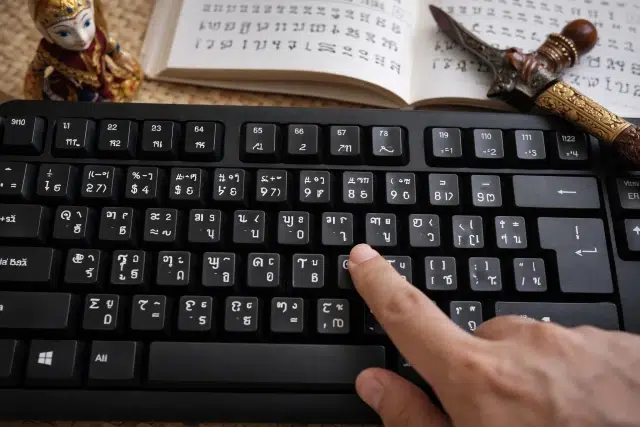
If you’ve ever tried writing Sundanese script on your phone or laptop, you already know the “where do I even start?” feeling. The good news is that typing Aksara Sunda today is much easier than it used to be, as long as you understand one simple idea: your keyboard aksara sunda setup is a mix of three things working together, the keyboard layout, the font, and app support.
This guide is written for complete beginners. By the end, you’ll know what you need to type Sundanese script smoothly on Android, iPhone, Windows, and Mac, how to avoid the most common “boxes” or missing character problems, and how to practice so your typing becomes natural for real use like schoolwork, captions, documents, and chats.
What is Aksara Sunda, and why typing it can be tricky at first
Aksara Sunda is a writing system used for the Sundanese language, mainly in parts of Java, Indonesia. In modern digital systems, the script is supported through Unicode, which means the characters are standardized so they can be stored, copied, and displayed across different devices and apps. The Sundanese block is encoded in the range U+1B80 to U+1BBF, which is part of why you’ll sometimes see the term “Unicode Sundanese” in tech related discussions.
So why does it still feel tricky?
Because “supported” does not always mean “working perfectly everywhere.” In real life, you may run into issues like:
- Characters appearing as empty squares or boxes
- Text looking fine on your phone but breaking on someone else’s device
- A keyboard app that types the letters but the app you’re using cannot display them
- Missing or incorrect vowel marks because the font or shaping behavior is not handled well
Once you understand these moving parts, setting up a reliable typing experience becomes much easier.
The three things you need for a smooth keyboard aksara sunda experience
Before we jump into device specific steps, it helps to know the checklist. Most typing problems come from missing one of these.
1) A keyboard layout (how you input the characters)
This is the tool that lets you tap keys and generate Sundanese characters. It could be:
- A system keyboard that includes Sundanese
- A third party keyboard app
- A web based virtual keyboard
2) A font that actually includes Sundanese characters
Even if your keyboard outputs the right characters, you still need a font that contains those glyphs. Google’s Noto project includes Noto Sans Sundanese, a font designed specifically for the script and supporting characters from the Sundanese and Sundanese Supplement blocks.
3) App support (the place where you type)
Most modern apps handle Unicode well, but support can vary. Some apps display the script beautifully. Others may show boxes, especially if the device doesn’t have a compatible font installed or the app uses a limited font stack.
If you keep those three in mind, troubleshooting becomes straightforward instead of frustrating.
Quick comparison: best ways to type Aksara Sunda on each device
Here’s a practical overview of keyboard aksara sunda, so you can choose your path quickly.
| Device | Best option (beginner friendly) | Works offline | Notes |
|---|---|---|---|
| Android | Keyboard app + compatible font | Yes | Often easiest overall |
| iPhone/iPad | Third party keyboard + app support | Usually | Font support varies by app |
| Windows | Online keyboard or IME + font | Depends | Font installation helps a lot |
| Mac | Online keyboard + font | Depends | Mac displays well with proper font |
| Any device | Web virtual keyboard | No (needs browser) | Great for quick use and copy paste |
If you’re not sure, start with the online option first to learn the layout, then move to an installed keyboard for daily use.
Option 1: Type Aksara Sunda using an online keyboard (fastest for beginners)
If you want to try typing immediately without installing anything, a web based virtual keyboard is the easiest starting point. You tap or click Sundanese characters, type using mapped keys, then copy and paste the result into your document or message.
Two popular examples of online typing tools are:
- Branah’s Sundanese online keyboard, which lets you type Sundanese letters online and use modifier keys for additional characters.
- Nawaksara’s keyboard page, which focuses on virtual typing and easy copy and share.
When the online keyboard method is perfect
- You’re learning and want to see the characters clearly
- You only need Sundanese script occasionally (assignments, quick captions)
- You cannot install apps on a school or office computer
Small tip that saves time
Open the online keyboard in one browser tab and your target app (Google Docs, WhatsApp Web, Word, etc.) in another tab. Type and copy in batches instead of copying after every word. It feels simple, but it speeds you up a lot.
Option 2: Android setup for keyboard aksara sunda
Android is often the most flexible platform for typing regional scripts because third party keyboards integrate well and fonts can be used across apps.
Step 1: Install a Sundanese keyboard app
There are multiple options on Google Play that provide Aksara Sunda typing. For example, “Sundanese Keyboard by Infra” is one such keyboard app that supports typing in Sundanese language and Aksara Sunda.
Once installed:
- Go to Settings
- Search for Keyboard or Languages & input
- Enable the new keyboard
- Set it as active when needed
Step 2: Test it in at least two different apps
Do not test in only one place. Try:
- Notes app
- WhatsApp or Telegram
- Google Docs or Gmail
If it looks good in one app but shows boxes in another, that’s an app font handling issue, not necessarily your keyboard.
Step 3: Fix “boxes” by ensuring a compatible font is available
If characters appear as squares, your device or app may be missing a font with Sundanese glyphs. Fonts like Noto Sans Sundanese are designed for this script and explicitly support the Sundanese blocks.
Some Android versions include broader font coverage by default, but not all do. If your device allows custom fonts (often through manufacturer settings), using a font with Sundanese support can help across apps.
A real world scenario
Let’s say you type a caption in Aksara Sunda and it looks correct in your keyboard preview, but after posting it to an app it becomes boxes. That usually means:
- the keyboard produced the correct Unicode characters
- the target app is displaying with a font that lacks Sundanese glyphs
The solution is not “retype it,” it’s “use an app or font that supports the script.”
Option 3: iPhone and iPad setup for typing Sundanese script
iOS can type many scripts well, but third party keyboards can feel more restricted compared to Android. Still, you can absolutely type Aksara Sunda with the right approach.
What usually works best on iOS
- Install a third party keyboard that includes Aksara Sunda
- Enable it in iOS keyboard settings
- Use it in apps that handle Unicode fonts properly
Step by step (general iOS path)
- Install your chosen keyboard app
- Go to Settings > General > Keyboard > Keyboards
- Add the keyboard
- Allow needed permissions only if you trust the app
iOS tip: choose your typing destination carefully
If you notice boxes, try typing into:
- Apple Notes
- Google Docs
- Messaging apps with strong Unicode support
Some apps render text with limited fonts for performance or design reasons. Switching the destination app can be the easiest fix.
Option 4: Windows setup for keyboard aksara sunda
On Windows, people usually succeed with one of two strategies:
- Use an online keyboard and copy paste
- Install a font and use a keyboard layout tool or IME option when available
The big Windows rule: install a font if you want consistent display
Even if you only plan to type occasionally, installing a font that supports Sundanese can prevent the “looks fine on my machine only” situation when sharing documents.
Fonts like Noto Sans Sundanese are built for this script and support characters from the Sundanese and Sundanese Supplement blocks.
Where Windows users commonly get stuck
- They type using an online tool and paste into Word
- Word renders the pasted text in a default font without Sundanese glyphs
- The text becomes boxes
Fix: select the pasted text and change the font to a Sundanese capable font.
Option 5: Mac setup for typing Aksara Sunda
Mac users can follow a similar approach to Windows:
- Use an online keyboard for input
- Make sure the display font supports Sundanese
On macOS, once the font is available, many apps display the script cleanly, especially document editors and browsers.
Fast Mac workflow
- Type using an online keyboard tool
- Paste into Pages, Google Docs, or Notes
- If characters look wrong, select the text and change the font
Understanding vowels, diacritics, and “why my letters look incomplete”
If you’re new to abugida style scripts, this part matters.
Aksara Sunda uses base consonant letters, and vowel marks modify them. That means typing is not always one key equals one sound in the way English keyboards work. Depending on the keyboard layout, you might type:
- a base consonant
- then a vowel sign
- sometimes a special marker that cancels the inherent vowel
When the font or app does not handle these combinations correctly, you might see:
- vowel signs floating strangely
- spacing that looks off
- characters stacking in a weird way
The script is standardized in Unicode, but correct visual shaping depends on the font and text rendering engine. The Unicode chart defines the character set itself, while fonts and rendering handle appearance.
Practical beginner habit
After typing a sentence, copy it and paste it into a second app (for example, from Notes into a browser search bar). If it stays consistent, you’re on a strong setup.
Common problems and quick fixes
Problem 1: Sundanese text shows as squares or boxes
Most likely cause: missing font support.
Fixes that usually work:
- Switch the display font to a Sundanese capable font like Noto Sans Sundanese
- Use a different app that supports the script better
- On mobile, update your system and apps, since newer font coverage can improve support
Problem 2: It looks fine on my phone, but not on someone else’s
Most likely cause: the recipient’s device lacks a font with Sundanese glyphs.
Fix:
- Send a screenshot when the text must be readable everywhere
- Or share as a PDF with embedded fonts when sending a document
Problem 3: Copy paste breaks the formatting
Most likely cause: the target app forces a font that doesn’t support Sundanese.
Fix:
- Paste first, then highlight the text and change the font
- If the app does not allow font selection, use a different app for that task
Problem 4: Some characters are missing from my keyboard
Most likely cause: keyboard layout limitation, not Unicode limitation.
Fix:
- Try another keyboard app
- Use an online keyboard for the missing characters
- Combine methods: installed keyboard for daily typing, online tool for rare symbols
A simple practice plan to type faster in Aksara Sunda
A lot of beginners think they need to memorize the whole script before typing. In practice, you get faster by typing real phrases you actually use.
Week 1: Learn the layout by typing short daily lines
Pick 2 to 3 common phrases (greetings, names, simple sentences). Type them every day for five minutes.
Week 2: Type real use content
- A short social caption
- A class note
- A two paragraph story
Focus on accuracy first. Speed comes naturally.
Week 3: Build your own mini dictionary
Keep a notes file with:
- words you often type
- the correct script form
- any tricky vowel sign combos
This becomes your personal cheat sheet.
Useful checklist before publishing Sundanese text online
If you plan to publish Aksara Sunda in blog posts, PDFs, or social content, do this quick check so your audience actually sees the script correctly.
- Test the text on at least two devices (one Android, one Windows or iPhone)
- Use a font that supports Sundanese, especially in images and PDFs
- Avoid converting the text into a decorative font that drops glyphs
- If the platform is known to have font issues, provide a screenshot version too
FAQ: keyboard aksara sunda questions beginners ask most
Which is better: installed keyboard or online keyboard?
If you type often, an installed keyboard is more comfortable and faster. If you type occasionally, an online keyboard is convenient and works anywhere with a browser. Many people use both: installed keyboard for daily typing, online keyboard for rare characters or quick copy paste.
Why do I see boxes even when I used the right keyboard?
Because the keyboard only creates the correct characters. Display depends on the font and the app. Installing or using a font that supports Sundanese, like Noto Sans Sundanese, usually solves it.
Is Aksara Sunda officially supported in Unicode?
Yes. The character set is standardized in Unicode. The Sundanese block is defined and documented in Unicode code charts, including its range and character names.
Can I use Aksara Sunda in documents and PDFs?
Yes, but use a supporting font. If you export to PDF, make sure fonts are embedded so readers on other devices can view the script correctly.
Conclusion
Learning keyboard aksara sunda is not about being “good at technology,” it’s about setting up the right combination of keyboard layout, font, and app support. Start simple with an online keyboard to get comfortable, then move to an installed keyboard for daily typing. If you ever hit the boxes problem, remember it’s usually a font issue, not your typing.
With consistent practice, even five minutes a day, you’ll go from slow and uncertain to typing Sundanese script naturally for real life use like notes, school tasks, posts, and messages. And the best part is that because the script is standardized in Unicode, your writing can be stored and shared digitally for the long term, as long as you publish it with proper font support. For a deeper look at the script’s Unicode block details, you can explore the character range and encoding background there.