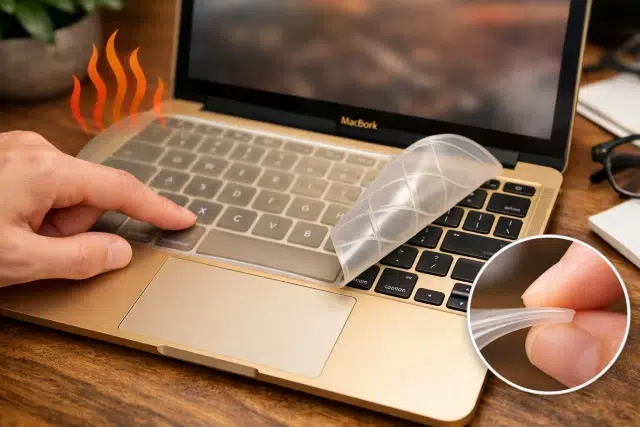
If you’re shopping for a gold macbook keyboard cover, you’re probably after two things at once: protection and style. Totally fair. A gold cover can make a MacBook look cleaner, more personal, and a bit more premium. But here’s the part many people learn the hard way: not all keyboard covers are “MacBook-friendly,” even when the listing says they are.
MacBooks are designed with extremely tight tolerances between the keyboard and the display. Apple even warns that if you use a keyboard cover, you should remove it before closing the lid to prevent display damage. That one detail alone explains why the biggest buying mistakes aren’t about color, they’re about fit, thickness, and how a cover can affect your laptop in real life, including heat behavior.
This guide walks you through the most common mistakes people make when buying a gold macbook keyboard cover, what those mistakes look like day to day, and how to avoid them so you don’t end up with a cover that feels “fine” for two weeks and then becomes a hassle.
What a MacBook keyboard cover really is
A keyboard cover is a thin sheet, usually silicone or TPU, molded to sit on top of the keys. It’s meant to block dust, reduce wear, and add some spill resistance. Some covers are ultra-thin and flexible, while others are thicker and more rigid.
Where people go wrong is assuming they’re all interchangeable. They’re not, because MacBook keyboards change subtly by year, model, layout, and even by region.
Mistake 1: Buying “MacBook compatible” without matching your exact model
This is the number one trap: a product page says “fits MacBook Air/Pro” and you think you’re done. But MacBook keyboards are not one-size-fits-all. Key sizes, spacing, function-row labels, and even tiny differences in the chassis can affect the fit.
How to confirm your exact MacBook model (the easy way)
On your Mac:
- Click the Apple menu
- Choose About This Mac
- Note your screen size and chip generation (for example: MacBook Air 13-inch, M2)
Then compare it against the seller’s compatibility list. If the listing doesn’t mention your specific size and generation, treat that as a warning sign, not a minor omission.
Real-world consequence of “close enough” fit
A cover that’s slightly off can:
- Bubble up near the edges
- Shift when you type
- Misalign key cutouts so presses feel mushy
- Interfere with the hinge area on some designs
Even worse, an ill-fitting cover is more likely to lift or wrinkle, and anything that changes the thickness between the keyboard and screen matters on a MacBook. Apple specifically cautions that the clearance is engineered to tight tolerances and to remove covers before closing.
Mistake 2: Ignoring keyboard layout differences (US vs UK vs EU and more)
A gold mackbook keyboard cover can look identical in photos, yet still be wrong for your keyboard. The biggest giveaway is the Enter key and left Shift key shape.
Common layout mismatches to watch for
- US layout: wide, horizontal Enter key
- UK/EU layout: taller Enter key, different key shapes around it
- Some regions also have extra symbols or slightly different key widths
If you buy the wrong layout, you’ll feel it immediately. Keys won’t align, labels won’t match, and the cover may sit unevenly.
Tip that saves time: zoom into the product images and make sure the Enter key shape matches your keyboard exactly. If the listing never shows a close-up of the Enter and Shift area, that’s a quality signal you should take seriously.
Mistake 3: Choosing thickness based on “protection” instead of practicality
People often assume thicker is safer. For MacBooks, thicker can mean more problems.
Apple’s warning is blunt: if you use a keyboard cover, remove it before closing the display because leaving material on the keyboard can interfere with the display and cause damage. The key word is “material,” not “thick material.” Even thin items can be an issue if they add pressure in a tight space. Tech reporting around Apple’s guidance has highlighted real cases where closing a MacBook with something as thin as a card can damage the screen due to tight tolerances.
What thickness problems look like in daily use
If the cover is too thick, you might notice:
- The lid doesn’t close as smoothly
- A slight rebound or springy feel when shut
- Marks appearing on the screen (oil transfer or contact patterns)
- The cover “prints” into the display over time if there’s pressure
You don’t want a cover that forces you to treat closing your laptop like a careful ritual every time.
Mistake 4: Not thinking about heat and airflow behavior
Heat concerns are real, but the mistake is usually oversimplifying them. A keyboard cover doesn’t automatically “cook” your MacBook. The problem is that some designs can trap heat at the top case area, and certain MacBook models rely heavily on passive heat dissipation.
A useful clue: testing and discussion around clamshell mode on fanless MacBook Air models has shown that covering the keyboard area (by closing the lid) can worsen temperatures and reduce performance because the keyboard area plays a role in heat dissipation. While a keyboard cover isn’t the same as closing the lid, it helps you understand why the top surface matters.
Also, experienced community responses commonly point out that keyboard covers can interfere with heat dissipation.
When heat concerns matter most
Heat impact tends to show up more when:
- You do sustained workloads (video calls for hours, exporting video, gaming)
- You use the laptop on soft surfaces that already block ventilation
- You live in a hot climate or work in a warm room
- Your MacBook is fanless (some Air models) or runs hot under load
Practical signs your cover may be contributing to heat issues
- The keyboard deck feels noticeably warmer than before
- Fans ramp earlier or stay loud longer (on fan-equipped models)
- Performance dips under longer workloads
- The cover itself becomes hot to the touch and feels like it’s holding heat
If you notice these changes only after adding the cover, it’s not “proof,” but it’s a strong hint your cover choice is not ideal for your usage pattern.
Mistake 5: Buying for looks only (gold finish) and ignoring material quality
A gold macbook keyboard cover can be made from different materials, and they don’t behave the same.
Common materials and what they change
- Silicone (most common): soft, flexible, good grip, but can feel tacky and collect lint.
- TPU (thermoplastic polyurethane): usually smoother, sometimes thinner, tends to lay flatter.
- Hybrid or coated covers: may look more “gold” and glossy, but coatings can wear or peel.
Cheap silicone often has a strong odor, is extra sticky, and can stretch out quickly so it starts sliding. Better silicone is softer, thinner, and returns to shape.
The typing feel test (most people skip it)
A cover should not change how confident you feel typing. If you start second-guessing whether a key registered, the cover is no longer “protection,” it’s friction.
Look for a cover that:
- Doesn’t require extra force to type
- Doesn’t wobble on larger keys (space bar, shift, enter)
- Doesn’t create a hollow, trapped-air feel
Mistake 6: Forgetting the “close-the-lid” rule (this one breaks screens)
This is the mistake that turns a small accessory into a costly lesson.
Apple’s guidance is clear: if you use a keyboard cover, remove it before closing your display to prevent damage, because the gap is engineered to tight tolerances. That’s not an internet rumor. It’s Apple telling you the design has very little clearance.
So if your plan is “I’ll keep the cover on all the time,” you’re already in risky territory, especially if your laptop goes into a bag where pressure on the lid is common.
A realistic scenario
You finish work, close the MacBook with the cover still on, then slide it into a backpack. Now pressure from books, chargers, or even the bag’s own structure pushes the lid inward. That’s where thin tolerances become a real problem.
If you want a cover for typing comfort and cleanliness while working, that can be reasonable. But the mistake is assuming it’s meant to be sandwiched in the closed laptop 24/7.
Mistake 7: Assuming a cover makes your keyboard “clean” automatically
A cover helps block crumbs and dust, but it can also trap oils and grime underneath if you never clean it.
Research consistently shows that keyboards can carry significant microbial contamination, including opportunistic pathogens, especially in shared or high-contact environments. Your personal laptop at home isn’t a hospital workstation, but the point is simple: keyboards get dirty, and a cover doesn’t remove that reality, it changes where the dirt collects.
What this means in practice
If you leave the same cover on for weeks:
- Oils can build up and make it slippery
- The underside can collect fine dust that scratches lightly over time
- You may get a “foggy” look on the key area when you remove it
If cleanliness is your motivation, choose a cover that’s easy to remove and clean, and actually clean it.
Mistake 8: Buying the wrong “key label style” for your needs
Some gold covers have printed labels that:
- Don’t match your keyboard language
- Use odd font sizes
- Put symbols in different places
- Fade quickly
If you touch type, labels matter less. If you look at the keyboard often (new Mac users, students, certain work setups), label quality matters a lot.
Small detail that matters
Backlit keys: a cover will reduce brightness. Some covers claim to be “backlight compatible,” but light diffusion still changes. If you work at night, a super-opaque gold cover can be annoying fast.
Mistake 9: Skipping a simple compatibility checklist before you buy
Before you click buy, run through this quick list. It takes one minute and prevents most regrets.
Compatibility checklist for a gold macbook keyboard cover
- Your exact MacBook model and year/generation is listed
- Your keyboard layout (US/UK/EU) matches the product photos
- The cover is described as ultra-thin or low-profile
- The material is clearly stated (silicone or TPU)
- There’s at least one close-up photo showing the Enter, Shift, and Space keys
- Reviews mention your same model (not just “MacBook” generically)
Fit mistakes, thickness mistakes, heat mistakes at a glance (table)
| What goes wrong | What you’ll notice | Why it happens | Better approach |
|---|---|---|---|
| Wrong model fit | Bubbles, shifting, misaligned keys | Different key spacing and chassis tolerances | Match exact model and size |
| Wrong keyboard layout | Enter/Shift doesn’t line up | US vs UK/EU key shapes differ | Confirm layout before buying |
| Too thick | Lid feels tight, screen marks risk | Tight clearance between keyboard and display | Choose low-profile, remove before closing |
| Heat concerns | Warmer deck, earlier fan ramp, throttling | Heat dissipation patterns altered on top case | Prefer thinner material and monitor workload behavior |
| Poor material | Sticky feel, lint magnet, stretched edges | Low-quality silicone or coatings | Higher-grade silicone or TPU |
Common questions people ask before buying
Will a gold macbook keyboard cover protect against spills?
It can reduce the chance of liquid reaching the key gaps during small splashes, but it’s not waterproofing your laptop. Liquids can still enter from the sides, trackpad area, or ports. Think of it as “spill resistance,” not “spill proof.”
Can a keyboard cover damage the screen?
It can, especially if it remains on when you close the lid. Apple warns to remove keyboard covers before closing the display due to tight tolerances and potential interference that can cause damage.
Will it make typing worse?
It depends on thickness and material. Thin, well-molded covers can feel acceptable. Thick covers often cause mushy key travel and missed inputs. If typing is a big part of your day, prioritize feel over looks.
Do keyboard covers make MacBooks overheat?
Not always, but they can contribute to heat retention at the keyboard deck, especially during sustained workloads. Discussions and testing around MacBook heat behavior show the keyboard area can matter for heat dissipation.
What “good” looks like when you’re choosing your cover
A solid gold macbook keyboard cover choice usually checks these boxes:
- Precise fit for your exact model and keyboard layout
- Low-profile thickness that doesn’t fight the lid clearance
- Stable typing feel with no sliding or bubbling
- Easy cleaning without warping
- A realistic routine where you remove it before closing the lid, in line with Apple’s warning
That last point is the difference between “helpful accessory” and “constant risk.”
Conclusion: buy it for daily comfort, not as a permanent layer
A gold macbook keyboard cover can be a nice upgrade when you choose it with the MacBook’s design constraints in mind. Most regrets come from predictable mistakes: buying a near-match instead of an exact match, choosing thickness for “protection,” and ignoring how the MacBook lid and heat behavior actually work.
If you remember only one thing, make it this: MacBooks are built with tight clearances, and Apple says you should remove keyboard covers before closing the display. Once you treat the cover as something you use while working (not something you seal inside the laptop), your odds of a smooth, no-drama experience go way up. And if you want to be extra mindful, keep the laptop’s thermal design in mind when adding any accessory that sits on a heat-influencing surface.