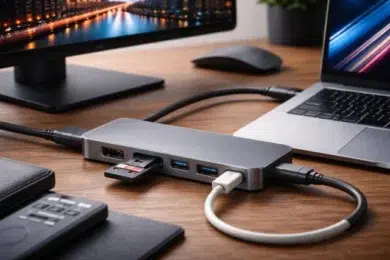
If you have ever tried to plug a USB drive into a modern laptop, connect your tablet to a monitor, and charge your phone at the same time. One small accessory can turn a single USB C port into a mini workstation: HDMI for a bigger screen, USB ports for peripherals, and often power passthrough so your device stays charged while you work.
But here is the catch: not every hub supports the same video quality, charging speed, or data performance. Some are great for office work and presentations. Others are built for creators who need 4K at 60Hz, fast file transfers, and stable connections for long hours. This guide will help you pick the right Type C to USB and HDMI hub for your laptop, tablet, or phone, without paying for features you will never use.
What a Type C to USB and HDMI hub actually does
A hub takes one USB C port and splits it into multiple connections, typically:
- HDMI output for a monitor, TV, or projector
- USB A ports for mouse, keyboard, flash drive, printer, etc.
- USB C power delivery passthrough so you can charge while using the hub
- Sometimes extras like SD card slots, Ethernet, or audio
The most important thing to understand is that “USB C” is just the connector shape. you already know why a Type C to USB and HDMI hub is so popular. What your device can do through that port depends on the underlying standards it supports (USB 3.x, USB4, Thunderbolt, DisplayPort Alt Mode, and power delivery). That is why two hubs that look identical can perform very differently.
The quick compatibility check before you buy
Before choosing a hub, confirm these three basics:
1) Does your device support video output over USB C?
For HDMI to work through a hub, most devices need DisplayPort Alternate Mode (DP Alt Mode) or a Thunderbolt or USB4 port that can carry display signals. VESA’s DP Alt Mode standard explains how DisplayPort video can run through USB C.
If your USB C port is “data only” (common on some budget devices), the HDMI port on the hub may not work at all.
2) How much power does your device need?
If you want charging through the hub, look for Power Delivery passthrough and pick a wattage that matches your laptop or tablet. Some hubs advertise “100W PD” but deliver less to the laptop because the hub itself uses a small portion of power.
3) What display quality do you actually need?
A lot of people buy “4K hubs” and later realize they only get 4K at 30Hz, which feels less smooth for mouse movement and scrolling. If you want 4K at 60Hz, confirm it clearly in specs and match it with your device capability and cable quality.
H2: Type C to USB and HDMI hub top picks by use case
Instead of throwing random product names at you, here are the best “types” of hubs to buy, based on how you will use them. This is the easiest way to get a top pick that actually fits your device and budget.
Top pick for everyday work: The slim 6-in-1 hub
Best for:
- Office work, browsing, Zoom calls
- Presentations and basic external display use
- Students and remote workers
Look for:
- HDMI up to 4K (ideally 60Hz if budget allows)
- 2x USB A ports (USB 3.0 / 3.2 Gen 1 is enough for most)
- USB C PD passthrough (at least 60W for many laptops)
- Compact aluminum body for heat control
Why this is the sweet spot:
It covers the most common needs with minimal bulk. For most people, this is the best value Type C to USB and HDMI hub.
Top pick for creators: The 8-in-1 hub with 4K 60Hz + SD card
Best for:
- Content creators and photographers
- People moving large files to and from SD or microSD
- Anyone who wants smoother 4K display output
Look for:
- HDMI 4K at 60Hz support (not only 30Hz)
- UHS I SD and microSD slots (good enough for many workflows)
- USB A 5Gbps for external SSDs
- USB C PD passthrough 100W input
Why it matters:
The difference between 4K 30Hz and 4K 60Hz is noticeable if you edit, multitask, or spend hours on a second monitor. Also, SD card access saves time and avoids dongle chaos.
Top pick for stable internet: The hub with Gigabit Ethernet
Best for:
- Online meetings that cannot drop
- Competitive gaming on a laptop
- Offices with weak Wi-Fi
Look for:
- Gigabit Ethernet (1000 Mbps)
- HDMI plus at least two USB ports
- Strong strain relief on the cable
Real world benefit:
Wi-Fi is convenient, but Ethernet is consistency. If your work depends on stability, this hub style is worth it.
Top pick for travel: The ultra-compact hub with a short cable
Best for:
- People who move between hotels, classrooms, and offices
- Tablet users who want a clean setup
- Frequent presenters
Look for:
- Lightweight design
- HDMI plus at least one USB A and PD passthrough
- Short, sturdy cable to reduce port stress
Travel tip:
Avoid very stiff cables on hubs. They put extra pressure on your device port, especially on tablets.
Top pick for “one cable desk setup”: USB C docking-style hub
Best for:
- Home office setups with monitor, keyboard, mouse, Ethernet, and storage
- People who dock and undock daily
- Power users who hate plugging multiple cables
Look for:
- Strong PD passthrough, commonly 100W input
- HDMI 4K 60Hz and preferably DisplayPort too
- Multiple USB A ports
- Ethernet and SD slots
- Better heat dissipation and a longer cable
This is the closest thing to a docking station without paying full docking station prices.
Understanding specs without getting overwhelmed
Here is what the key specs mean in plain language, and what to prioritize.
HDMI output: 1080p vs 4K 30Hz vs 4K 60Hz
- 1080p is fine for basic work and presentations.
- 4K 30Hz is okay for slides and movies, but less smooth for desktop use.
- 4K 60Hz feels noticeably better for daily productivity and creative work.
A lot of hubs can output 4K, but not all can do it at 60Hz. If you care about smoothness, prioritize 60Hz.
HDMI standards continue evolving, and bandwidth capability is one reason newer versions support higher resolutions and refresh rates.
USB speeds: what matters for real users
- USB 2.0 ports on hubs are okay for mouse and keyboard.
- USB 3.x (5Gbps) is better for flash drives and SSDs.
- If you often use external SSDs for big projects, faster ports matter.
Also note: many hubs share bandwidth internally. If you run HDMI plus copy large files at the same time, some hubs slow down. That is normal behavior for many budget models.
Power Delivery passthrough: what to look for
If your laptop charger is 65W, aim for a hub that supports:
- PD passthrough 100W input (so it can pass enough power)
- A quality USB C PD charger and cable
Remember: hubs often reserve a small portion of power for themselves, so your laptop might receive slightly less than the input.
Best Type C to USB and HDMI hub for laptops
Laptops are the most forgiving because many support video out properly, but you still need to match the hub to your laptop’s port.
If your laptop has USB4
USB4 is designed to handle multiple protocols over a single connection and can support higher bandwidth configurations depending on the device.
Practical advice:
Choose a hub that clearly supports 4K 60Hz, 100W PD passthrough, and at least one 5Gbps USB A port.
If your laptop has Thunderbolt
Thunderbolt generally offers consistent high performance and can support demanding displays and peripherals. If you are buying premium, look for hubs marketed for Thunderbolt or USB4 compatibility and use a certified cable when needed.
Best Type C to USB and HDMI hub for tablets
Tablets are fantastic with hubs, but they are pickier.
iPad and Android tablets: what to expect
Many tablets support external displays, but some mirror the screen instead of extending it. That is a device feature, not a hub problem.
For tablets, prioritize:
- Lightweight hub
- PD passthrough (so battery does not drain)
- HDMI 4K support for crisp output
- One or two USB ports for basic accessories
If you plan to connect a USB keyboard and mouse, even a simple hub works. If you plan to edit photos from SD cards, get the 8-in-1 style.
Best Type C to USB and HDMI hub for phones
Phone support varies a lot.
When a hub works great with phones
Some phones support desktop-like modes or external display features, and a Type C to USB and HDMI hub can turn a phone into a basic workstation for:
- Presentations
- Light document work
- Streaming to a TV or monitor
What to look for:
- PD passthrough (phones can drain fast on HDMI output)
- Compact design
- Solid build, because phones are often used on the go
If your phone does not support video output over USB C, HDMI on the hub will not work. This is the most common surprise buyers face.
A simple hub comparison table (what to buy based on your needs)
| Your main need | Best hub type | Must-have features |
|---|---|---|
| Daily work + presentations | Slim 6-in-1 | HDMI, 2x USB A, PD passthrough |
| Smooth 4K monitor use | Creator 8-in-1 | HDMI 4K 60Hz, USB 3.x, PD |
| Reliable internet | Ethernet hub | Gigabit Ethernet, HDMI, PD |
| Travel setup | Compact hub | Short cable, HDMI, PD |
| Full desk setup | Docking-style hub | Multiple ports, 100W PD input, good cooling |
Troubleshooting: common problems and quick fixes
“HDMI not working”
Most common causes:
- Your USB C port does not support video output
- Hub needs more power, connect PD charger
- Wrong input on monitor or TV
- Poor HDMI cable
DP Alt Mode support is a key requirement for many USB C to HDMI solutions.
“My monitor is stuck at 30Hz”
Common reasons:
- Hub only supports 4K 30Hz
- HDMI cable is low quality
- Device output is limited
- Display settings are not configured
Fix:
Check display settings on your device, confirm hub specs, and try a better HDMI cable.
“USB devices disconnect randomly”
Possible causes:
- Hub overheating
- Not enough power, especially when running external drives
- Low-quality cable or connector looseness
Fix:
Use PD power input, avoid stacking too many high-power USB devices, and choose a hub with a solid aluminum body for heat control.
How to choose a high-quality hub without overpaying
Use this checklist:
- HDMI at the refresh rate you want (prefer 4K 60Hz if possible)
- PD passthrough wattage that fits your device
- Enough USB ports for your real life accessories
- Good build quality and heat management
- A reputable brand with clear specs and return policy
If the listing is vague like “supports 4K” but does not mention 30Hz or 60Hz, assume it is 30Hz until proven otherwise.
Conclusion: buy the right Type C to USB and HDMI hub for your workflow
A Type C to USB and HDMI hub is one of those purchases that feels small, but can massively improve how you work, study, and travel. The best choice depends on your device’s USB C capabilities and your real needs: smooth 4K 60Hz output for creators, Ethernet stability for professionals, or a compact travel hub for everyday convenience.
If you match the hub to your workflow and confirm video output support before buying, you will avoid the biggest headaches and end up with a setup that feels effortless.
In the bigger picture, a lot of modern hub performance comes down to what your device supports under the hood, including standards like USB4. If you want a simple explanation of what USB4 is and why it matters for bandwidth and display support, this overview is helpful: USB4.